
Spendella / Knowledge base
Set a spending budget
Choose a clear limit for a period and see how much you have left to spend.
This guide covers the free plan — setting it up yourself takes a minute.Get started free →
Updated 7 September 2026
Where to find it
- On the website
- Menu → Budgets.
- On Android
- More → Budgets.
Start with one category
You do not need to limit everything at once. Choose groceries, eating out or another category you want to watch. Check how much you normally spend on it.
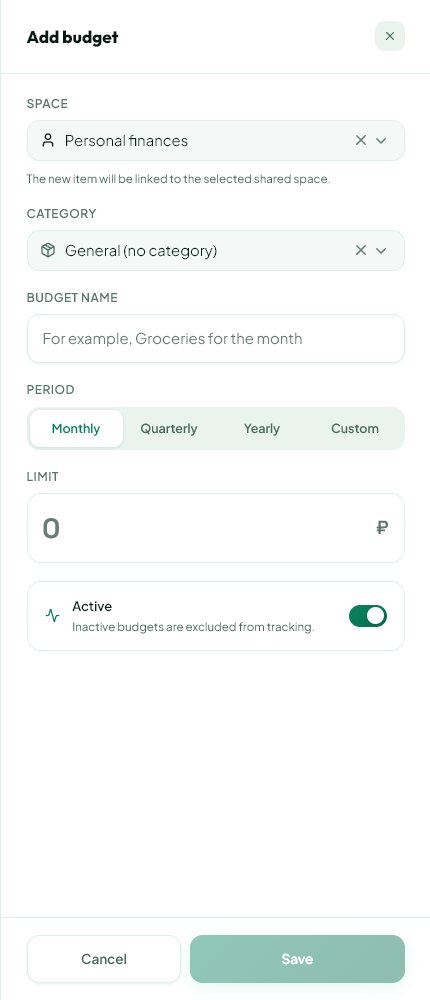
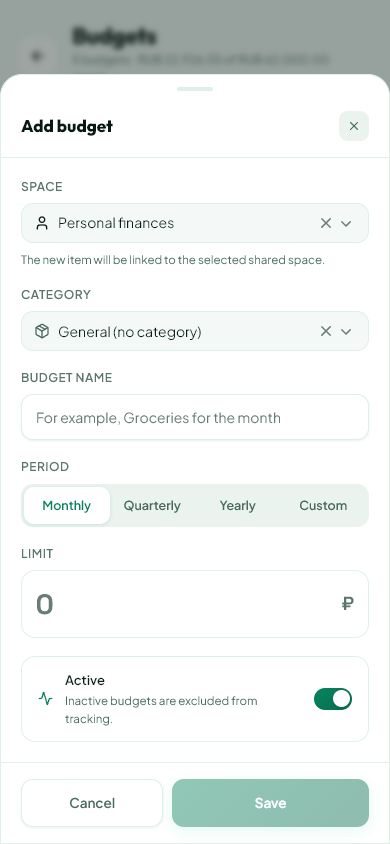
- Open Budgets and create a budget.
- Choose a category, amount and period from the form.
- Set a realistic limit. A drastic cut is hard to maintain.
Check what is included
Spendella compares the budget with recorded expenses. A purchase in another category or outside the period may not be included in the total you expect.
- Check the category and date of the purchase.
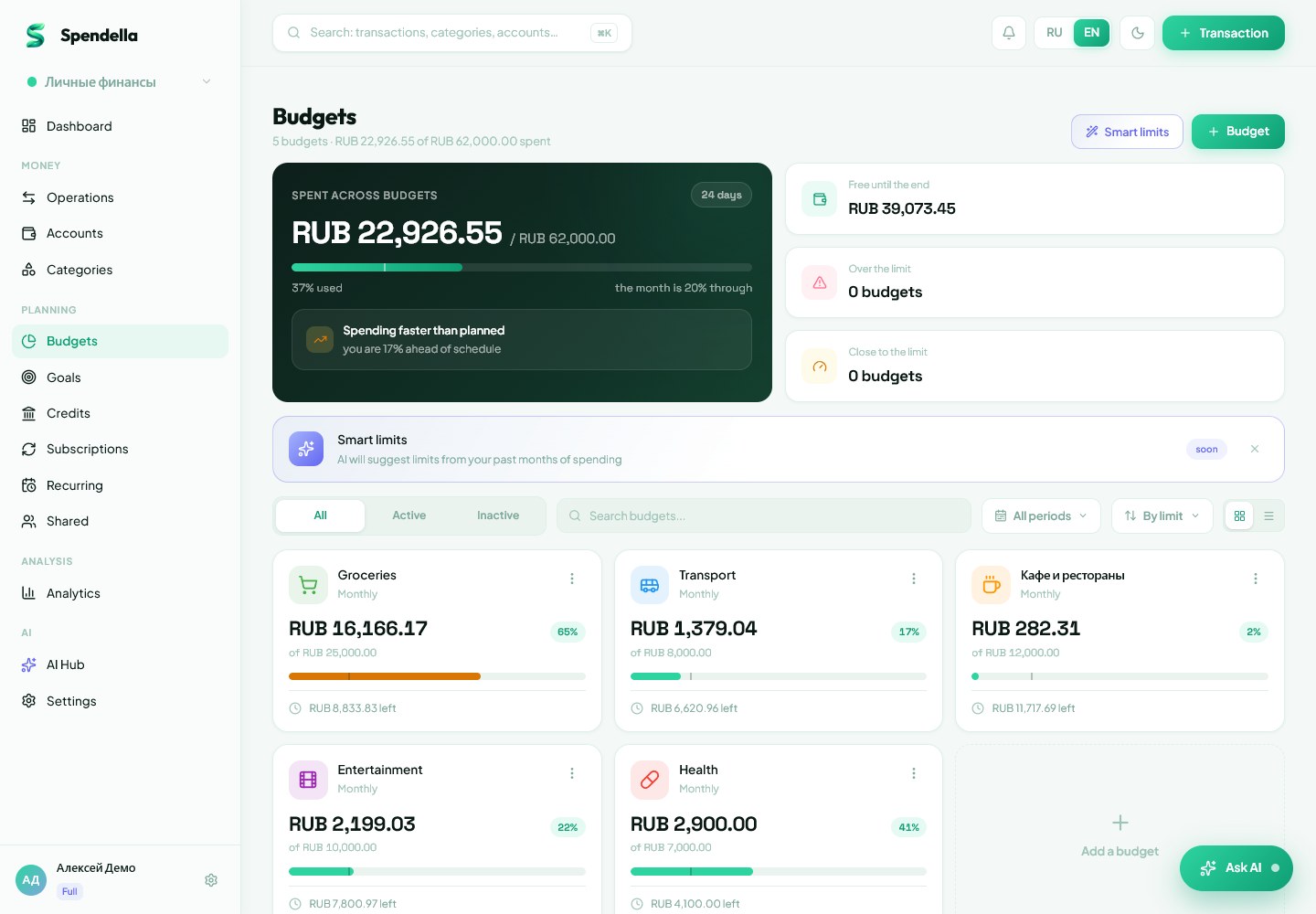
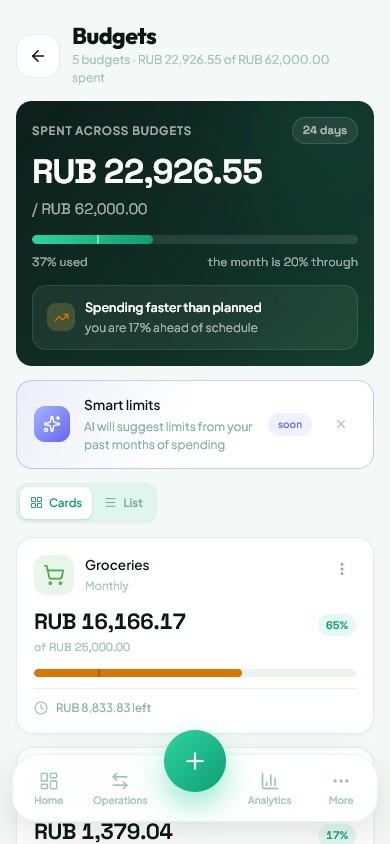
- Read the spent and remaining amounts on the budget card.
- If a purchase was categorised incorrectly, edit the transaction rather than the limit.
If you go over budget
Going over budget is a reason to review upcoming purchases. It does not block your bank card or stop you recording expenses.
- Decide which purchases can wait.
- Adjust the limit if it was unrealistic to begin with.
- At the end of the period, compare the plan with actual spending before setting the next budget.
What you should see
The budget card shows the limit, spending and remaining allowance.
Everything above is free.
No time limit, no card. Sign up and we open the section this guide is about.
Still need help?
Tell us which step you got stuck on. Support can help you work through it.
Contact support ↗Contact us without signing in