
Spendella / Knowledge base
Check budget spending and previous periods
See which purchases contribute to a budget and how results change between periods.
This guide covers the free plan — setting it up yourself takes a minute.Get started free →
Updated 7 September 2026
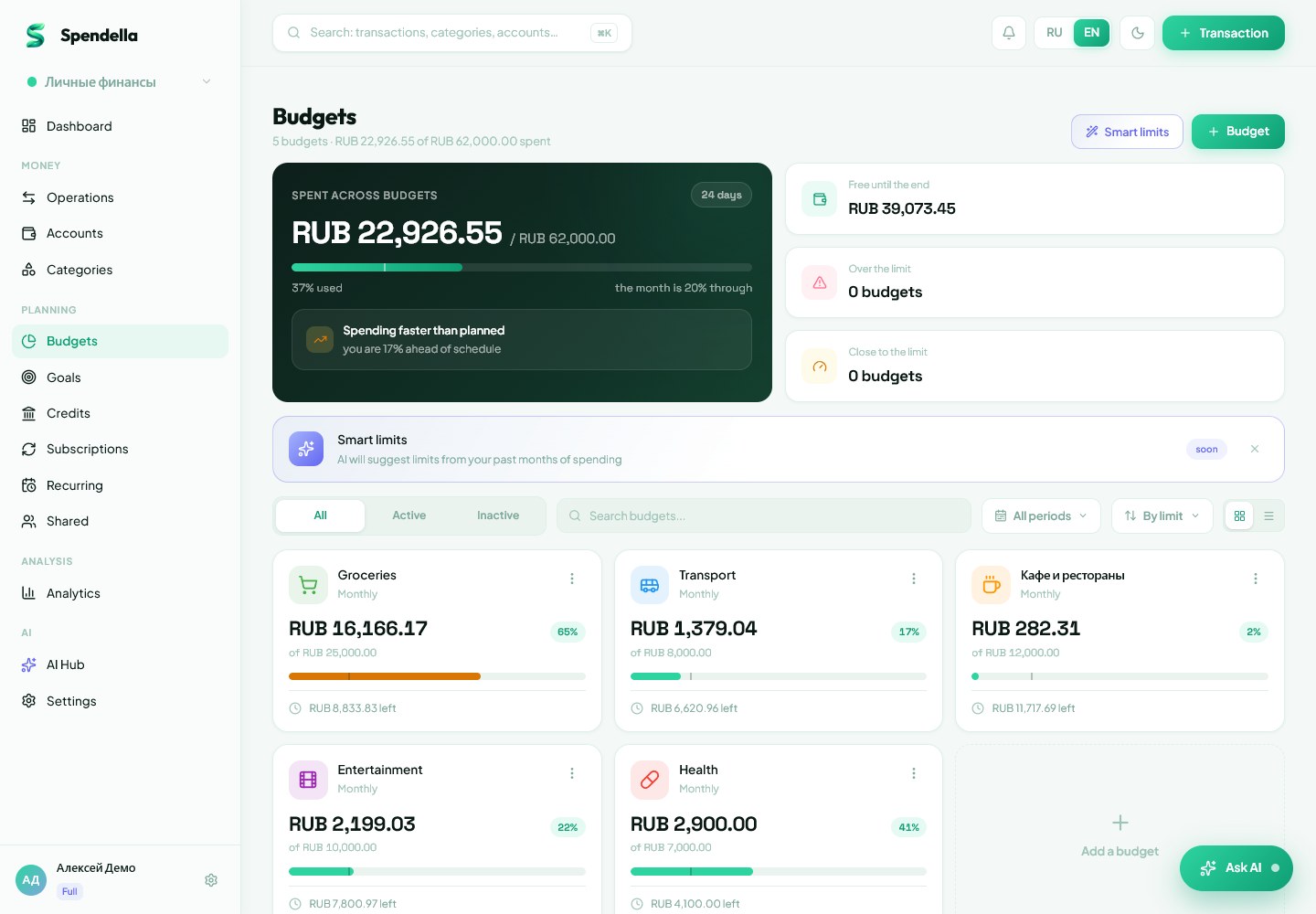
Where to find it
- On the website
- Budgets → budget → history.
- On Android
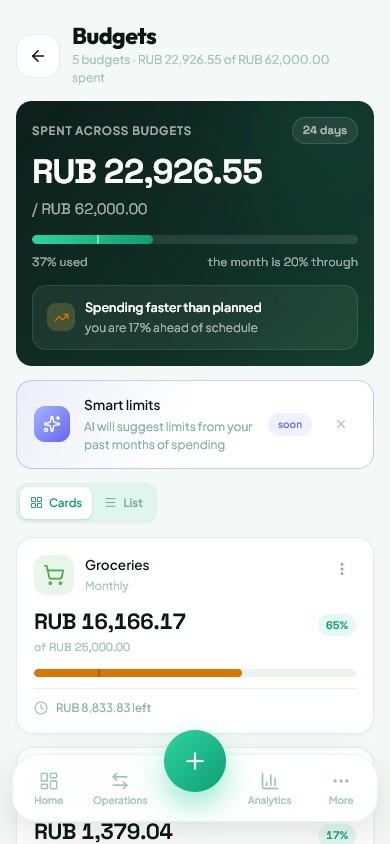
- More → Budgets → budget and its history.
Get started free and open this section Sign up in a minute, no card needed. This exact section opens right after.
01
Before you start
A budget compares a limit with matching expenses. Its period and category matter more than the date you opened the card. Start with these conditions if a budget looks wrong.
02
What to do
- Open the budget and check its category, amount and period.
- Open history using the action on the card.
- Choose the relevant period and compare the limit with actual spending.
- To inspect a purchase, find it in Transactions using the same dates and category.
- Correct any mistaken transaction and refresh the budget.
03
If something goes wrong
- Purchase not included: check its date and category.
- Do not change the limit merely to hide an incorrect category.
- An empty past period is not proof there were no expenses. Check transaction history.
What you should see
You can see which expenses affected the budget and when it exceeded the limit.
Try it yourself
Everything above is free.
No time limit, no card. Sign up and we open the section this guide is about.
Still need help?
Tell us which step you got stuck on. Support can help you work through it.
Contact support ↗Contact us without signing in