
Spendella / Knowledge base
How to choose budget limits from past spending
If you are unsure how much to budget for groceries or transport, start with a history-based suggestion and review it before applying.
This guide covers the free plan — setting it up yourself takes a minute.Get started free →
Updated 8 September 2026
Where to find it
- On the website
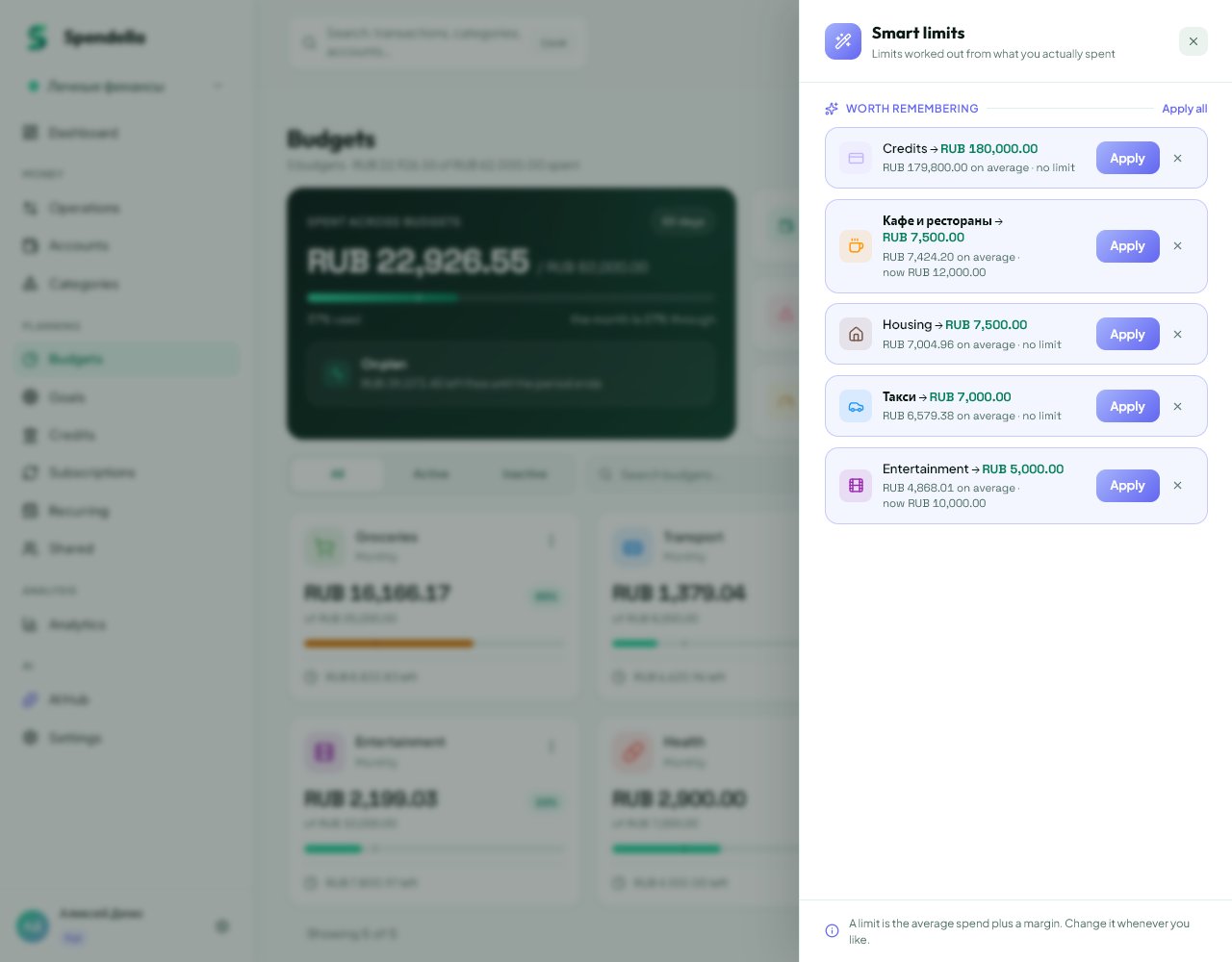
- Budgets → Smart limits.
- On Android
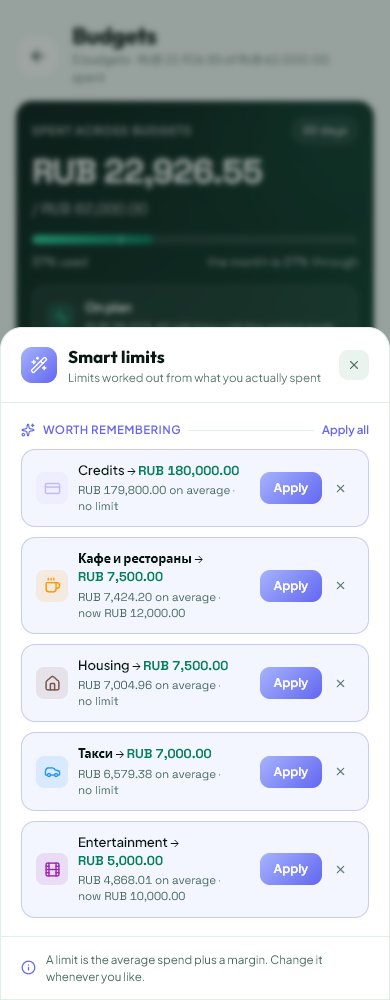
- More → Budgets → magic wand.
Before you start
This automation is available on Extended and Full. Start with current records: the tool cannot account for money you have not recorded in Spendella.
Steps
- Check categories in past expenses. A miscategorised purchase distorts the suggestion.
- Open Smart limits. Review the category, average spending, current limit and suggested amount.
- Consider unusual months: a holiday or a one-off purchase need not become your regular budget.
- Apply a suitable suggestion individually. Use the apply-all action only after reviewing every suggestion.
- Return to Budgets and confirm the limit changed. Edit it through the normal budget form if needed.
If the result is not what you expected
An empty list need not be an error: there may be insufficient relevant history. You can set a limit manually. A Spendella limit does not block bank purchases.
What you should see
The selected categories have the limits you reviewed, visible in the budget list.
Everything above is free.
No time limit, no card. Sign up and we open the section this guide is about.
Still need help?
Tell us which step you got stuck on. Support can help you work through it.
Contact support ↗Contact us without signing in