
Spendella / Knowledge base
Find subscriptions you no longer need
Bring recurring charges together and decide which services you actually use.
This guide covers the free plan — setting it up yourself takes a minute.Get started free →
Updated 7 September 2026
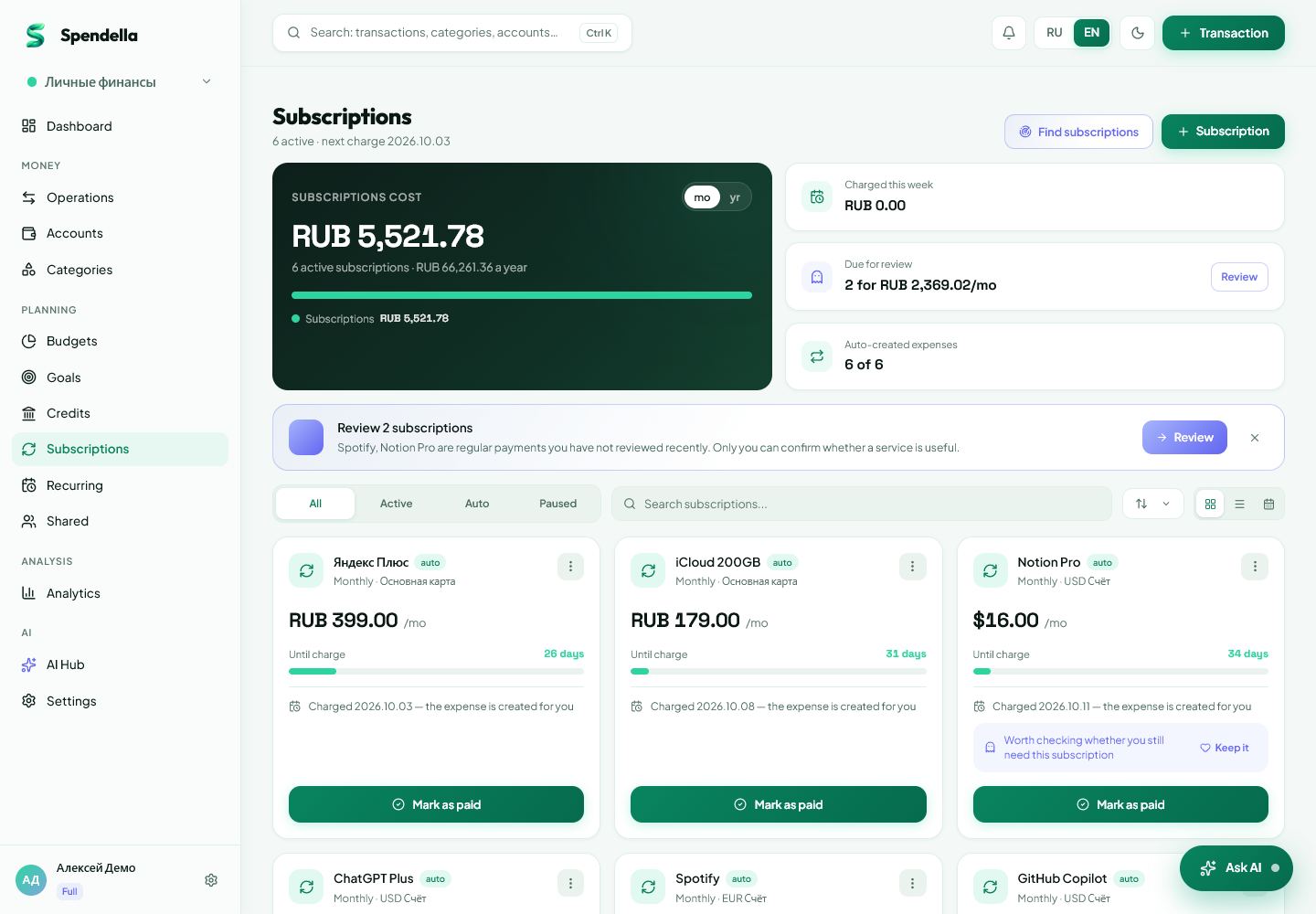
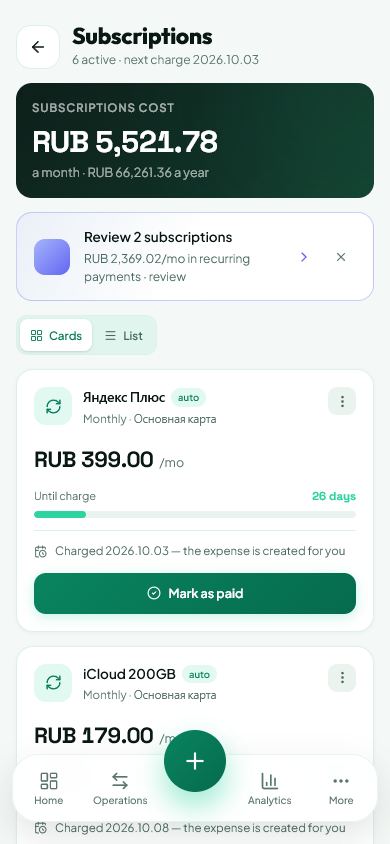
Where to find it
- On the website
- Menu → Subscriptions.
- On Android
- More → Subscriptions.
Check your statements
Look through recent months for music, streaming, storage and app charges. Matching amounts are a reason to investigate, not proof of a subscription.
- Open Subscriptions.
- Add services you pay for regularly and check the amount and frequency.
- Look further back in your bank history for annual or infrequent charges.
Decide what to keep
For each subscription, ask whether you used it in the last month. Choose a more suitable period for seasonal services.
- Check whether you pay for two services that do the same job.
- Confirm the next charge date with the provider.
- Update the entry in Spendella if the price has changed.
Cancel where you subscribed
Deleting a Spendella entry does not cancel the service’s billing. Cancel through the provider’s account page or the app store.
- Open subscription settings with the provider.
- Complete cancellation and keep the confirmation.
- Then update your Spendella records and check your next bank statement.
What you should see
You have a list of subscriptions to review with their providers.
Everything above is free.
No time limit, no card. Sign up and we open the section this guide is about.
Still need help?
Tell us which step you got stuck on. Support can help you work through it.
Contact support ↗Contact us without signing in