
Spendella / Knowledge base
Add an expense by voice
Describe one purchase, review the recognised details and then save the entry.
This guide covers the free plan — setting it up yourself takes a minute.Get started free →
Updated 7 September 2026
Where to find it
- On the website
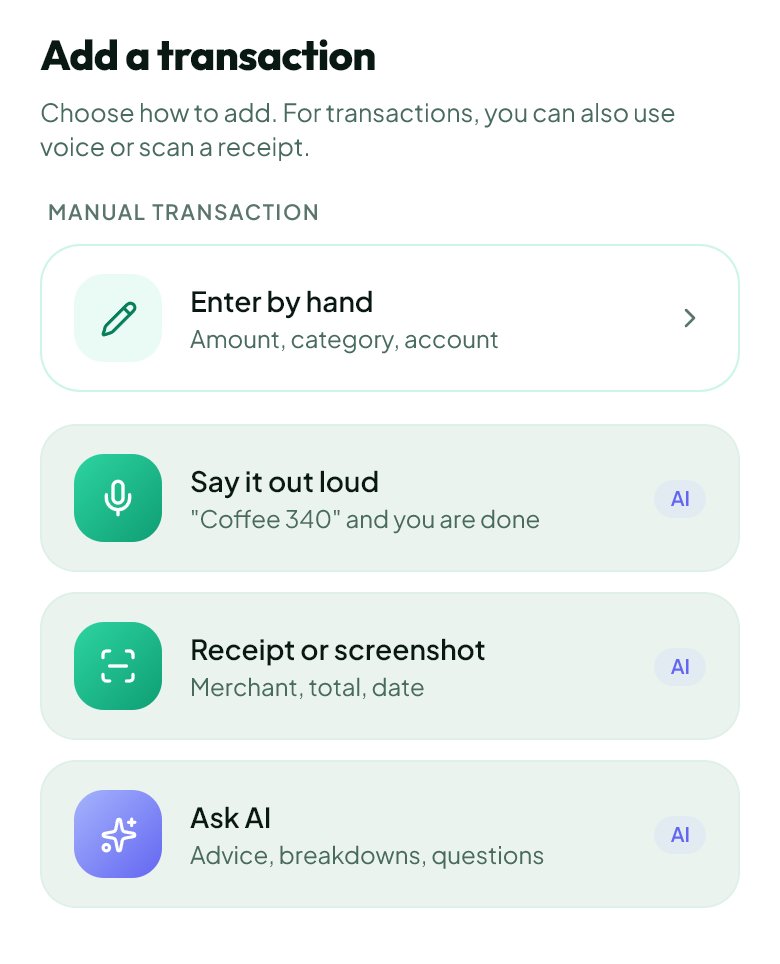
- On a computer: Transactions → By voice. On a phone: + → Say it out loud.
- On Android
- Plus button → voice input.
Get started free and open this section Sign up in a minute, no card needed. This exact section opens right after.

01
Before you start
Voice input needs microphone access. Describe one clear transaction at a time, for example: “Today I spent 450 roubles on groceries”.
02
What to do
- Open voice input and allow the microphone if you want to use it.
- Start recording and state the transaction type, amount and purchase. Mention the date if it was not today.
- Finish recording and wait for processing.
- Review the amount, date, account and category in the displayed form.
- Correct mistakes and confirm. Find the saved entry in Transactions.
03
If something goes wrong
- Microphone unavailable: check Spendella’s Android permission or the website’s browser permissions.
- Recognition is wrong: correct the fields manually rather than recording everything again.
- AI allowance exhausted: check your plan or enter the transaction manually.
What you should see
The purchase enters your records after confirmation, not merely after speaking.


Try it yourself
Everything above is free.
No time limit, no card. Sign up and we open the section this guide is about.
Still need help?
Tell us which step you got stuck on. Support can help you work through it.
Contact support ↗Contact us without signing in