
Spendella / Knowledge base
Add a purchase from a receipt or photo
Use a readable image and review recognition. Pay particular attention to the total and date.
This guide covers the free plan — setting it up yourself takes a minute.Get started free →
Updated 7 September 2026
Where to find it
- On the website
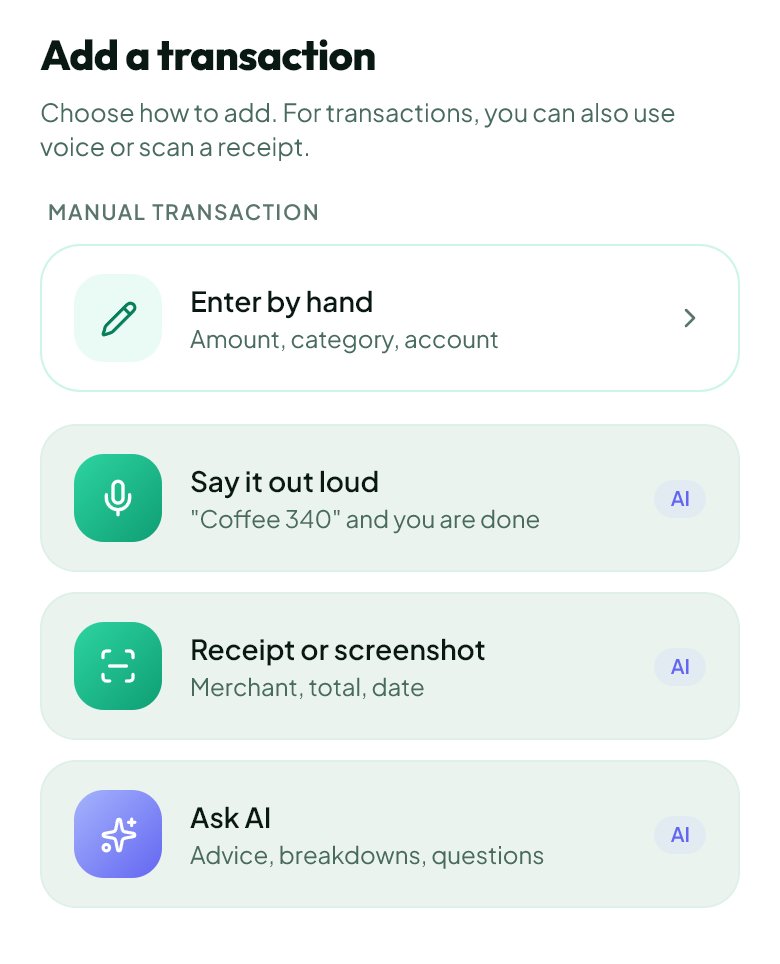
- Add button → receipt or image.
- On Android
- Plus button → receipt or image.
Get started free and open this section Sign up in a minute, no card needed. This exact section opens right after.

01
Before you start
Use a sharp image without glare and with the total visible. Bank statement files have a separate import flow. Avoid uploading personal details that are unnecessary for the purchase.
02
What to do
- Choose receipt or image recognition.
- Take a photo or select a file using the offered option. Camera permission is only needed when taking a photo in the app.
- Wait for the result.
- Check the total: an item price, change and amount paid can be different numbers.
- Check the date, account and category. Confirm once.
- Open Transactions to verify the purchase was added.
03
If something goes wrong
- Unreadable text: photograph the receipt again in even light or enter the amount manually.
- Already recorded the purchase manually: do not confirm a duplicate from its receipt.
- Missing result: check processing status and Drafts before uploading again.
What you should see
Your records contain the purchase details you reviewed.


Try it yourself
Everything above is free.
No time limit, no card. Sign up and we open the section this guide is about.
Still need help?
Tell us which step you got stuck on. Support can help you work through it.
Contact support ↗Contact us without signing in