
Spendella / Knowledge base
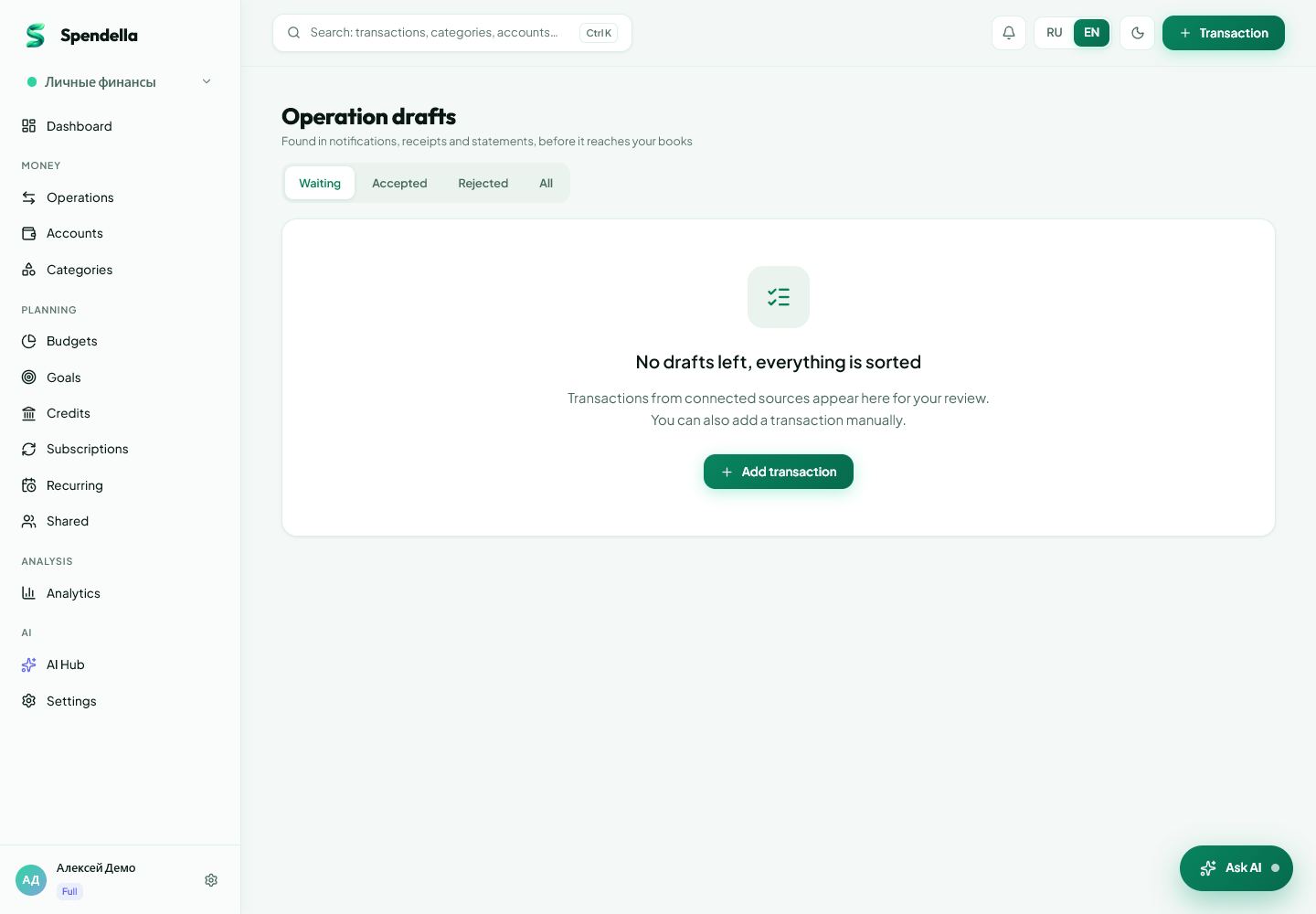
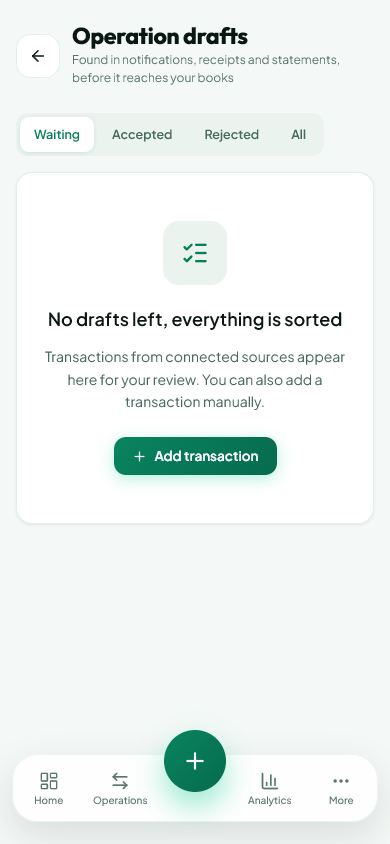
Review transaction drafts
Check the proposed category, confirm a useful entry or reject an unwanted one.
This guide covers the free plan — setting it up yourself takes a minute.Get started free →
Updated 7 September 2026
Where to find it
- On the website
- Menu → Drafts.
- On Android
- More → Drafts.
Get started free and open this section Sign up in a minute, no card needed. This exact section opens right after.
01
Before you start
A draft is an entry needing review, not necessarily a completed transaction. Check the card’s status: processing, awaiting review and an error require different actions.
02
What to do
- Open Drafts and choose an entry awaiting a decision.
- Read the source text and check the amount and purpose.
- Choose a suitable category if the card asks for one.
- If a remember-category option is offered, use it only for a clear recurring description.
- Confirm the correct entry. Reject irrelevant or unwanted entries.
- Check that the result appears in Transactions.
03
If something goes wrong
- Processing status: wait for the result rather than confirming blindly.
- Wrong amount with no editable field: reject the draft and record the correct transaction manually.
- The purchase already exists: do not confirm it again.
What you should see
Confirmed entries enter your records; rejected entries do not become unwanted expenses.
Try it yourself
Everything above is free.
No time limit, no card. Sign up and we open the section this guide is about.
Still need help?
Tell us which step you got stuck on. Support can help you work through it.
Contact support ↗Contact us without signing in