
Spendella / Knowledge base
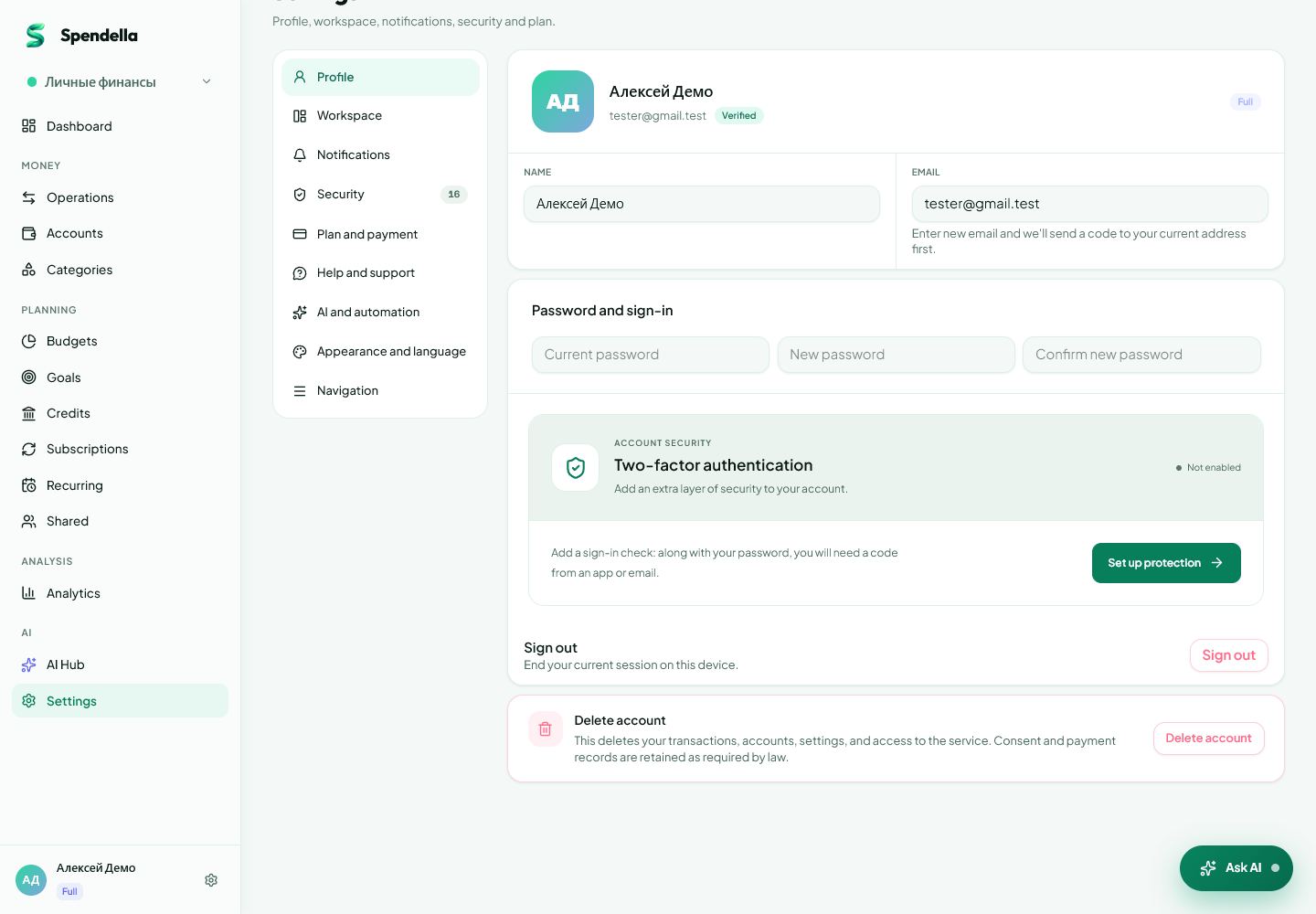
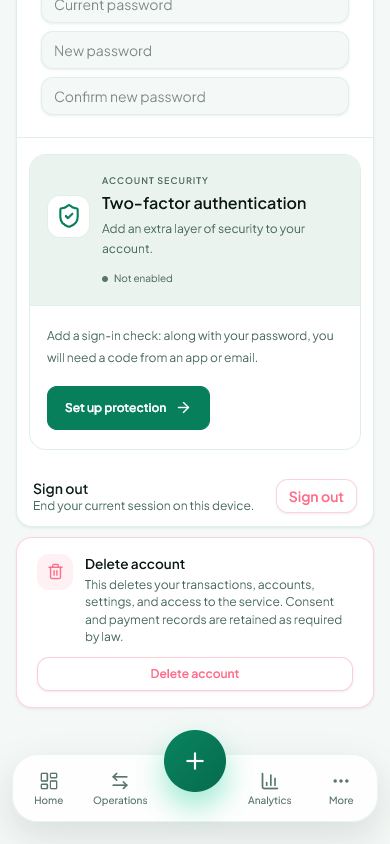
Enable two-factor authentication and save recovery codes
Set up an additional sign-in check and prepare for losing access to your phone.
This guide covers the free plan — setting it up yourself takes a minute.Get started free →
Updated 7 September 2026
Where to find it
- On the website
- Settings → Profile → two-factor authentication.
- On Android
- More → Settings → Security → two-factor authentication.
Get started free and open this section Sign up in a minute, no card needed. This exact section opens right after.
01
Before you start
Two-factor authentication asks for another code when signing in. Authenticator codes appear in your authenticator app; email codes arrive by email. They are different methods.
02
What to do
- Open two-factor setup and choose an available method.
- For an authenticator, add the QR code or secret key to your authenticator app. On one phone, use the key or the offered app-opening action.
- Enter the current authenticator code. For email, enter the code from the message.
- Complete confirmation and check that protection is enabled.
- Store the displayed recovery codes safely, separately from this phone.
- Return to this section to change methods or disable protection and complete the requested confirmation.
03
If something goes wrong
- Authenticator code rejected: check the Spendella entry and automatic phone time, then use a fresh code.
- Do not put recovery codes in support chats or share them with other people.
- Displaying a QR code alone does not finish setup; a correct code must confirm it.
What you should see
Spendella asks for an additional check on subsequent applicable sign-ins.
Try it yourself
Everything above is free.
No time limit, no card. Sign up and we open the section this guide is about.
Still need help?
Tell us which step you got stuck on. Support can help you work through it.
Contact support ↗Contact us without signing in