
Spendella / Knowledge base
Cannot sign in: password, email or verification code
Choose a solution for the screen where sign-in stopped. You usually do not need a new account.
Updated 7 September 2026
Where to find it
- On the website
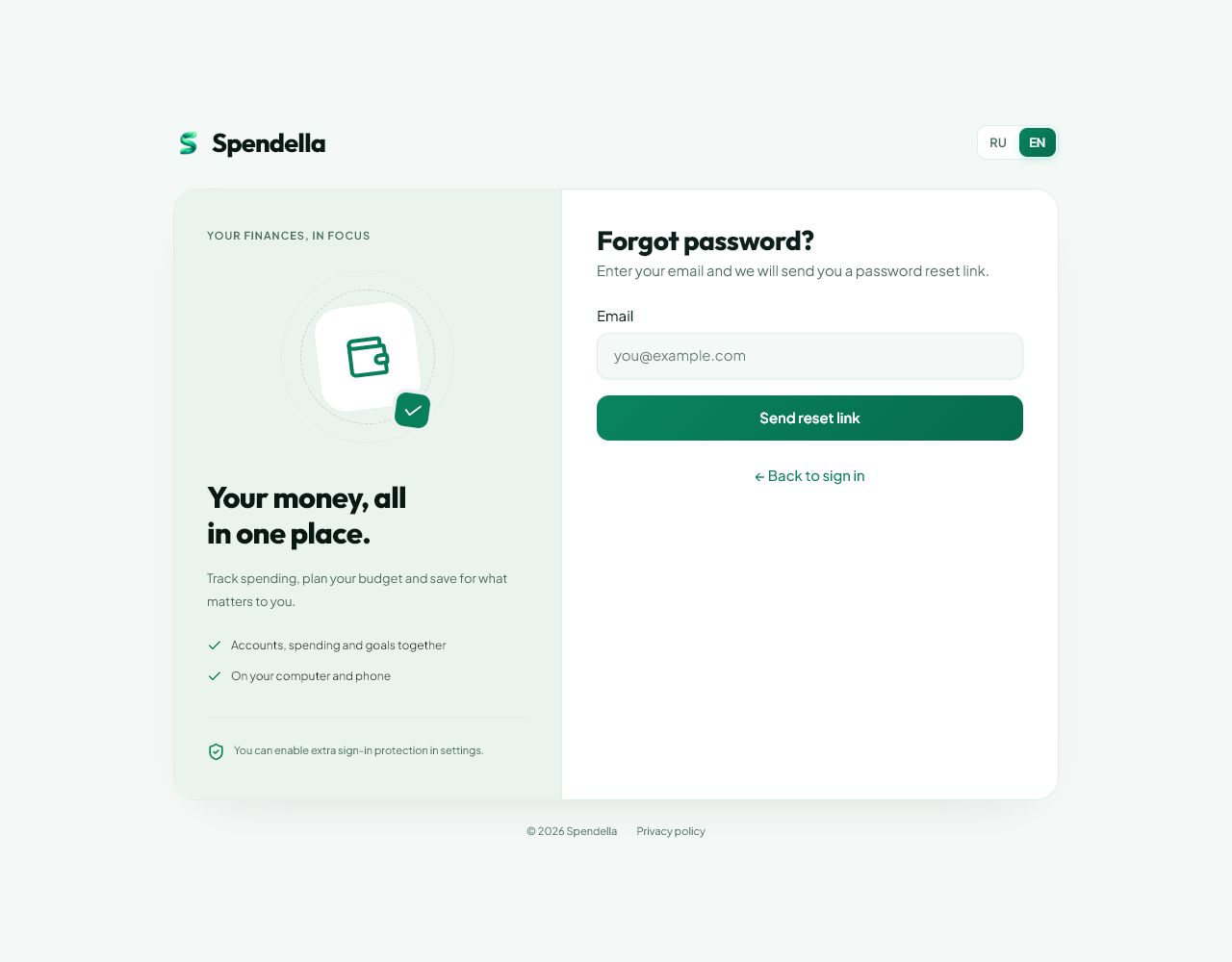
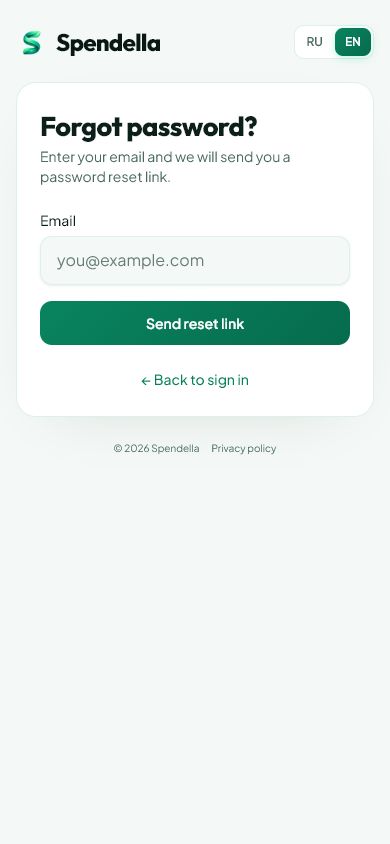
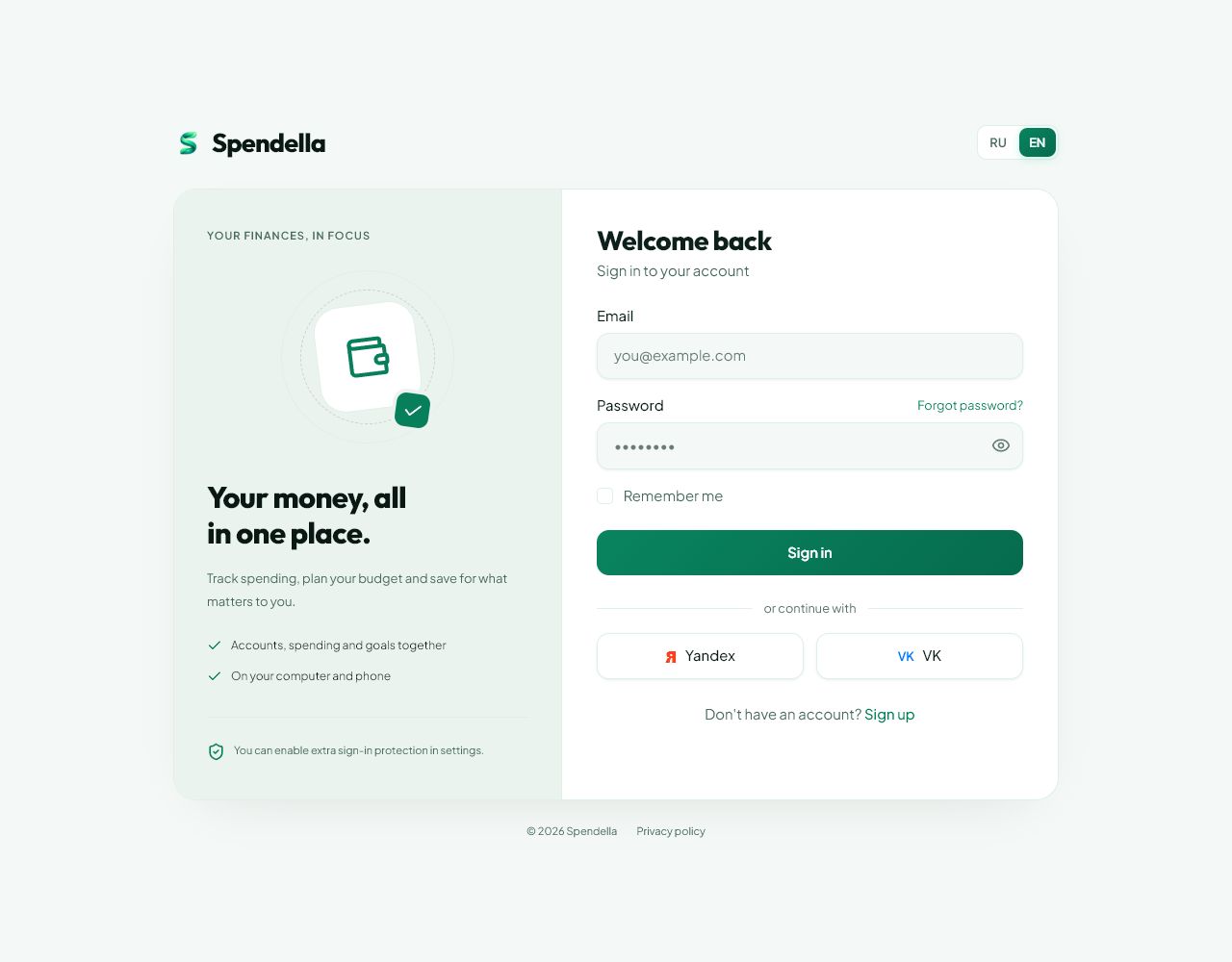
- Sign-in → Forgot password; for a second code, use the options on the verification screen.
- On Android
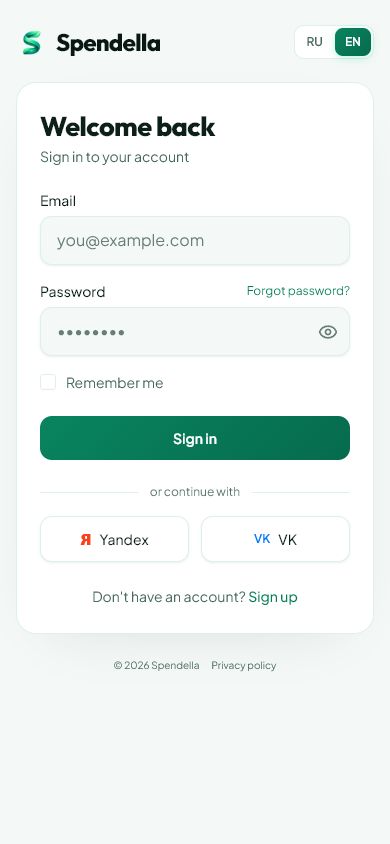
- Sign-in → password recovery or the additional-code screen.
01
Before you start
Check your email address first. An external sign-in service and a Spendella password can be different login methods. Recover the account that contains your records.
02
What to do
- For a forgotten password, choose recovery on the sign-in screen and enter the account email.
- Open the email and set a new password as instructed. If requested several times, use the latest message.
- If the password was accepted but a code is requested, check whether it must come from email or an authenticator.
- If the main method is unavailable, use an offered alternative or a saved recovery code.
- If no method is available, contact support and explain exactly what access you lost.
03
If something goes wrong
- No email: check spam, the address and when resend becomes available.
- Expired code: request a fresh one when allowed. Do not guess random codes.
- Resetting a password does not disable two-factor authentication. Never send secret keys or recovery codes to others.
What you should see
After successful verification, you return to the existing account and history.
Get started
Open the relevant section ↗Cannot sign in: password, email or verification code
Still need help?
Tell us which step you got stuck on. Support can help you work through it.
Contact support ↗Contact us without signing in