
Spendella / Knowledge base
Add or correct a transaction
Choose an expense, income or transfer so your balances and reports make sense.
This guide covers the free plan — setting it up yourself takes a minute.Get started free →
Updated 7 September 2026
Where to find it
- On the website
- Transactions → add button or an existing entry.
- On Android
- Transactions → plus or an existing entry.
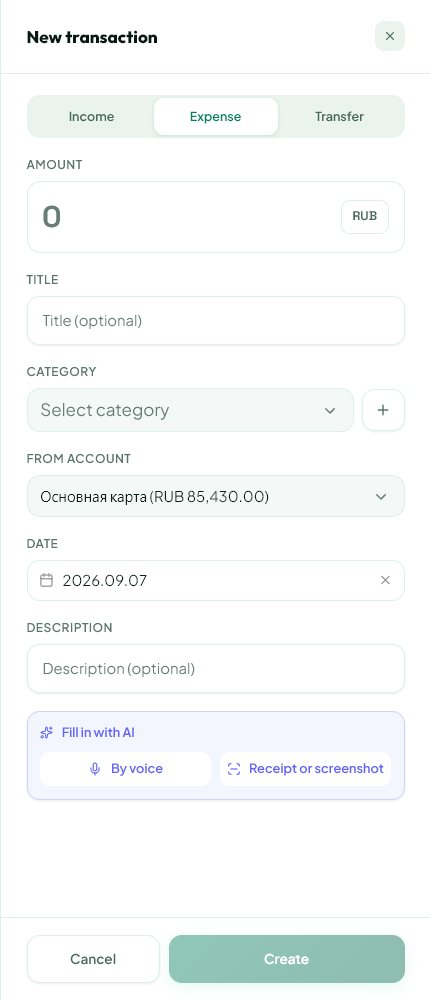
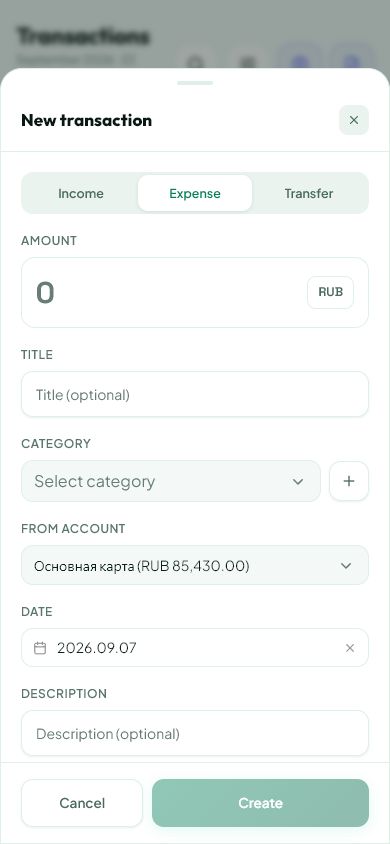
Choose the transaction type
A purchase is an expense; salary is income. Moving money from your own card to your own savings account is a transfer. It does not mean you earned or spent that amount.
- Tap the add-transaction button.
- Choose a type and account. Transfers need both a source and destination account.
- Enter the amount, date and, for income or expenses, a suitable category.
Check the entry
After saving, open Transactions. Search by description or filter by period and account. If you used voice input or recognition, check the amount and date especially carefully.
- Open an entry to correct a mistake.
- Delete only unwanted entries: deletion affects your records.
- Before importing again, check whether the purchase is already listed.
If the balance is wrong
Compare entries for the same period. Common causes are an incorrect opening balance, a missing purchase or a transfer recorded as an expense.
- Check the selected account and workspace.
- Make sure income was not recorded as an expense, or the other way around.
- Find the discrepancy before adding an artificial adjustment just to make the balance look right.
What you should see
The saved entry can be found in Transactions and checked by date and amount.


Everything above is free.
No time limit, no card. Sign up and we open the section this guide is about.
Still need help?
Tell us which step you got stuck on. Support can help you work through it.
Contact support ↗Contact us without signing in