
Spendella / Knowledge base
Find a purchase missing from the list
Check search, period, account and workspace. A filter often hides an entry that has not been lost.
This guide covers the free plan — setting it up yourself takes a minute.Get started free →
Updated 7 September 2026
Where to find it
- On the website
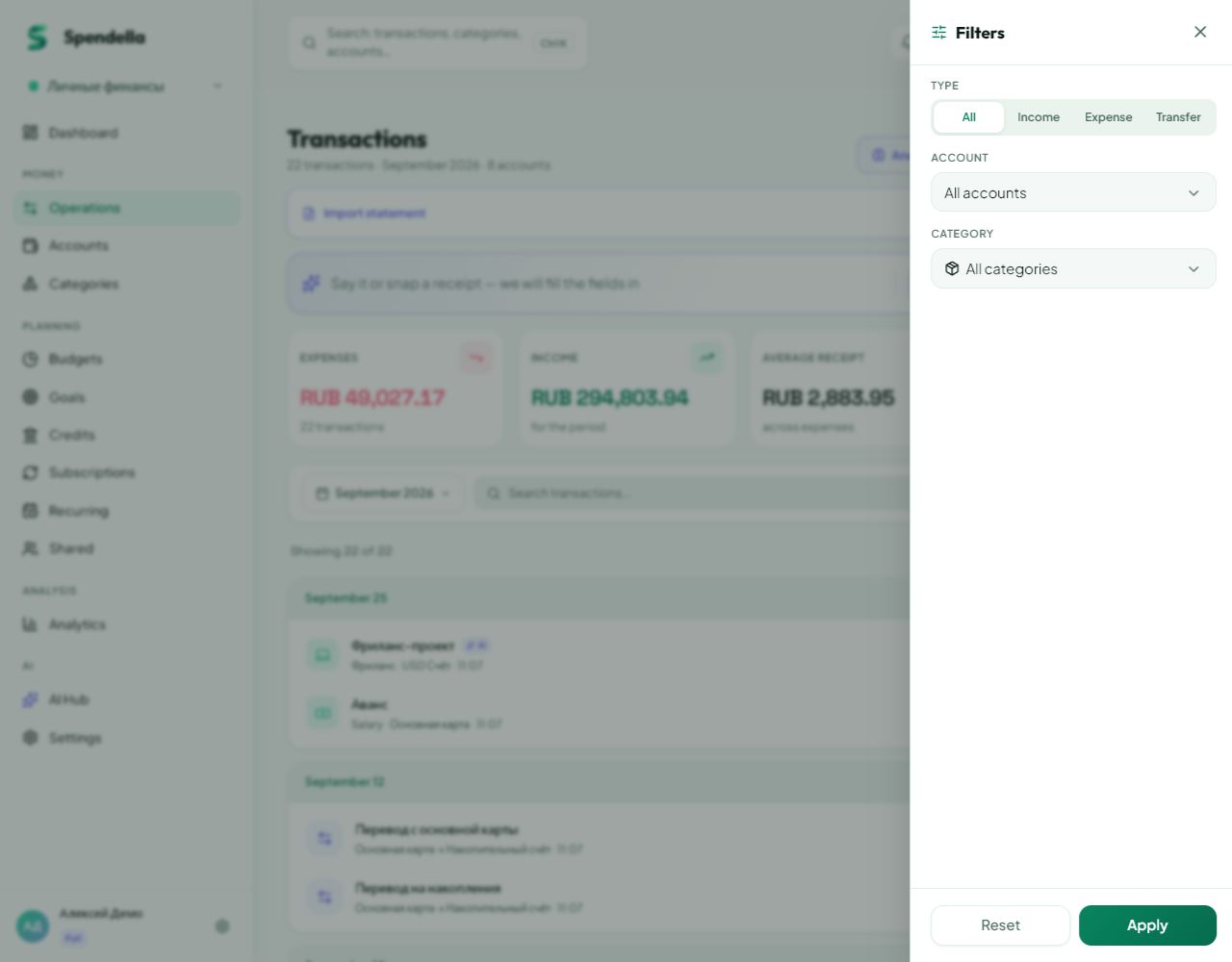
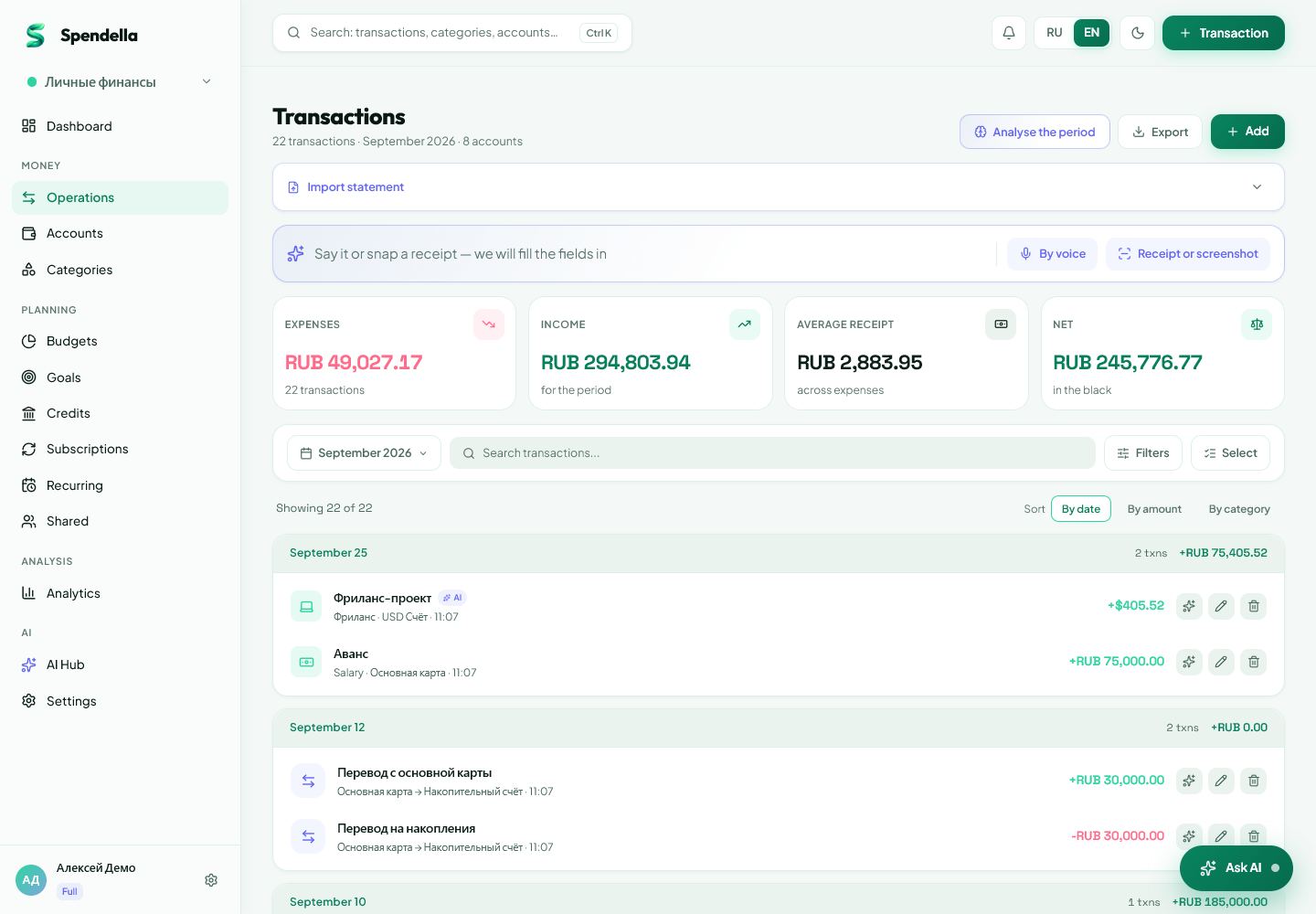
- Transactions → search and filters.
- On Android
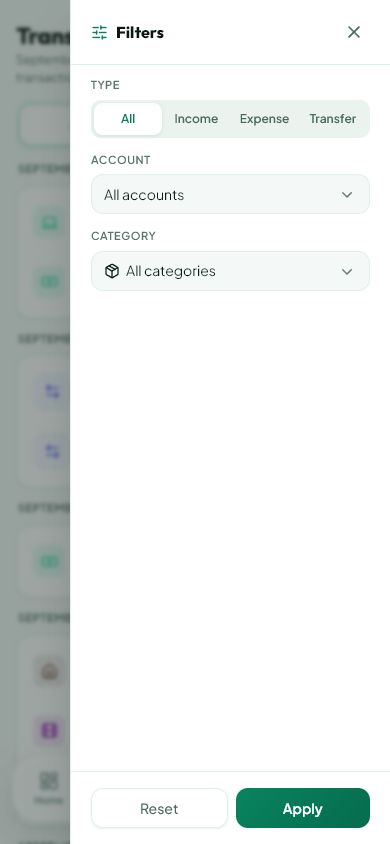
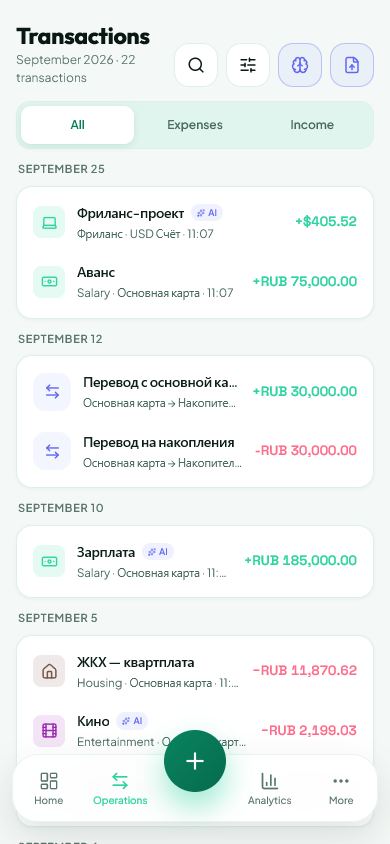
- Transactions → list search and filters.
Get started free and open this section Sign up in a minute, no card needed. This exact section opens right after.
01
Before you start
The list may show only one month, category or account. Searching within these conditions does not necessarily cover all history. Broaden the list first, then narrow it down.
02
What to do
- Open Transactions and check the selected workspace.
- Clear unnecessary filters and choose a period containing the purchase date.
- Enter a short part of the shop name or description.
- If there are too many results, choose the account, category or transaction type.
- Open the matching row and check its amount and date.
03
If something goes wrong
- Purchase near midnight: check the neighbouring date and time zone.
- Used recognition: check Drafts, where the entry may be waiting for review.
- Do not add the purchase again until you have checked filters and import status.
What you should see
Matching entries remain visible and the one you need can be opened or corrected.
Try it yourself
Everything above is free.
No time limit, no card. Sign up and we open the section this guide is about.
Still need help?
Tell us which step you got stuck on. Support can help you work through it.
Contact support ↗Contact us without signing in