
Spendella / Knowledge base
Fix a balance that does not match your bank
Find the discrepancy or adjust the balance without accidentally creating extra income.
This guide covers the free plan — setting it up yourself takes a minute.Get started free →
Updated 7 September 2026
Where to find it
- On the website
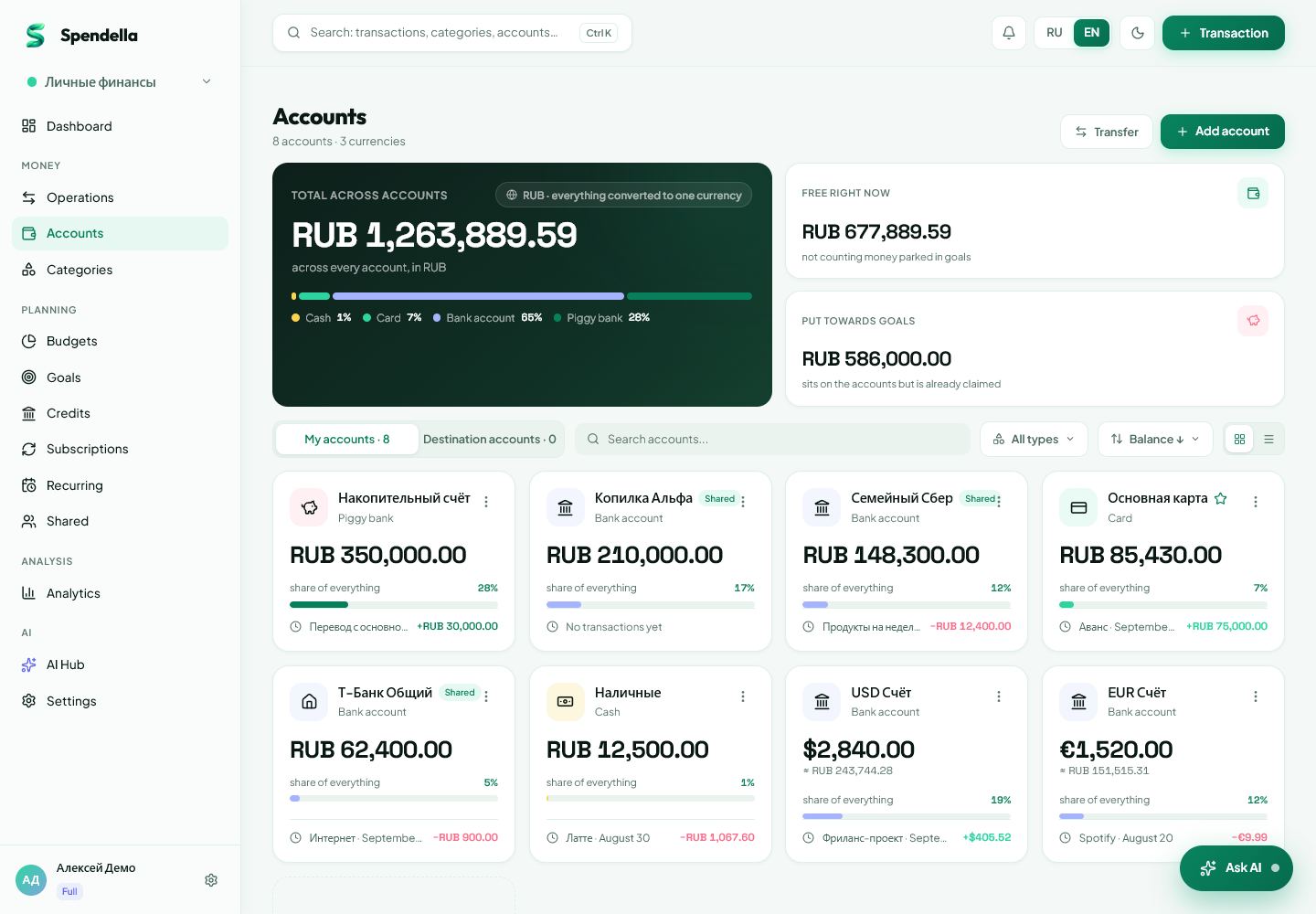
- Accounts → account actions → balance adjustment.
- On Android
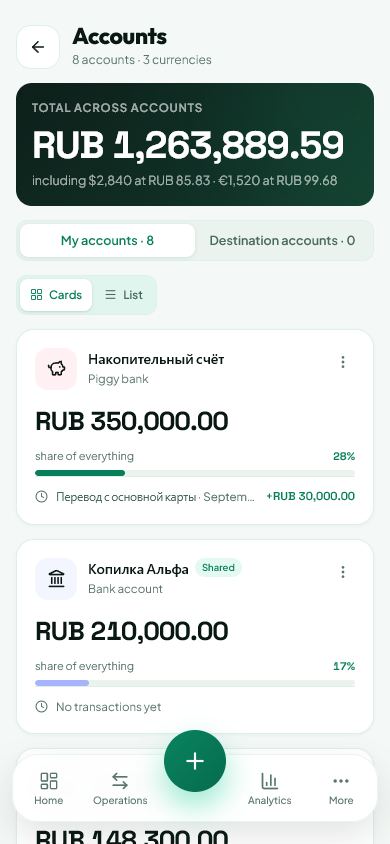
- More → Accounts → account actions → balance adjustment.
Get started free and open this section Sign up in a minute, no card needed. This exact section opens right after.
01
Before you start
Compare the same account in the same currency first. Opening balance, income, expenses and transfers determine the recorded balance. Missing or duplicate entries change the result.
02
What to do
- Open this account’s transactions. Review recent purchases, deposits and transfers.
- Correct any wrong amount, duplicate entry or missing expense.
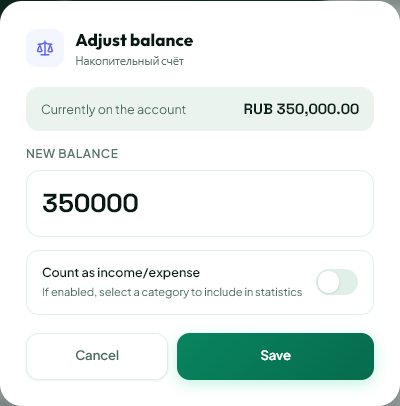
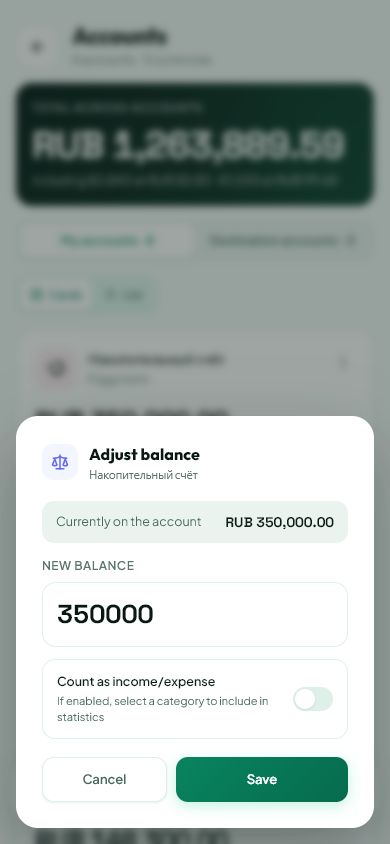
- If you cannot reconstruct the history, open balance adjustment.
- Enter the entire actual balance. If 8,200 RUB remains, enter 8,200 rather than the difference from the previous amount.
- Check the option to count the difference as income or expense. Use it only when the difference should genuinely appear in those reports.
- Save and compare the balance with your bank again.
03
If something goes wrong
- Only need an accurate balance: do not count the difference as income without a reason.
- Balance changed again: check new transactions and automatic entries.
- The overall balance differs from this account: it can include other accounts and currency conversion.
What you should see
The balance matches the amount entered; the selected option determines how the difference is recorded.
Try it yourself
Everything above is free.
No time limit, no card. Sign up and we open the section this guide is about.
Still need help?
Tell us which step you got stuck on. Support can help you work through it.
Contact support ↗Contact us without signing in