
Spendella / Knowledge base
Understand different transaction dates or alert times
Check the account time zone and the entry’s date. Differences are most noticeable around midnight.
This guide covers the free plan — setting it up yourself takes a minute.Get started free →
Updated 7 September 2026
Where to find it
- On the website
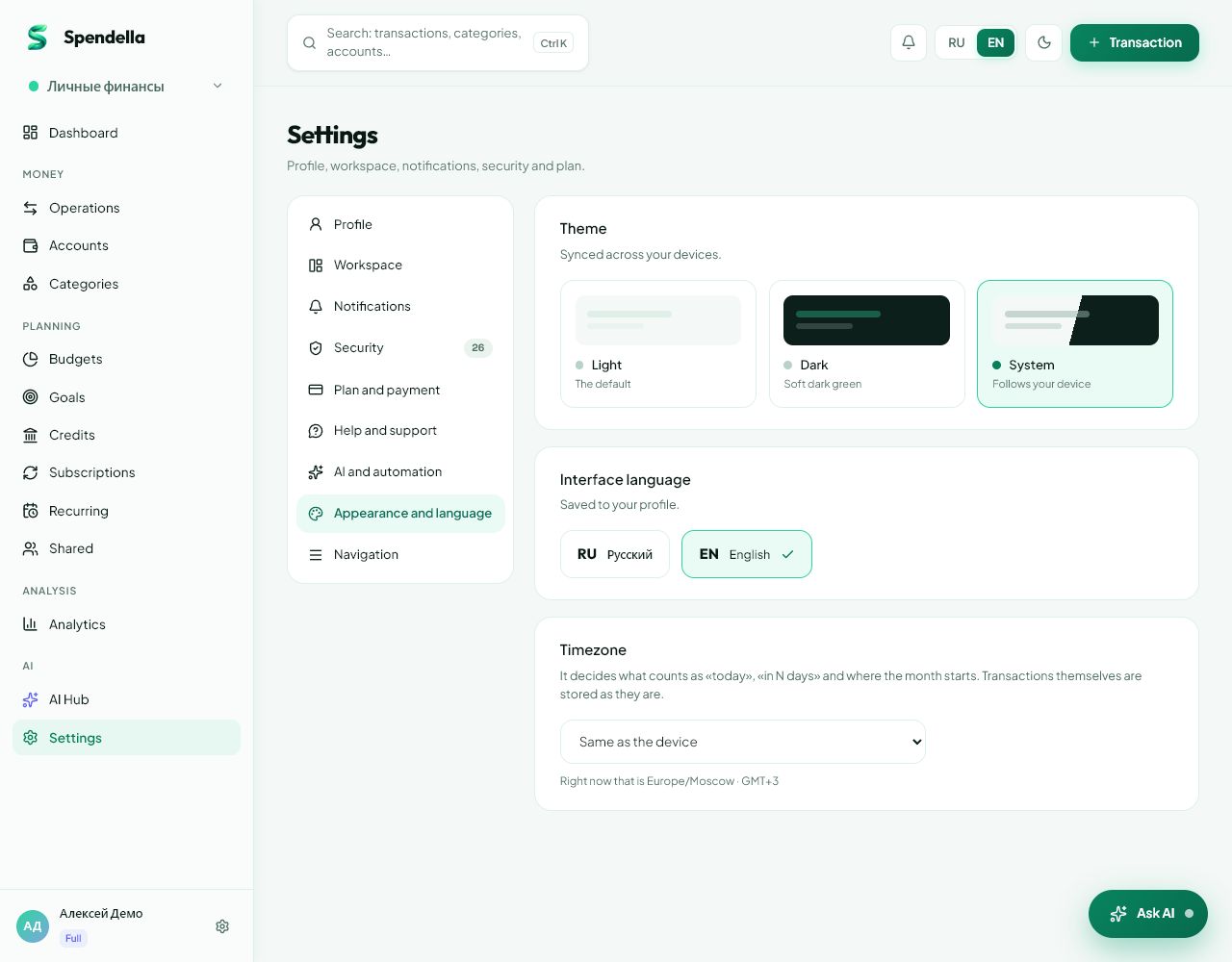
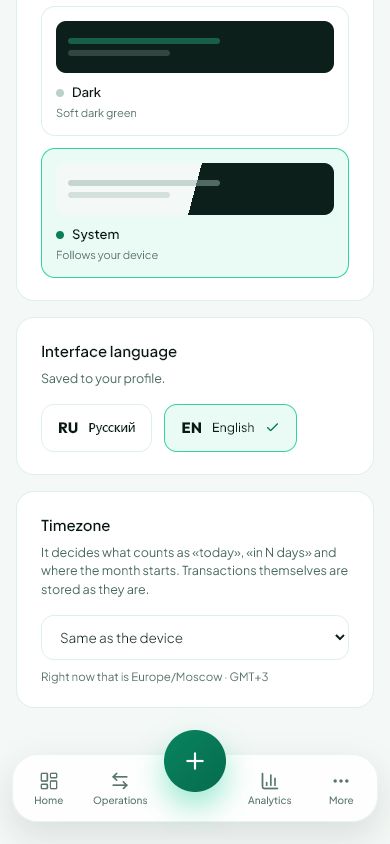
- Settings → Appearance → time zone.
- On Android
- Check the account time zone on the website, and also review Android time settings.
Get started free and open this section Sign up in a minute, no card needed. This exact section opens right after.
01
Before you start
A time zone defines local time. A few hours’ difference can place a purchase on a neighbouring date. Ordinary push notifications also use the account’s time zone for quiet hours.
02
What to do
- Open Settings → Appearance on the website and find the time zone.
- Choose the zone used for your records and wait for it to save.
- Check automatic date, time and time zone on the phone.
- Compare the transaction date with the bank’s record.
- After changing settings, refresh the report and check neighbouring dates.
03
If something goes wrong
- Do not duplicate a purchase merely because it was not found on one day.
- Changing time zone does not correct a manually mistyped date.
- For one unexpectedly timed notification, tell support its arrival time and your expected zone.
What you should see
Time uses the selected settings; an incorrectly entered transaction date can be corrected separately.
Try it yourself
Everything above is free.
No time limit, no card. Sign up and we open the section this guide is about.
Still need help?
Tell us which step you got stuck on. Support can help you work through it.
Contact support ↗Contact us without signing in