
Spendella / Knowledge base
Contact support and find replies
Describe one problem per request and continue the conversation in the same thread.
This guide covers the free plan — setting it up yourself takes a minute.Get started free →
Updated 7 September 2026
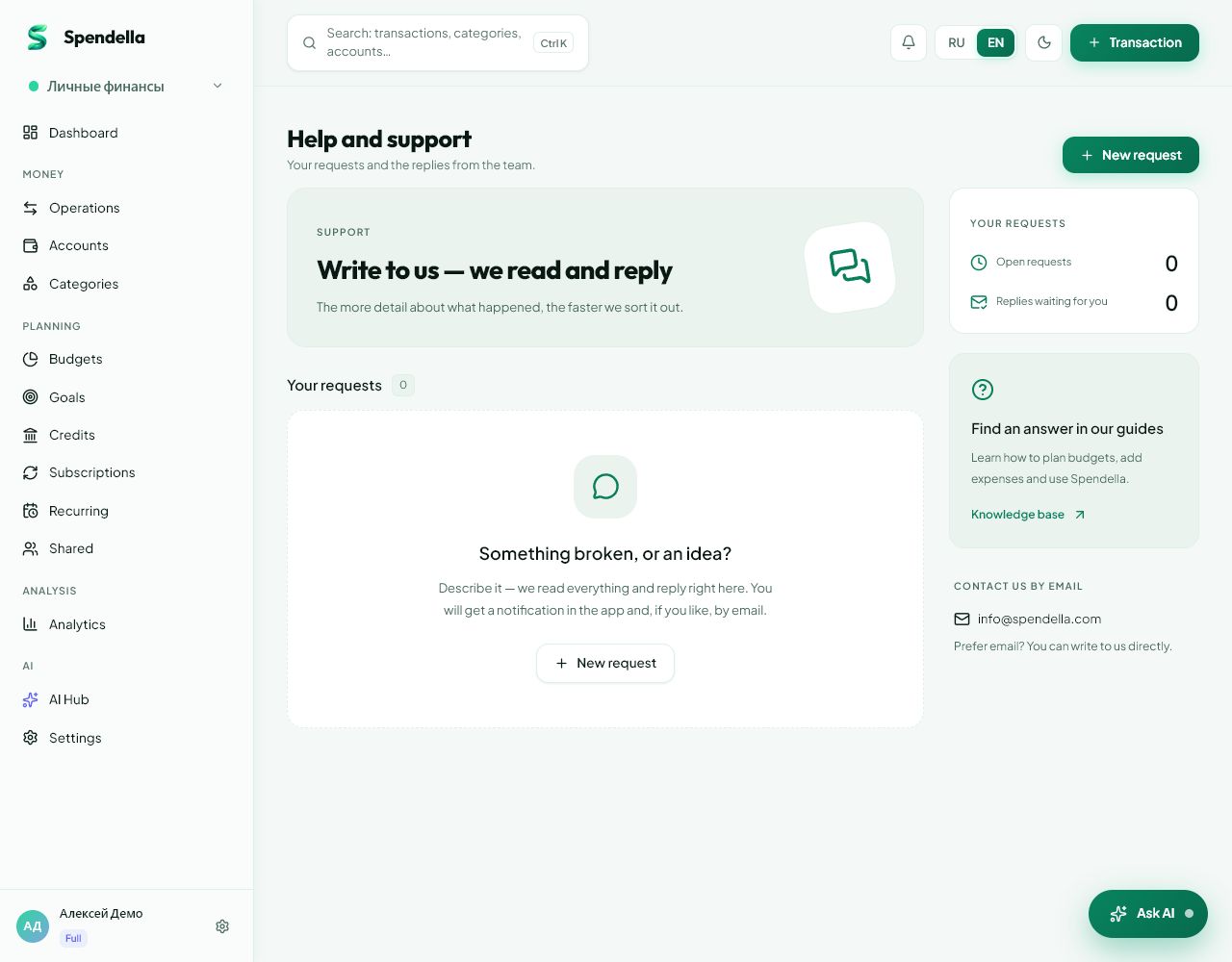
Where to find it
- On the website
- Profile menu or Settings → Support.
- On Android
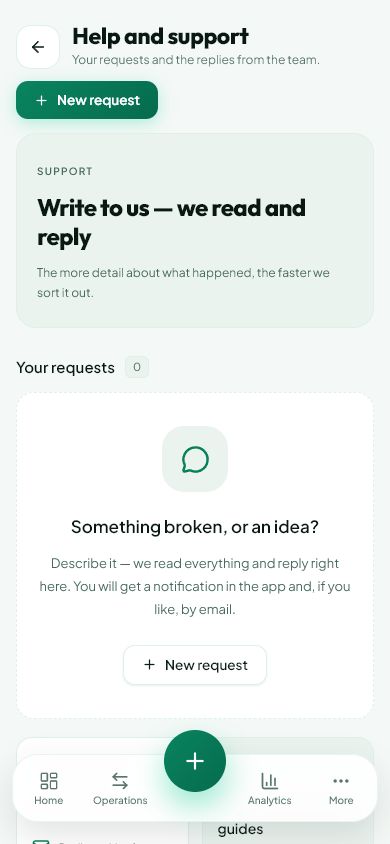
- More → Settings → Help and support.
Get started free and open this section Sign up in a minute, no card needed. This exact section opens right after.
01
Before you start
Support and AI chat are separate. For app errors, payments or access issues, contact support. Never send passwords, recovery codes or full card details.
02
What to do
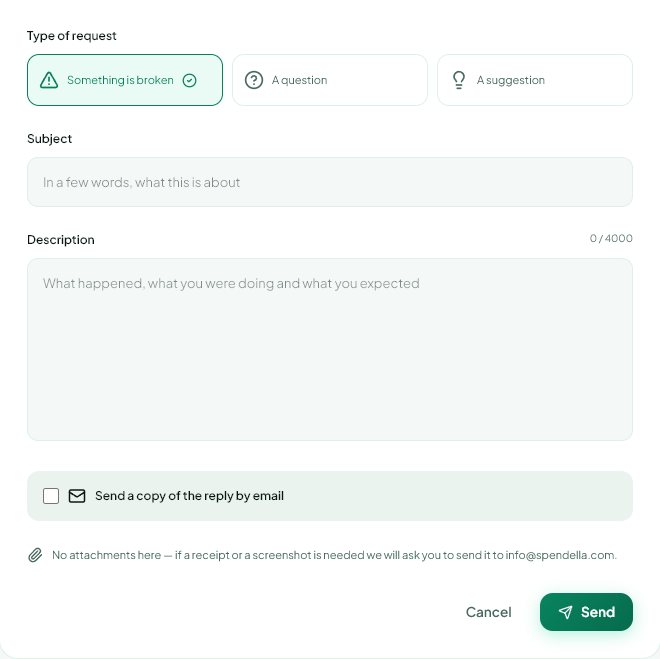
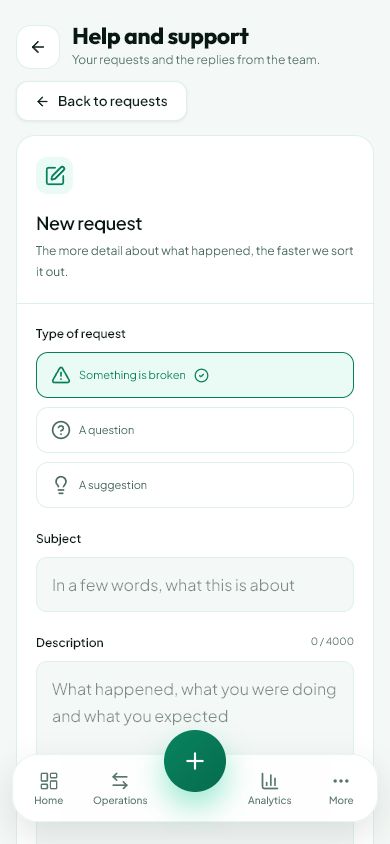
- Open support and create a request.
- Choose the appropriate topic or type.
- Use a short subject, such as “Cannot verify new email”.
- Describe what you tapped, what you expected and what happened. Include the error wording and Android version for app issues.
- Submit once. Open the request from the list to read replies and continue there.
- To send an image, use the email address shown in support and include the request subject.
03
If something goes wrong
- Without signing in, you can email info@spendella.com.
- Do not create a new request for every follow-up on the same issue.
- If a request is closed and replies are unavailable, create a new one referring to the earlier issue.
What you should see
The request appears in the list so you can follow replies and add details.
Try it yourself
Everything above is free.
No time limit, no card. Sign up and we open the section this guide is about.
Still need help?
Tell us which step you got stuck on. Support can help you work through it.
Contact support ↗Contact us without signing in