
Spendella / Knowledge base
Download transactions as Excel or CSV
Save the transactions you need and check that the file contains the intended period.
This guide covers the free plan — setting it up yourself takes a minute.Get started free →
Updated 7 September 2026
Where to find it
- On the website
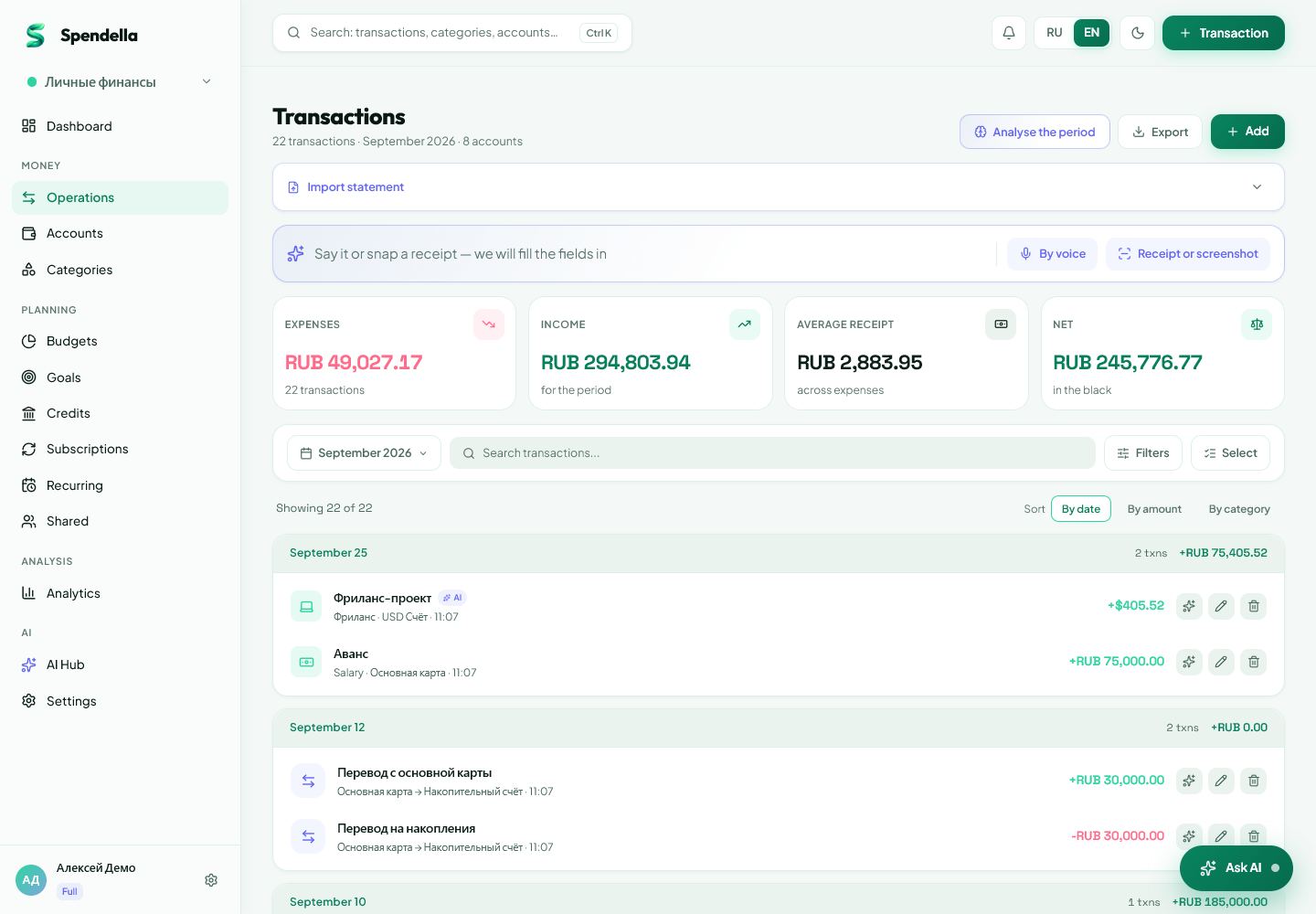
- Transactions → Export → Excel or CSV.
- On Android
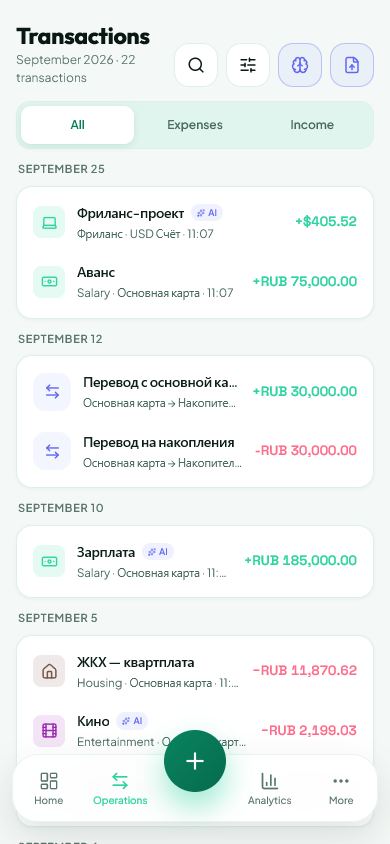
- Open the website in a browser with the same account → Transactions → Export.
Get started free and open this section Sign up in a minute, no card needed. This exact section opens right after.
01
Before you start
Export saves financial records for viewing and processing. It is not a full account backup containing chats, settings and member access.
02
What to do
- Open Transactions on the website and select the workspace.
- Set the period and filters to the entries you need.
- Choose Export, then an available Excel or CSV option.
- Wait for the download. Check any browser download permission prompt.
- Open the file and verify dates, a few amounts and currency before sharing it.
03
If something goes wrong
- Empty file: check period, workspace and filters.
- Unexpected CSV characters or columns: check encoding and delimiter when opening it in a spreadsheet editor, or try Excel format.
- Export unavailable: read the explanation and check your plan’s features.
What you should see
A file containing exported transactions is saved to the device.
Try it yourself
Everything above is free.
No time limit, no card. Sign up and we open the section this guide is about.
Still need help?
Tell us which step you got stuck on. Support can help you work through it.
Contact support ↗Contact us without signing in