
Spendella / Knowledge base
Schedule salary, rent and other recurring transactions
Set a repeat schedule, then review the created entries. Pause it when you no longer need future records.
This guide covers the free plan — setting it up yourself takes a minute.Get started free →
Updated 7 September 2026
Where to find it
- On the website
- Menu → Recurring.
- On Android
- More → Recurring.
Get started free and open this section Sign up in a minute, no card needed. This exact section opens right after.
01
Before you start
A recurring transaction suits repeating income or expenses. Its schedule applies to Spendella records. It does not enable a payment in your banking app.
02
What to do
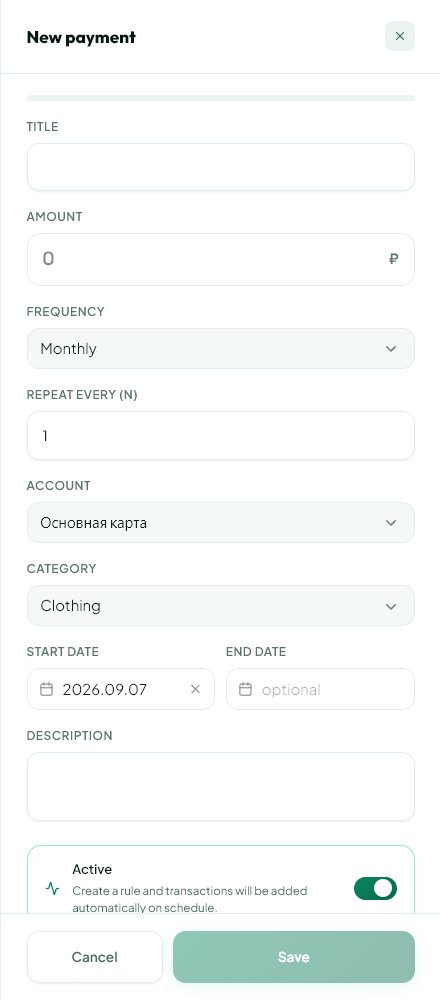
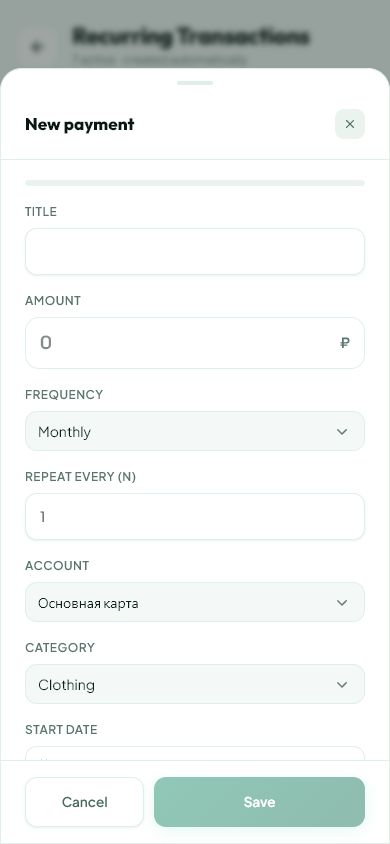
- Create a recurring transaction.
- Choose income for salary or expense for rent. Enter a name, amount, account and category.
- Set frequency and a start date. Every defines the interval, such as every 2 weeks.
- For twice-monthly schedules, check both days. Add an end date for a temporary schedule.
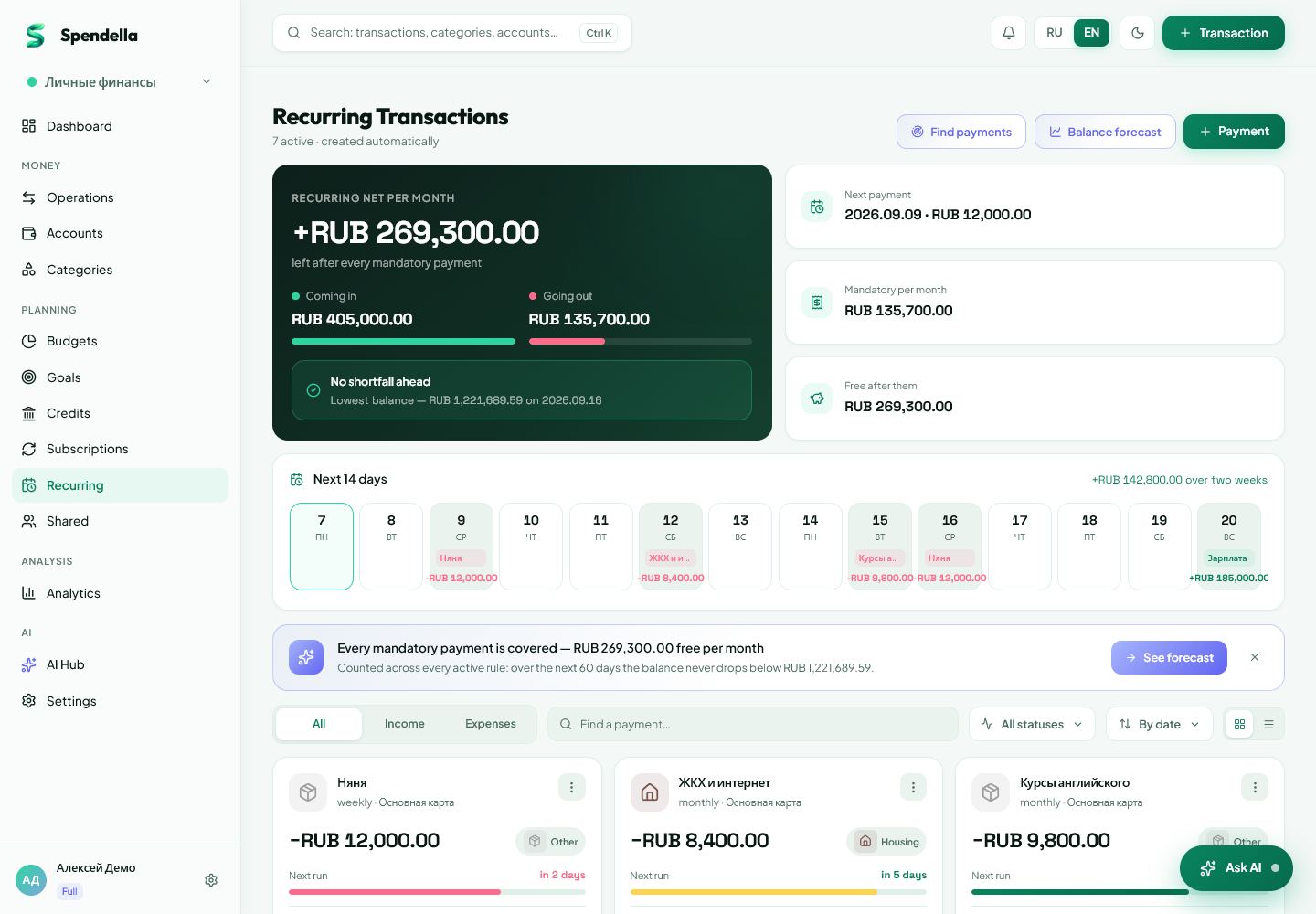
- Save and check the next date.
- Use pause to stop future entries and resume to continue.
03
If something goes wrong
- Start date in the past: review the resulting history carefully rather than adding it twice.
- Amount changed: update the rule and review entries already created separately.
- Pausing in Spendella does not cancel a payment at the bank or with the recipient.
What you should see
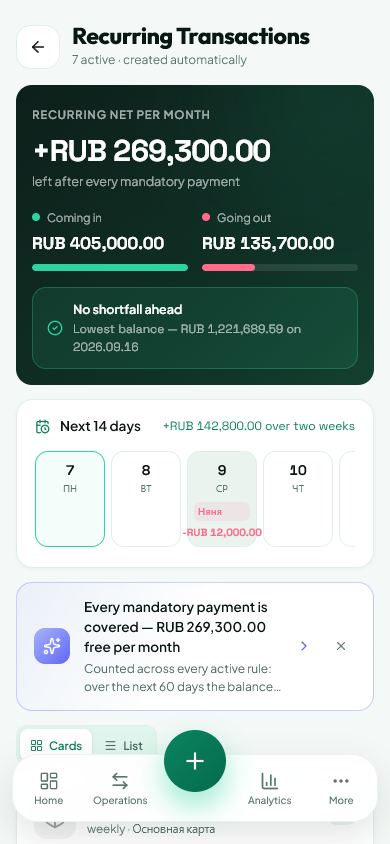
Spendella creates recorded transactions from the active schedule.
Try it yourself
Everything above is free.
No time limit, no card. Sign up and we open the section this guide is about.
Still need help?
Tell us which step you got stuck on. Support can help you work through it.
Contact support ↗Contact us without signing in