
Spendella / Knowledge base
How to find subscriptions and recurring payments
A repeated purchase is only a candidate. Check the merchant, amount and dates before creating a schedule.
This guide covers the free plan — setting it up yourself takes a minute.Get started free →
Updated 8 September 2026
Where to find it
- On the website
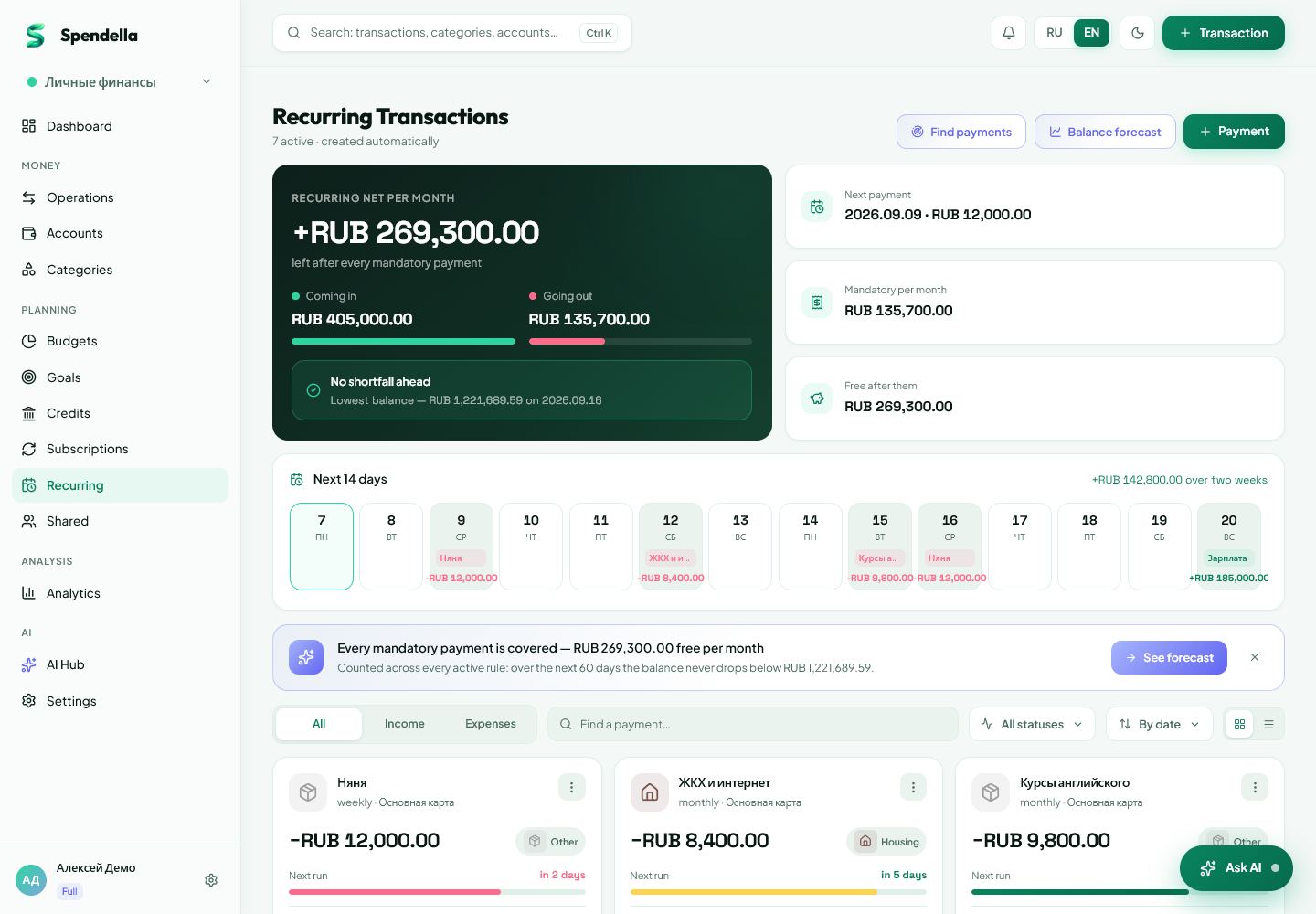
- Subscriptions or Recurring → detect from history.
- On Android
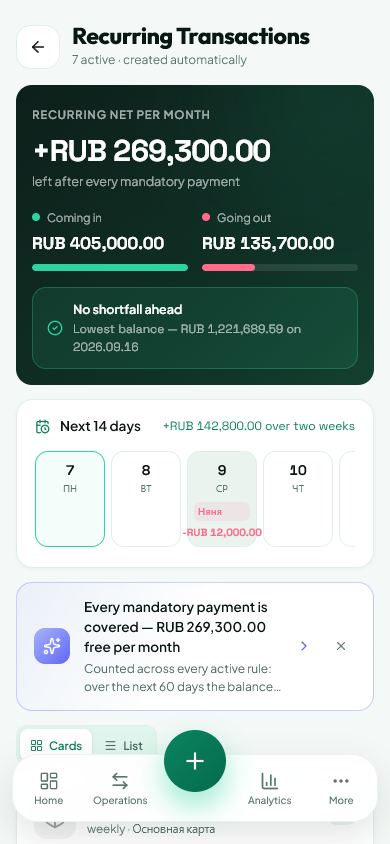
- More → Subscriptions or Recurring → find repetitions.
Before you start
This automation is available on Extended and Full. Start with current records: the tool cannot account for money you have not recorded in Spendella.
Steps
- Choose Subscriptions for paid services, or Recurring for other repeated income and expenses.
- Run detection from history. Compare the dates and interval for each candidate.
- Check that you have not already created the subscription or rule manually.
- Open a suitable candidate. Review amount, account, category, frequency and next date.
- Save and verify it in the main list. Dismiss unsuitable suggestions rather than turning every repetition into a schedule.
- After the first run, check its history. If the same payment also arrives through an import or notification, make sure you did not count it twice.
If the result is not what you expected
If the list is empty, check history and the selected space. Similar purchases can be a coincidence. Deleting a subscription in Spendella does not cancel the service; cancel it with the merchant as well.
What you should see
Suitable repetitions became reviewed schedules; accidental matches were not added.
Everything above is free.
No time limit, no card. Sign up and we open the section this guide is about.
Still need help?
Tell us which step you got stuck on. Support can help you work through it.
Contact support ↗Contact us without signing in