
Spendella / Knowledge base
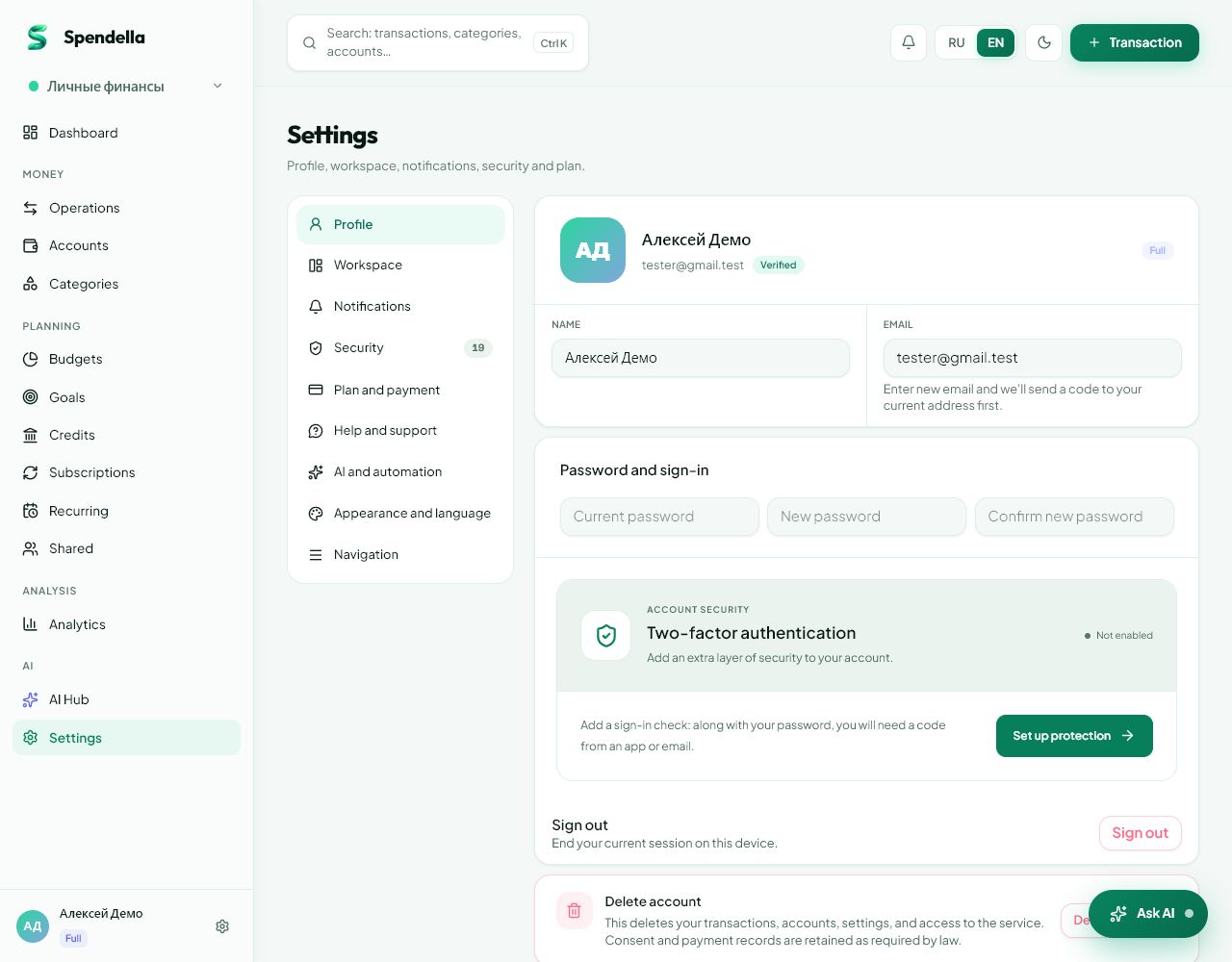
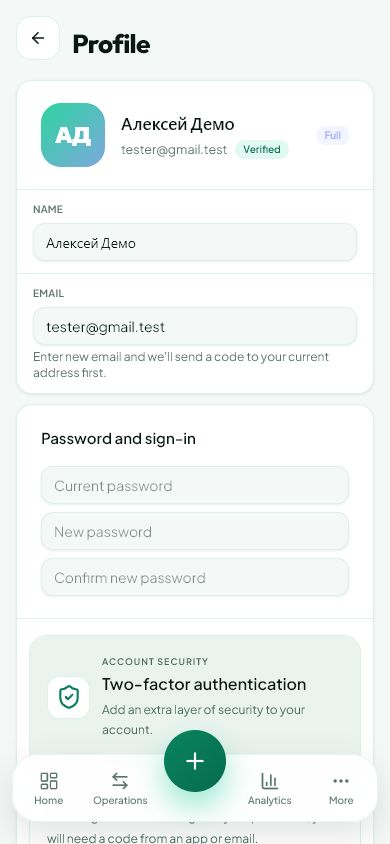
Change your name, email or password
Email changes need verification. Check which address receives the code at each step.
This guide covers the free plan — setting it up yourself takes a minute.Get started free →
Updated 7 September 2026
Where to find it
- On the website
- Settings → Profile.
- On Android
- More → Settings → Profile.
Get started free and open this section Sign up in a minute, no card needed. This exact section opens right after.
01
Before you start
Your name is used in the interface. Email is used for sign-in and messages, so changing it is a separate process. Avoid signing out halfway through verification.
02
What to do
- For a name change, edit the name field and save.
- For email, enter the new address and start the change.
- If asked for a code from the old email, open that mailbox and confirm.
- Then verify the new address using its email code. Follow the destination address shown on screen.
- Wait for success and check the address in Profile.
- For a password change, fill in the requested fields, including matching new-password confirmation, and save.
03
If something goes wrong
- Rejected code: check which step and mailbox it belongs to.
- No access to the old mailbox: contact support rather than substituting an arbitrary address.
- The new password and confirmation must match, including case and accidental spaces.
What you should see
Profile displays saved details. After completing an email change, use the new address to sign in.
Try it yourself
Everything above is free.
No time limit, no card. Sign up and we open the section this guide is about.
Still need help?
Tell us which step you got stuck on. Support can help you work through it.
Contact support ↗Contact us without signing in