
Spendella / Knowledge base
Configure notifications or fix missing alerts
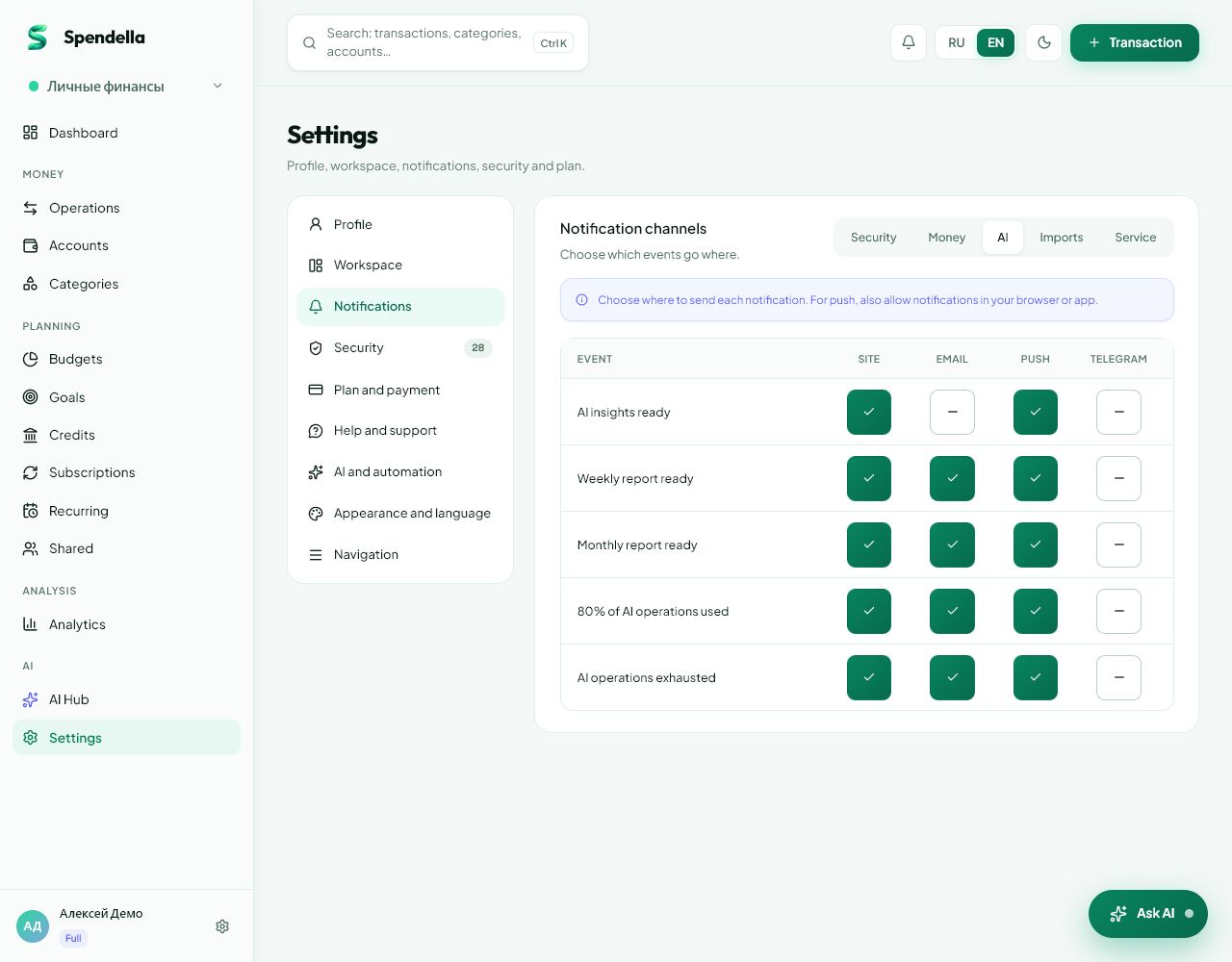
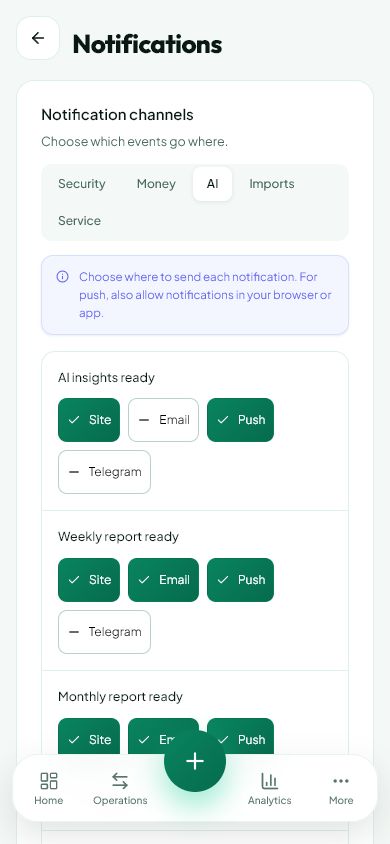
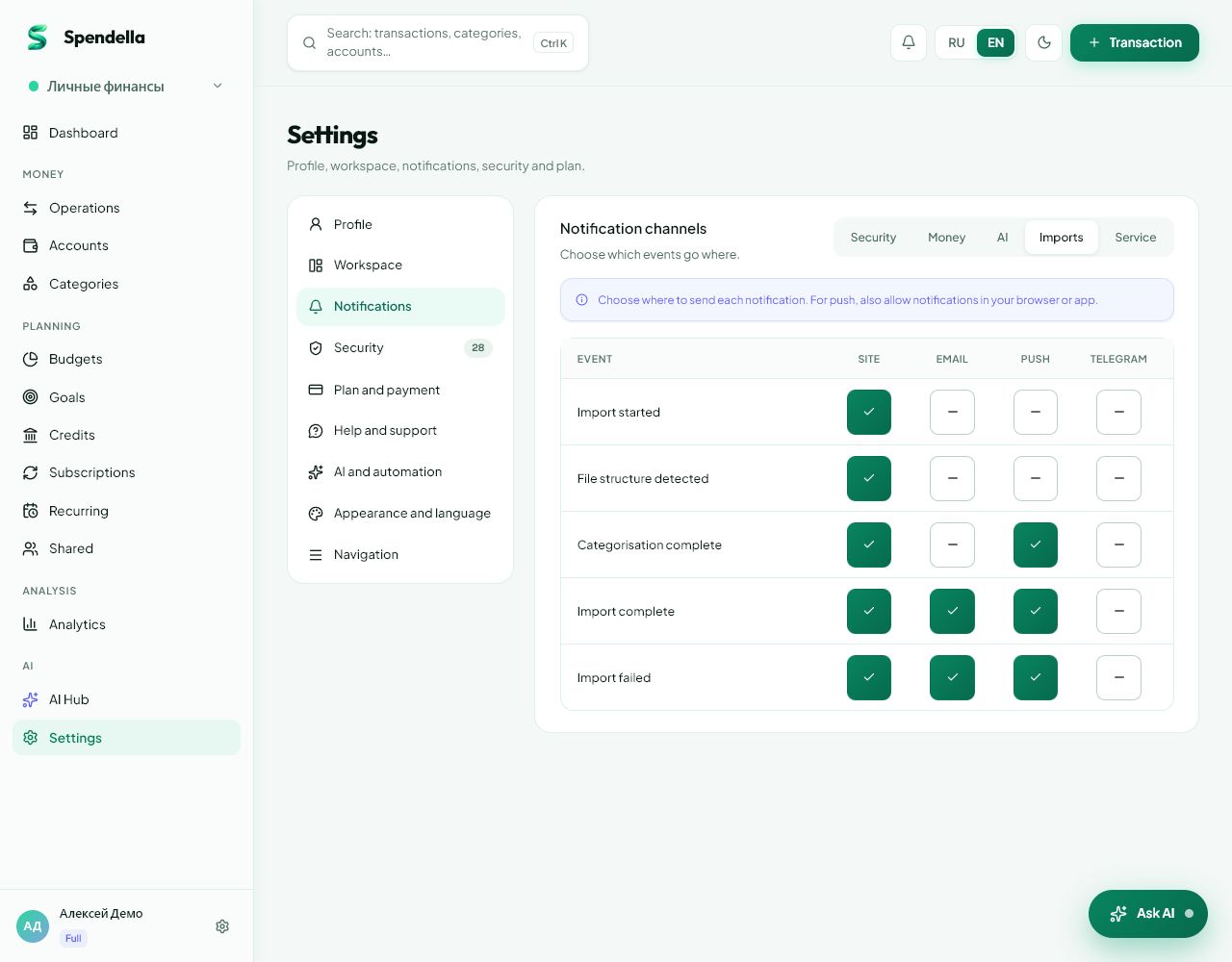
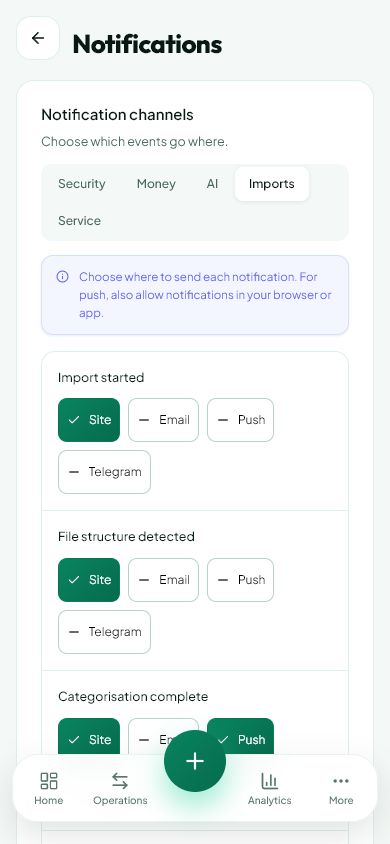
Choose events and allow delivery on the device. Reading bank notifications is configured separately.
This guide covers the free plan — setting it up yourself takes a minute.Get started free →
Updated 7 September 2026
Where to find it
- On the website
- Settings → Notifications; in-app messages are under the bell icon.
- On Android
- More → Settings → Notifications and Android’s Spendella notification settings.
Get started free and open this section Sign up in a minute, no card needed. This exact section opens right after.
01
Before you start
There are two levels: which events the service reports and whether the phone or browser allows push notifications. Enabling one does not automatically enable the other.
02
What to do
- Open notification settings and choose events and available channels.
- Save with the save button if shown.
- For push, check system permission: Spendella notifications in Android or site permissions in the browser.
- If you previously declined, enable permission manually in settings rather than waiting for repeated prompts.
- Also check Spendella’s bell: it can contain messages that did not appear as system alerts.
03
If something goes wrong
- Ordinary push notifications are deferred from 21:00 to 09:00 in the account time zone. Important security events may arrive immediately.
- Reading bank messages needs separate access in Security and selected source apps.
- Nothing arrives during daytime: check internet, system Do Not Disturb and phone background restrictions.
What you should see
The selected events use the enabled delivery channels.
Try it yourself
Everything above is free.
No time limit, no card. Sign up and we open the section this guide is about.
Still need help?
Tell us which step you got stuck on. Support can help you work through it.
Contact support ↗Contact us without signing in