
Spendella / Knowledge base
Fix a failed import or duplicated transactions
Check import status, file format and existing entries before uploading everything again.
This guide covers the free plan — setting it up yourself takes a minute.Get started free →
Updated 7 September 2026
Where to find it
- On the website
- Menu → Import.
- On Android
- Transactions → import or More → AI Hub → statement import.
Get started free and open this section Sign up in a minute, no card needed. This exact section opens right after.
01
Before you start
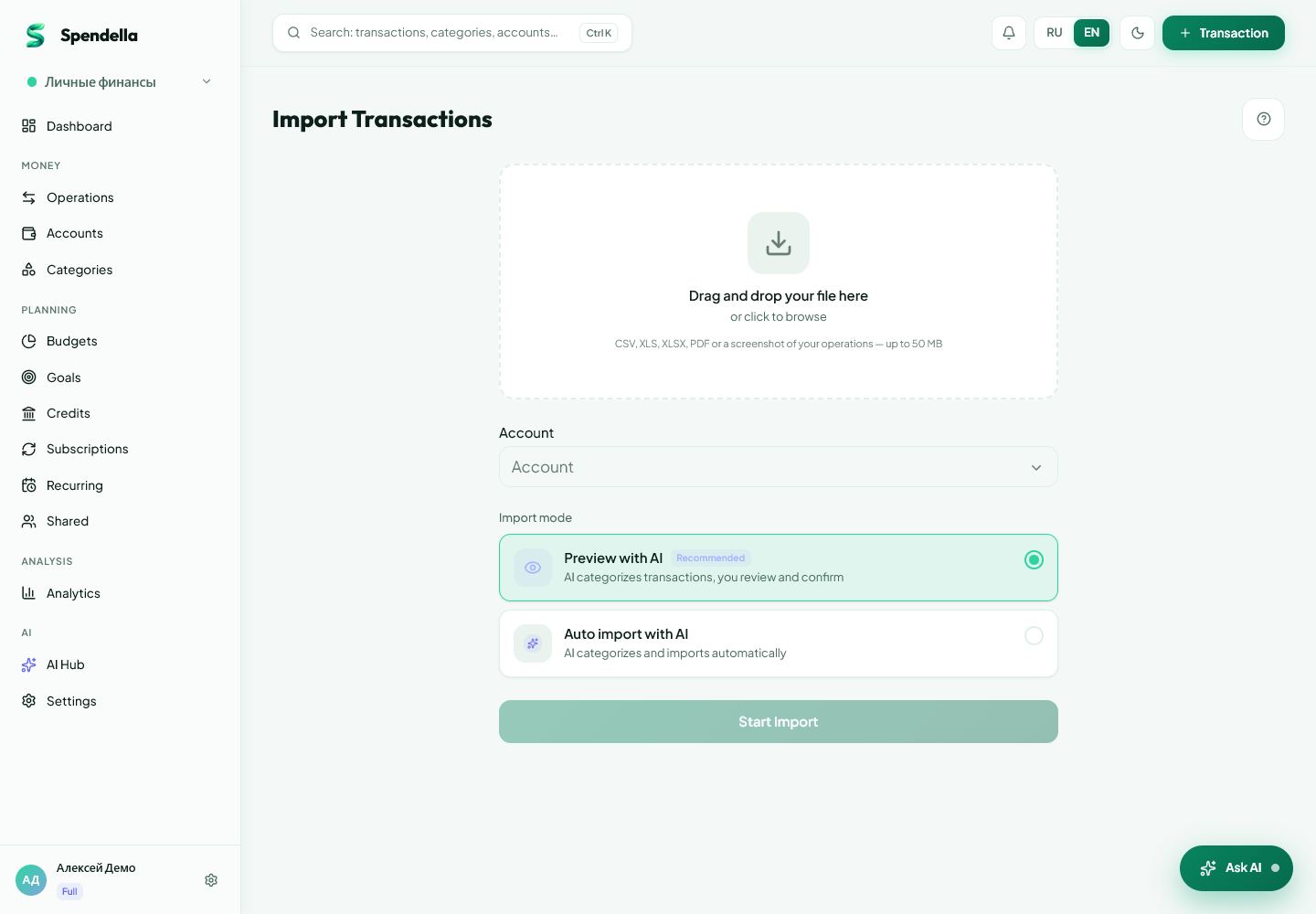
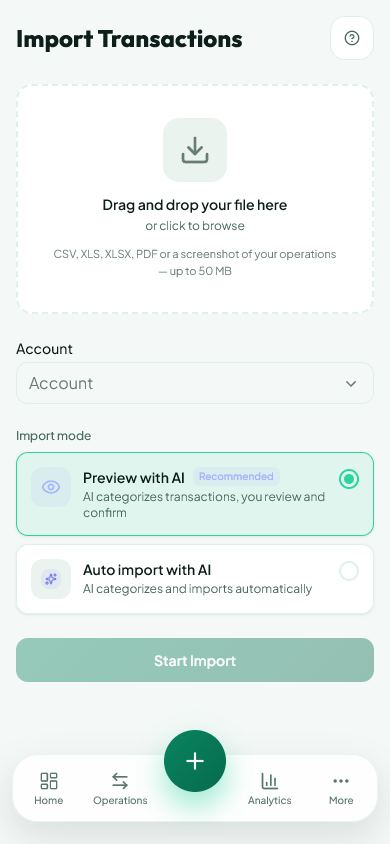
Import has several stages. Uploading a file does not mean every row has been added. The status screen and preview show where the process stopped.
02
What to do
- Open Import and read the current status.
- If processing continues, wait. If an error appears, keep its wording.
- Compare the file format with the supported list on screen. A photo of a table is different from a spreadsheet file.
- If the result is ready, review selected rows and confirm if required.
- For suspected duplicates, compare both entries’ account, date and amount in Transactions. Delete only a genuinely repeated entry.
03
If something goes wrong
- Equal amounts are not necessarily duplicates; they can be separate real purchases.
- After uploading again, check Transactions before starting a third import.
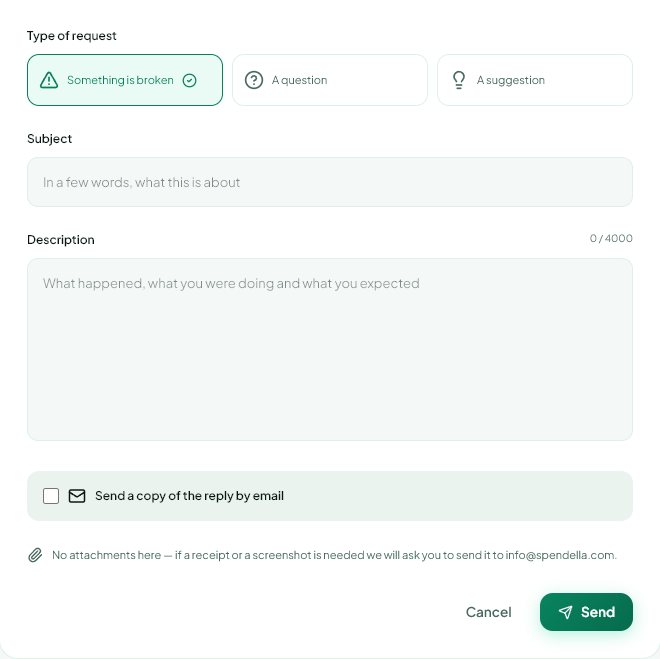
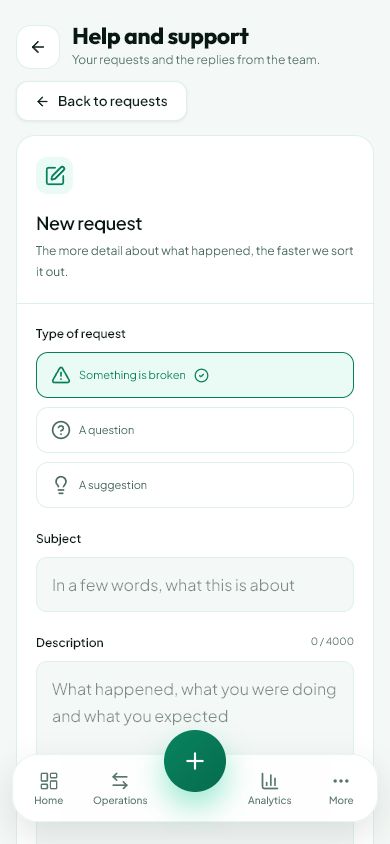
- Give support the format, upload time and error. A full statement with account details is usually unnecessary for the first message.
What you should see
You know whether to correct the file, confirm the result or remove a duplicate.
Try it yourself
Everything above is free.
No time limit, no card. Sign up and we open the section this guide is about.
Still need help?
Tell us which step you got stuck on. Support can help you work through it.
Contact support ↗Contact us without signing in