
Spendella / Knowledge base
Choose the right import mode
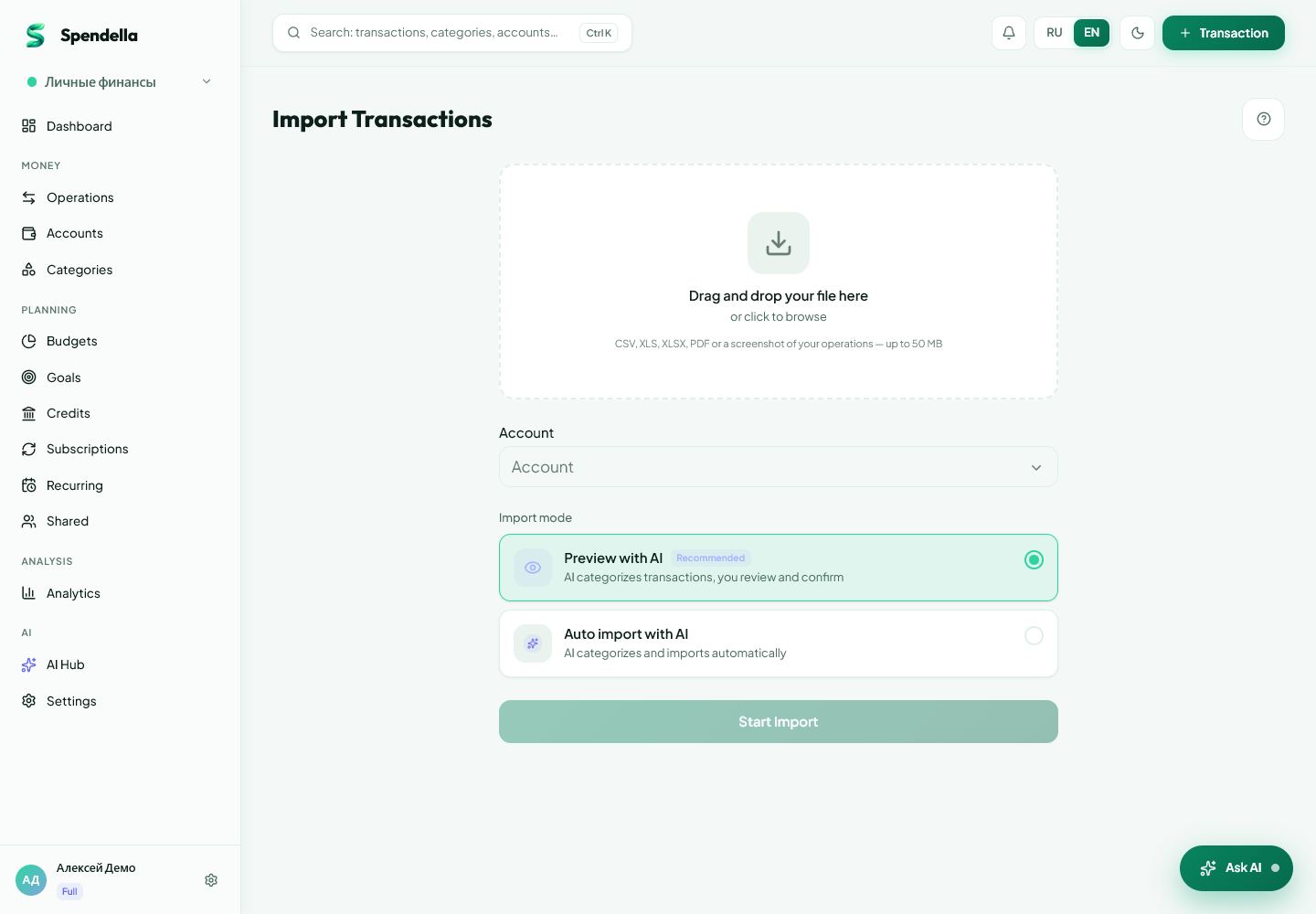
Preview, automatic and quick import add records differently. Start with review for your first file.
This guide covers the free plan — setting it up yourself takes a minute.Get started free →
Updated 7 September 2026
Where to find it
- On the website
- Import → mode selection before upload.
- On Android
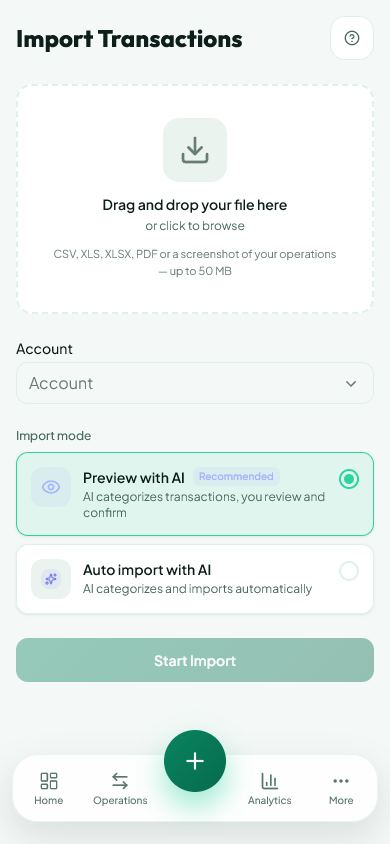
- Transactions → import → mode selection.
Get started free and open this section Sign up in a minute, no card needed. This exact section opens right after.
01
Before you start
Not every import waits for row confirmation. Automatic mode can add entries directly. Choose the mode before uploading the file.
02
What to do
- Select the account the file belongs to.
- For a first import, choose AI preview: categories are proposed and rows can be checked before confirmation.
- Choose automatic AI import only when you are ready for entries to be added without that review step.
- Android’s import form also offers quick import: it adds entries without categories, which you organise separately. This option may not appear on the website.
- Upload the file and follow the status for the selected mode.
- After completion, check Transactions and compare a few amounts with the statement.
03
If something goes wrong
- Do not wait for a confirmation screen in a mode that adds directly.
- For an unfamiliar format, preview a short period first.
- Do not upload the same statement through every mode just to compare them; this can create duplicates.
What you should see
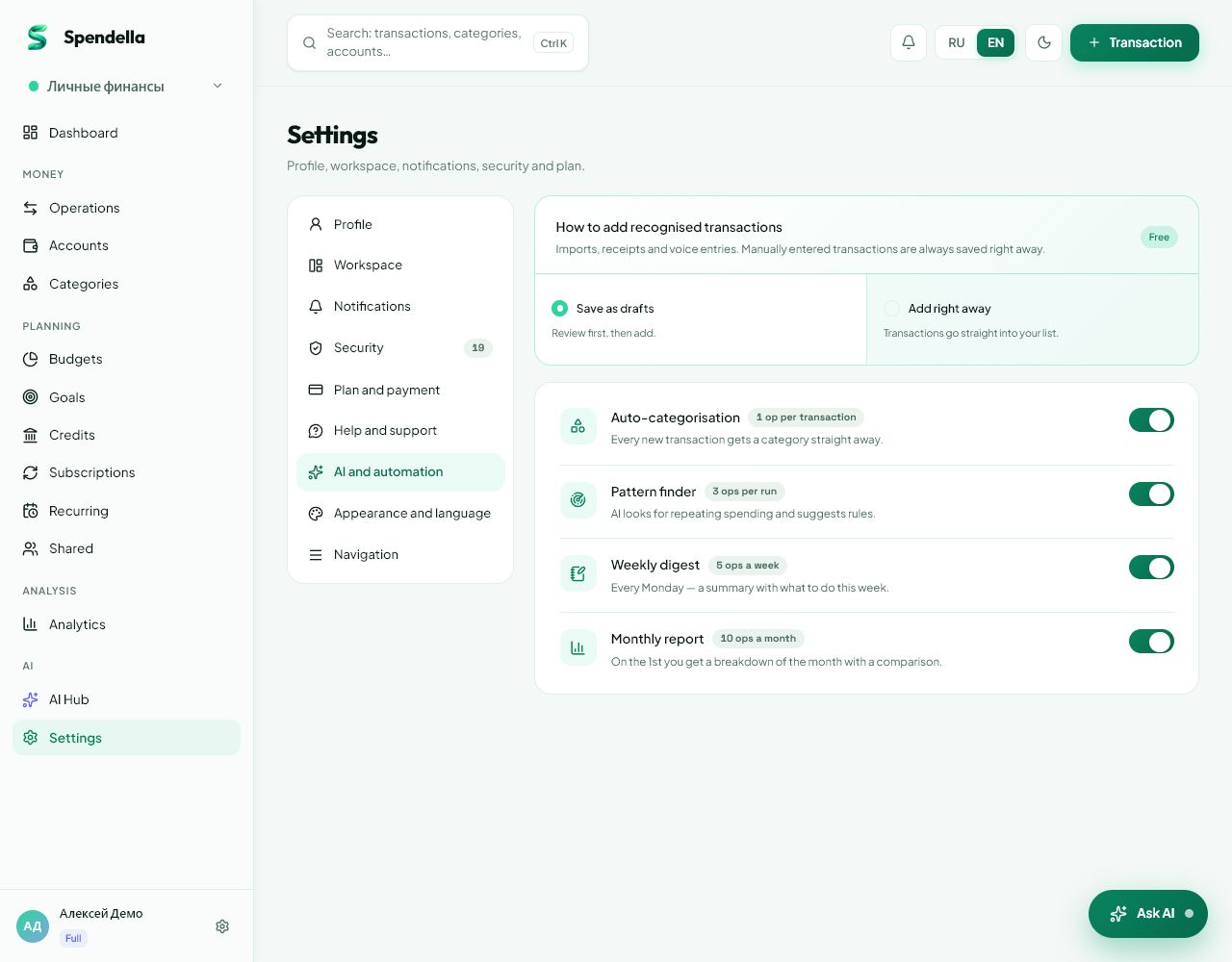
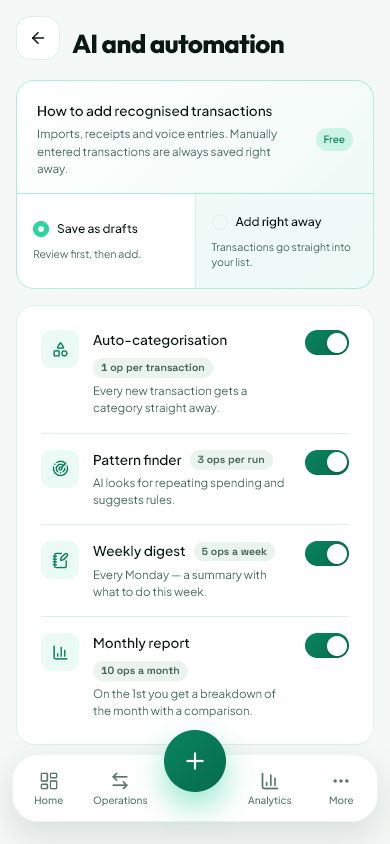
The result is added automatically or offered for review according to the chosen mode.
Try it yourself
Everything above is free.
No time limit, no card. Sign up and we open the section this guide is about.
Still need help?
Tell us which step you got stuck on. Support can help you work through it.
Contact support ↗Contact us without signing in