
Spendella / Knowledge base
Add a loan and fill in its details
Use your agreement or banking app. Understand total debt, amounts already repaid and the monthly payment.
This guide covers the free plan — setting it up yourself takes a minute.Get started free →
Updated 7 September 2026
Where to find it
- On the website
- Menu → Loans → add.
- On Android
- More → Loans → add.
Get started free and open this section Sign up in a minute, no card needed. This exact section opens right after.
01
Before you start
A loan card helps with tracking. Your bank remains the source of the exact schedule and outstanding debt. Do not confuse total debt, remaining debt and a single payment.
02
What to do
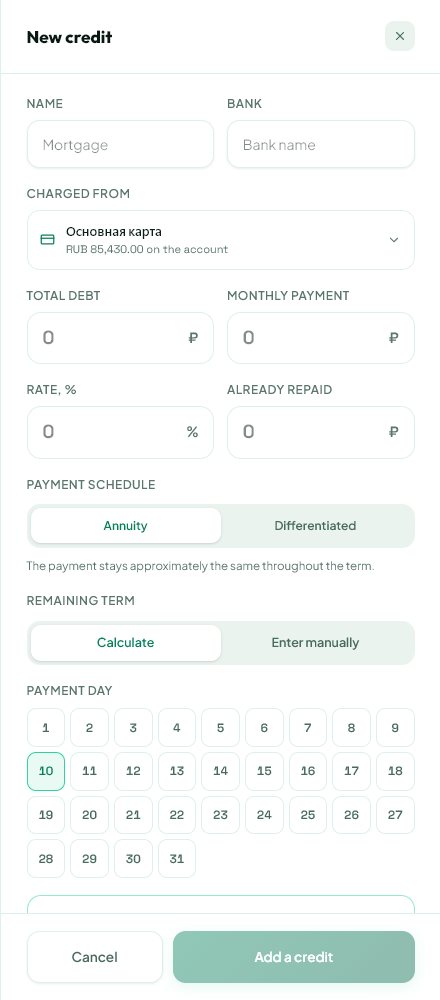
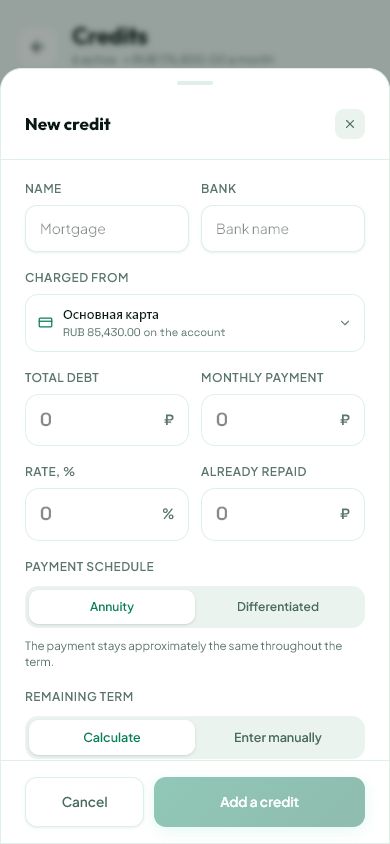
- Add a loan with a recognisable name. Include the bank if it helps distinguish entries.
- Enter total debt. Already repaid is the portion repaid before this tracking began; it cannot exceed total debt.
- Enter the monthly payment and payment day.
- Use the agreement for interest and term. Choose the payment type matching your bank’s schedule.
- Choose the account and category for repayment entries.
- Check automatic charging: it creates a record, not a payment to the bank. Save.
03
If something goes wrong
- If you entered current outstanding debt as total debt, do not subtract historical repayments again.
- Unsure of the payment type: check the bank’s schedule.
- Large discrepancies usually require correcting the original fields rather than creating another loan card.
What you should see
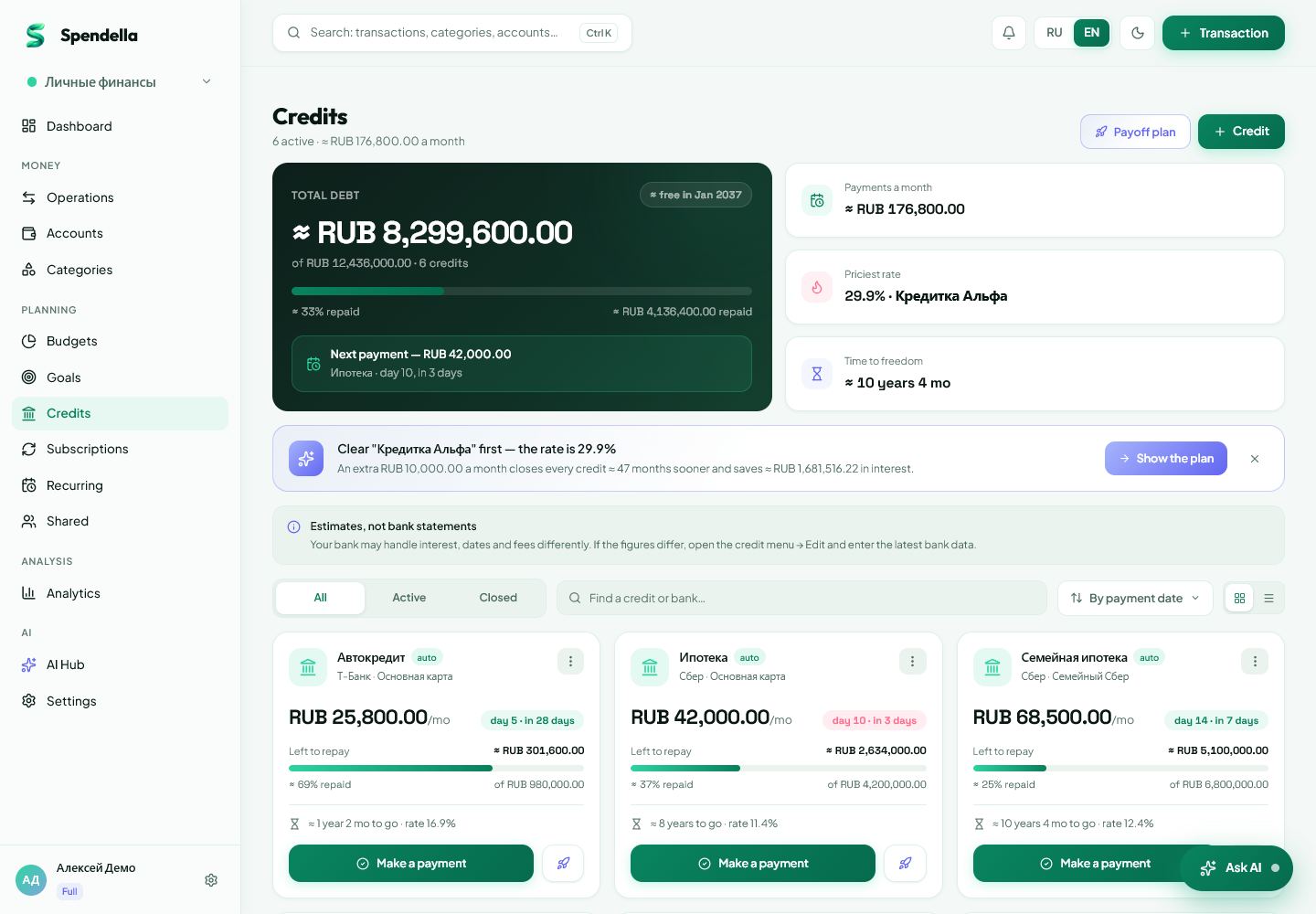
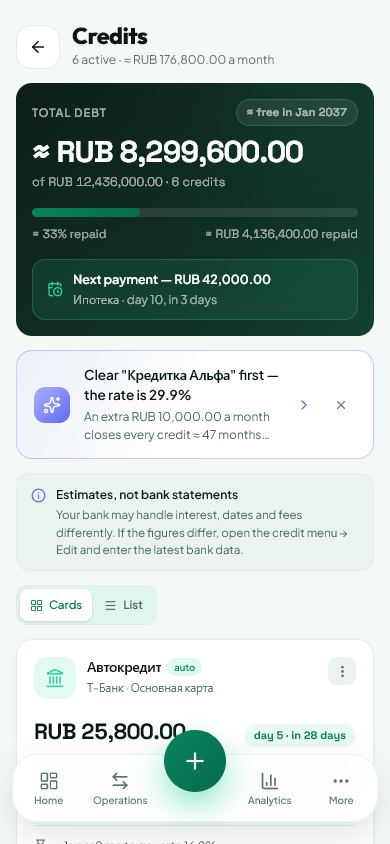
The loan appears with payment timing and a balance calculated from the details entered.
Try it yourself
Everything above is free.
No time limit, no card. Sign up and we open the section this guide is about.
Still need help?
Tell us which step you got stuck on. Support can help you work through it.
Contact support ↗Contact us without signing in