
Spendella / Knowledge base
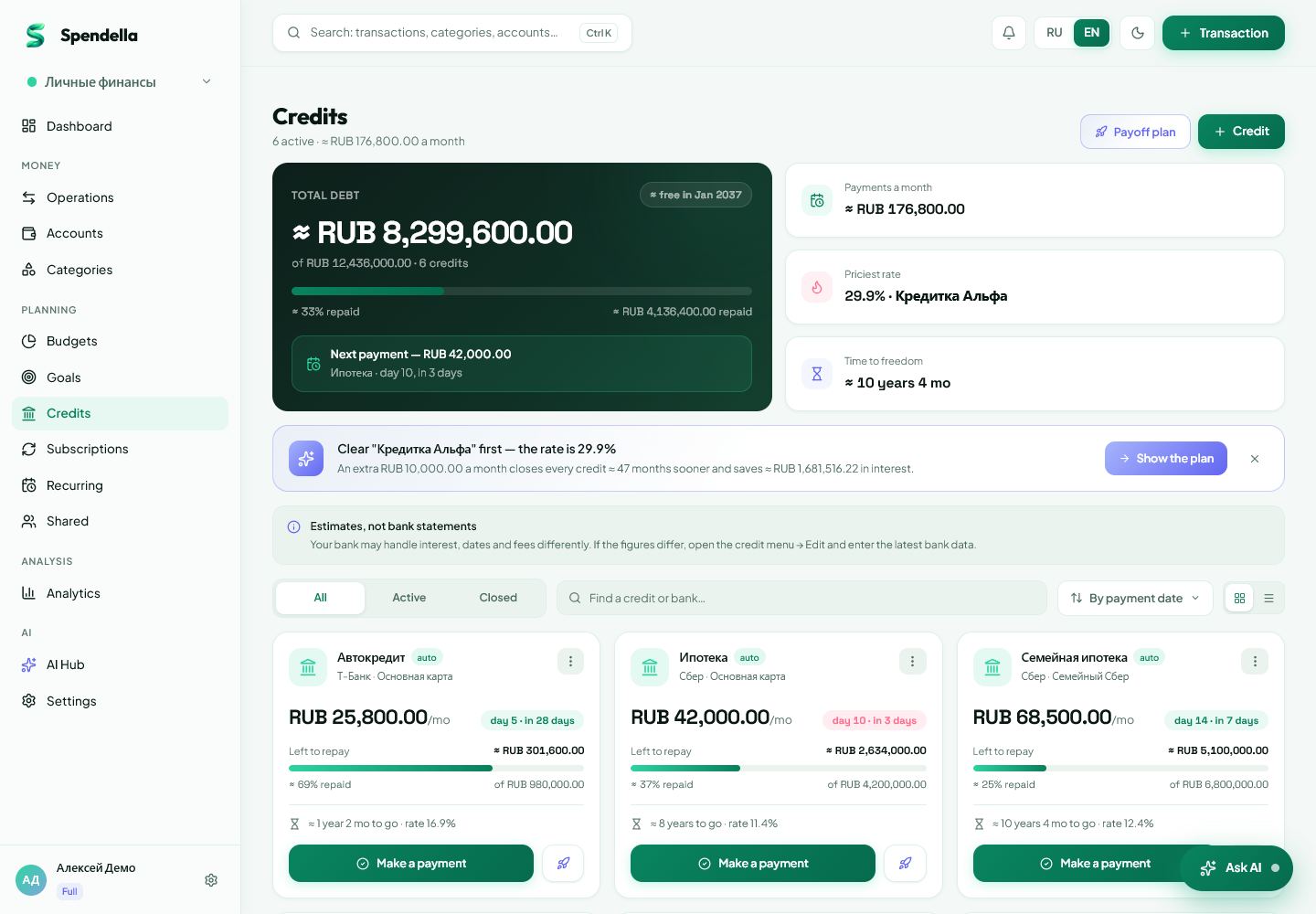
Record a loan payment or early repayment
Record a payment you have made and check its effect on the outstanding debt.
This guide covers the free plan — setting it up yourself takes a minute.Get started free →
Updated 7 September 2026
Where to find it
- On the website
- Loans → the loan’s actions.
- On Android
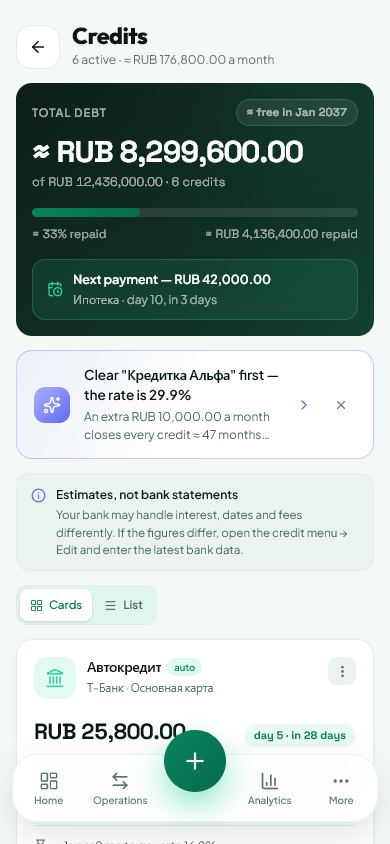
- More → Loans → the relevant loan.
Get started free and open this section Sign up in a minute, no card needed. This exact section opens right after.
01
Before you start
Spendella’s payment action updates records. It does not pay the bank. With automatic entries enabled, first check that this period’s payment has not already been added.
02
What to do
- Open the loan and review payment history.
- For a regular payment, choose the payment action and check the card’s amount before confirming.
- For early repayment, open that action and enter the additional amount.
- Choose the calculation option: reduce term or payment. Review the preview if shown.
- Confirm the record only after checking the actual repayment with your bank.
- Compare the updated history, outstanding debt and account.
03
If something goes wrong
- Do not record the same payment manually after an automatic entry.
- Early-repayment calculations can differ from the bank’s schedule because of contract terms.
- If you only wanted a preview, do not submit the final record confirmation.
What you should see
Payment history gains an entry and the tracking figures are updated.
Try it yourself
Everything above is free.
No time limit, no card. Sign up and we open the section this guide is about.
Still need help?
Tell us which step you got stuck on. Support can help you work through it.
Contact support ↗Contact us without signing in