
Spendella / Knowledge base
Create a category or correct a purchase category
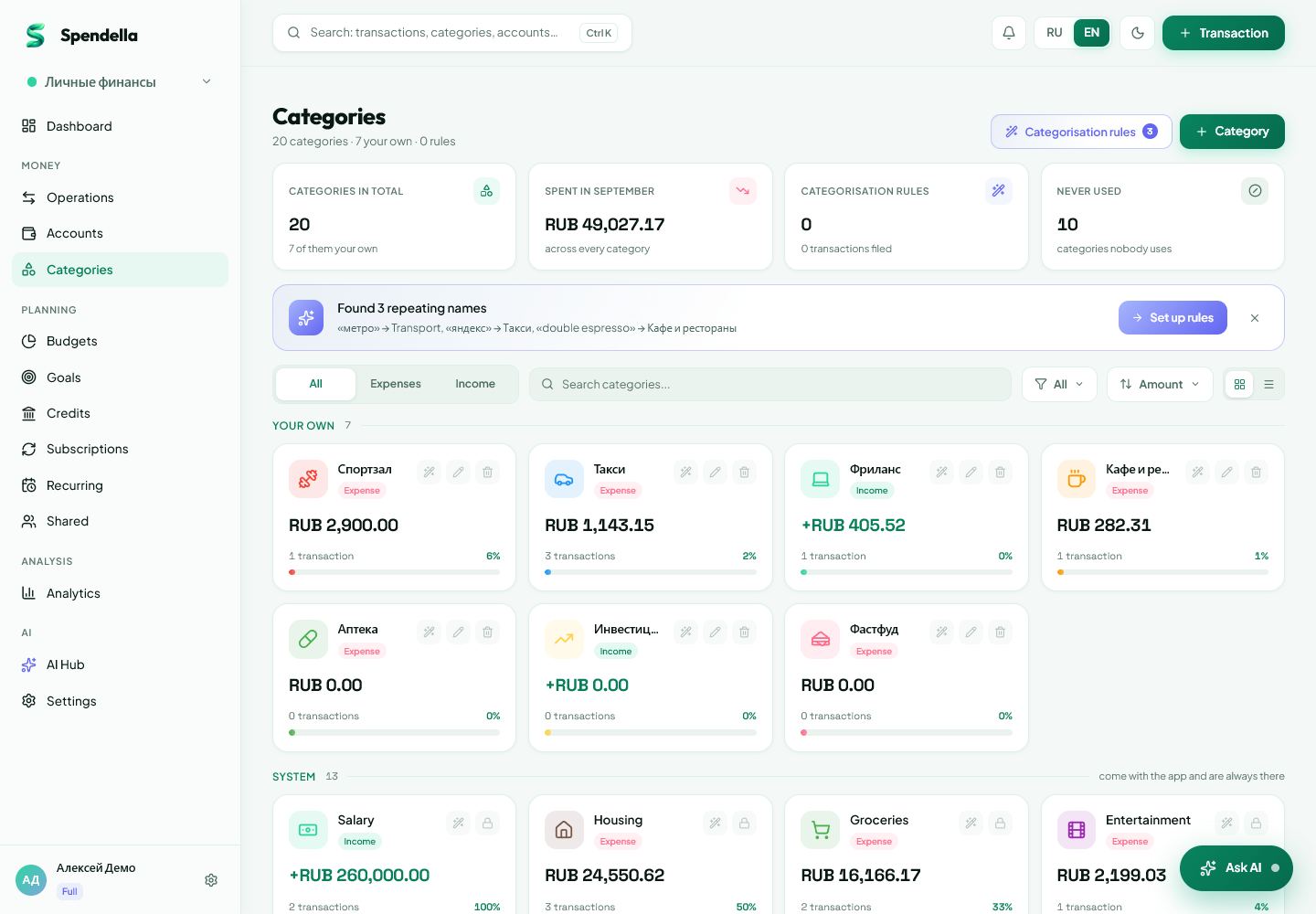
Categories group similar transactions. Clear names make reports easier to read.
This guide covers the free plan — setting it up yourself takes a minute.Get started free →
Updated 7 September 2026
Where to find it
- On the website
- Menu → Categories; change a purchase category inside its transaction.
- On Android
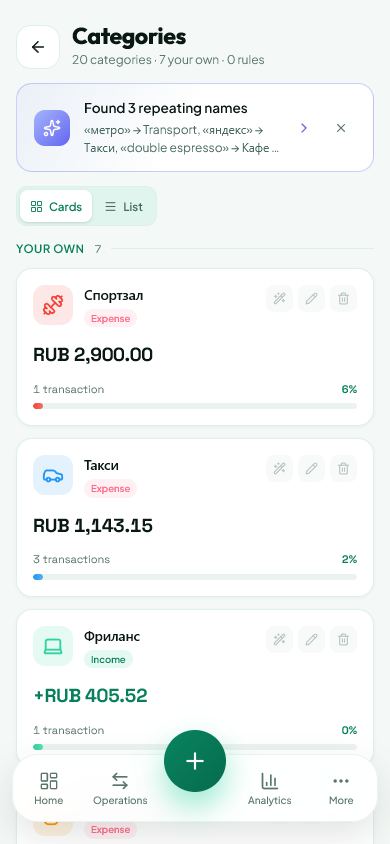
- More → Categories; open a transaction separately when needed.
Get started free and open this section Sign up in a minute, no card needed. This exact section opens right after.
01
Before you start
Start with the existing categories. Add one when the current set does not answer your question. A separate Eating out category can help distinguish cafés from groceries for home.
02
What to do
- Open Categories and add your own category.
- Enter a short name and choose the appearance and type offered in the form.
- Save, then open a purchase in Transactions.
- Choose the correct category in the editor and save.
- Return to the report and check the purchase is in the appropriate group.
03
If something goes wrong
- Category missing from the form: check whether the transaction is income or expense.
- Avoid a category for every shop if you want a single grocery total.
- Spendella remembers the category you choose for a merchant. Check the first suggestion; create a rule when a word must always select a specific category.
What you should see
The category becomes available for suitable transactions, and the corrected purchase joins its intended group.


Try it yourself
Everything above is free.
No time limit, no card. Sign up and we open the section this guide is about.
Still need help?
Tell us which step you got stuck on. Support can help you work through it.
Contact support ↗Contact us without signing in