
Spendella / Knowledge base
Assign categories automatically by name
Create a rule for a familiar shop so you do not have to choose the same category each time.
This guide covers the free plan — setting it up yourself takes a minute.Get started free →
Updated 7 September 2026
Where to find it
- On the website
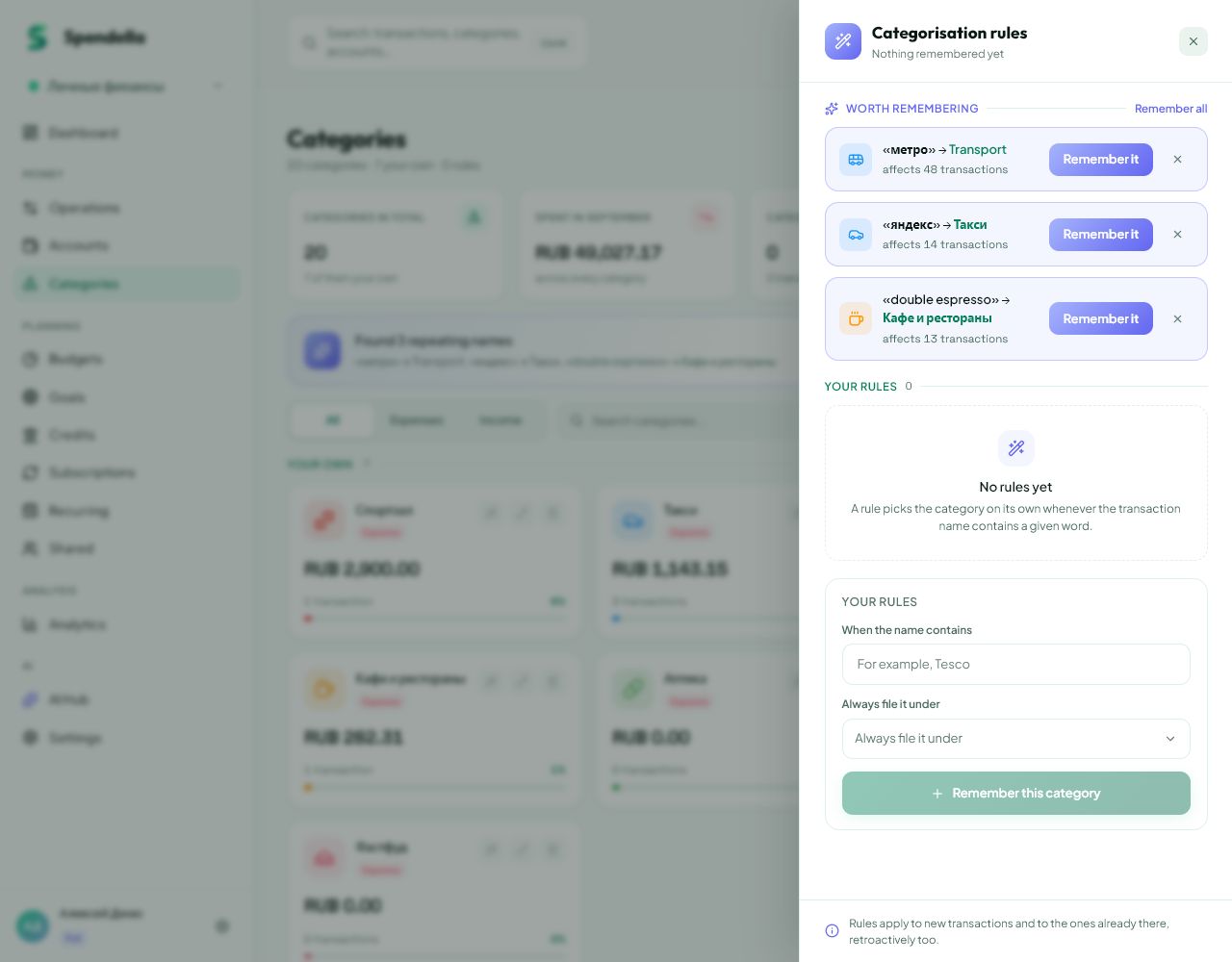
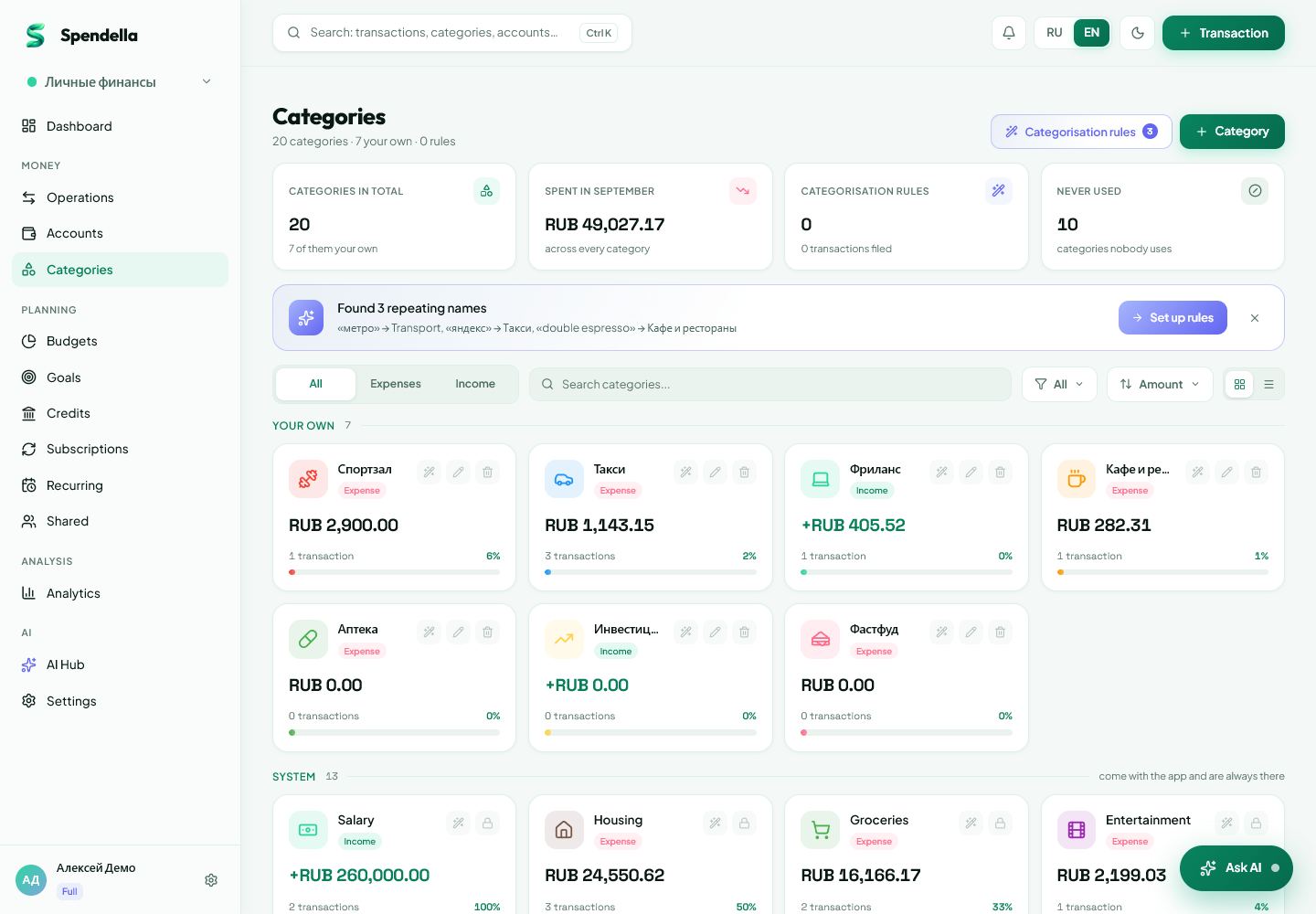
- Categories → Rules.
- On Android
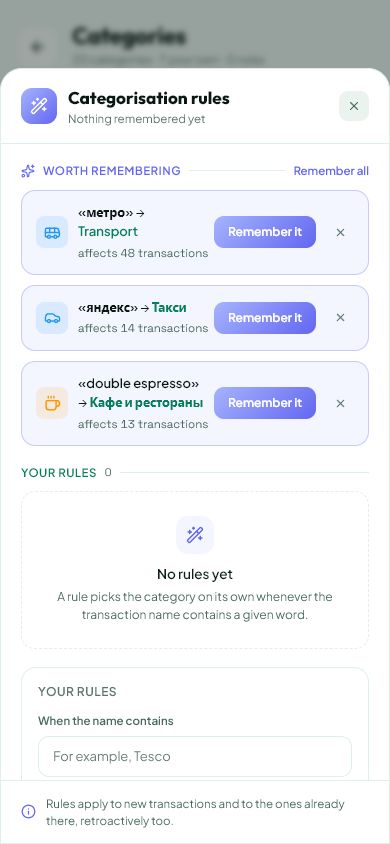
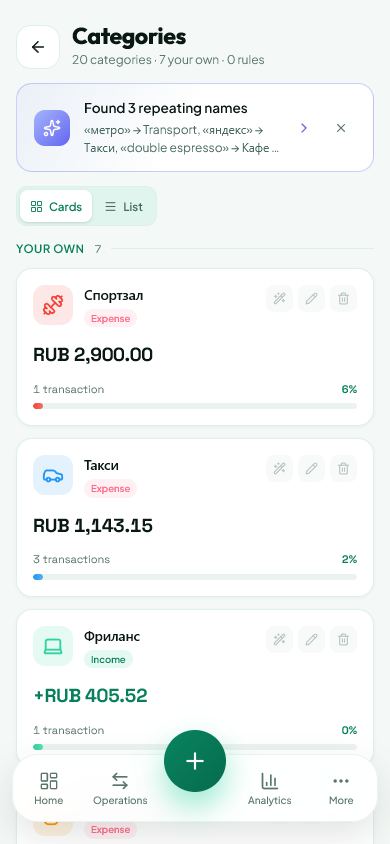
- More → Categories → categorisation rules.
Get started free and open this section Sign up in a minute, no card needed. This exact section opens right after.
01
Before you start
A rule connects part of a description to a category. A recognisable supermarket name can map to Groceries. A broad word such as “payment” matches too many purchases and causes mistakes.
02
What to do
- Open category rules.
- Add a rule using a distinctive fragment from a real transaction description.
- Choose the category those entries should use.
- Save and check the next matching transaction.
- If unrelated purchases match, make the fragment more specific or delete the rule.
03
If something goes wrong
- The statement uses a different name from the shop sign: use the text that actually appears in transactions.
- Creating a rule does not mean all old history is rewritten. Review old mistakes separately.
- Two rules match the same description: remove the ambiguity so the result is predictable.
What you should see
Matching new entries can receive a category from your rule.
Try it yourself
Everything above is free.
No time limit, no card. Sign up and we open the section this guide is about.
Still need help?
Tell us which step you got stuck on. Support can help you work through it.
Contact support ↗Contact us without signing in