
Spendella / Knowledge base
Automatically organize purchases into categories
Create a rule once to put purchases from a familiar shop into Groceries. For unfamiliar descriptions, you can enable AI assistance. Start with one clear example and check what happens.
This guide covers the free plan — setting it up yourself takes a minute.Get started free →
Updated 8 September 2026
Where to find it
- On the website
- Categories → Categorization rules. AI settings: Settings → AI.
- On Android
- More → Categories → Categorization rules. AI settings: More → AI hub → Pro mode.
Rules and AI are different
There are two ways to reduce repetitive work.
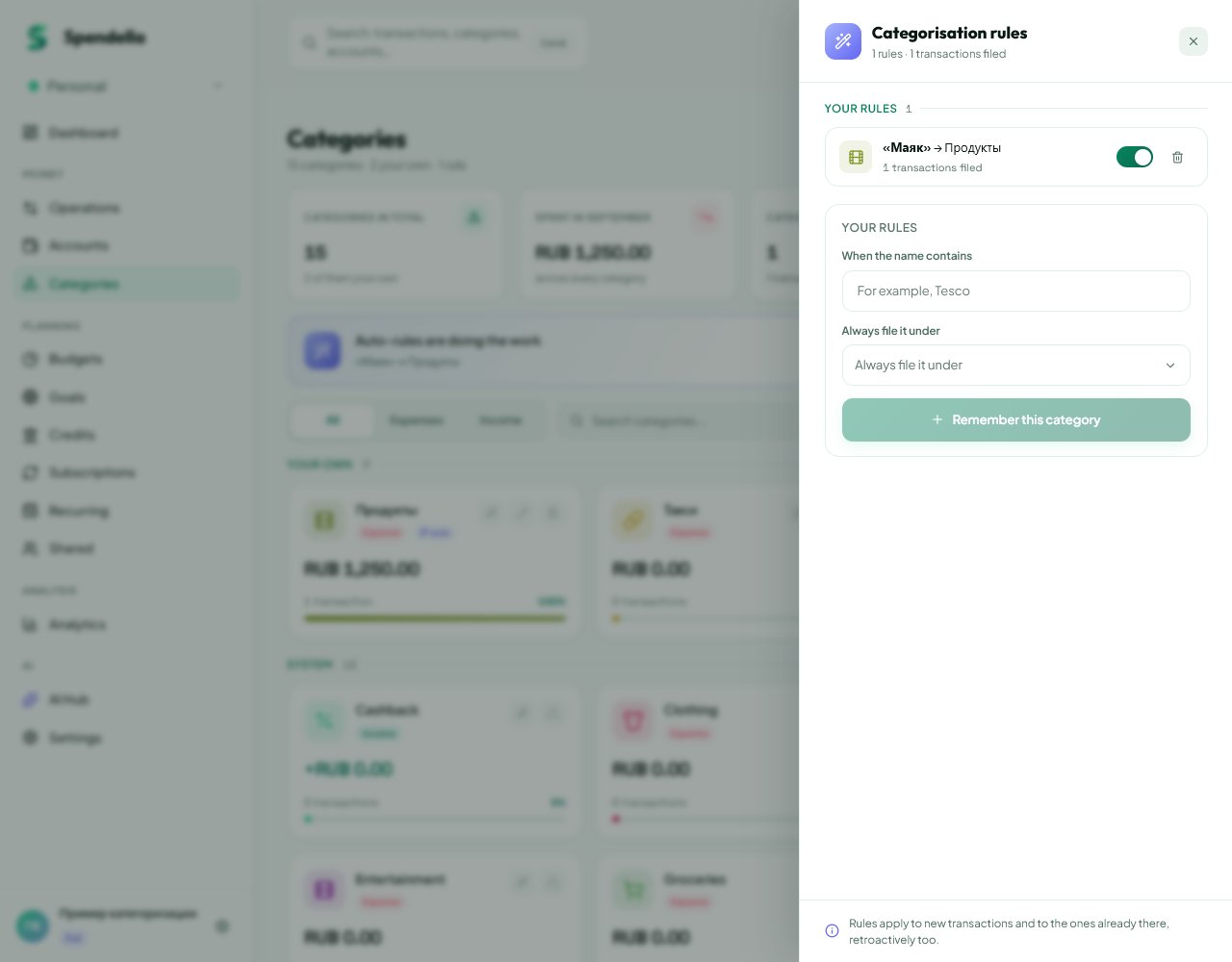
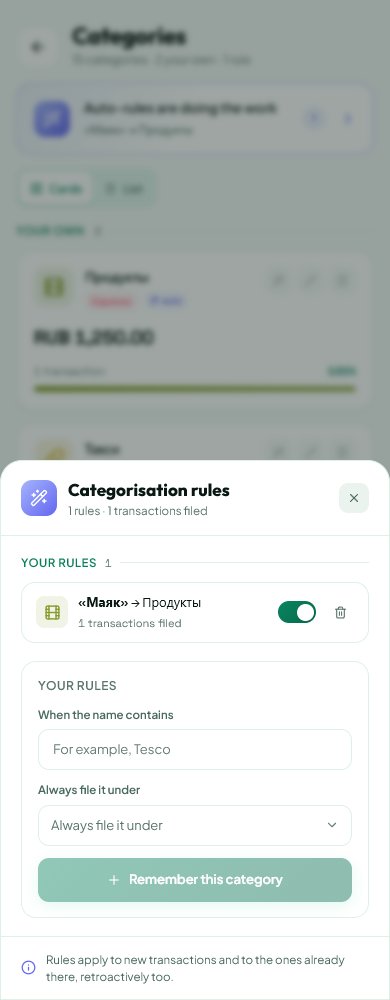
- A rule looks for familiar text in a transaction title: for example, “Mayak” → “Groceries”. You choose the result.
- AI tries to understand unfamiliar descriptions. It can be wrong, so review the result.
- Manual rules are available without an AI plan. Automatic rule suggestions and AI categorization require Plus or Maximum. Applying a rule does not consume AI operations.
Find a useful word first
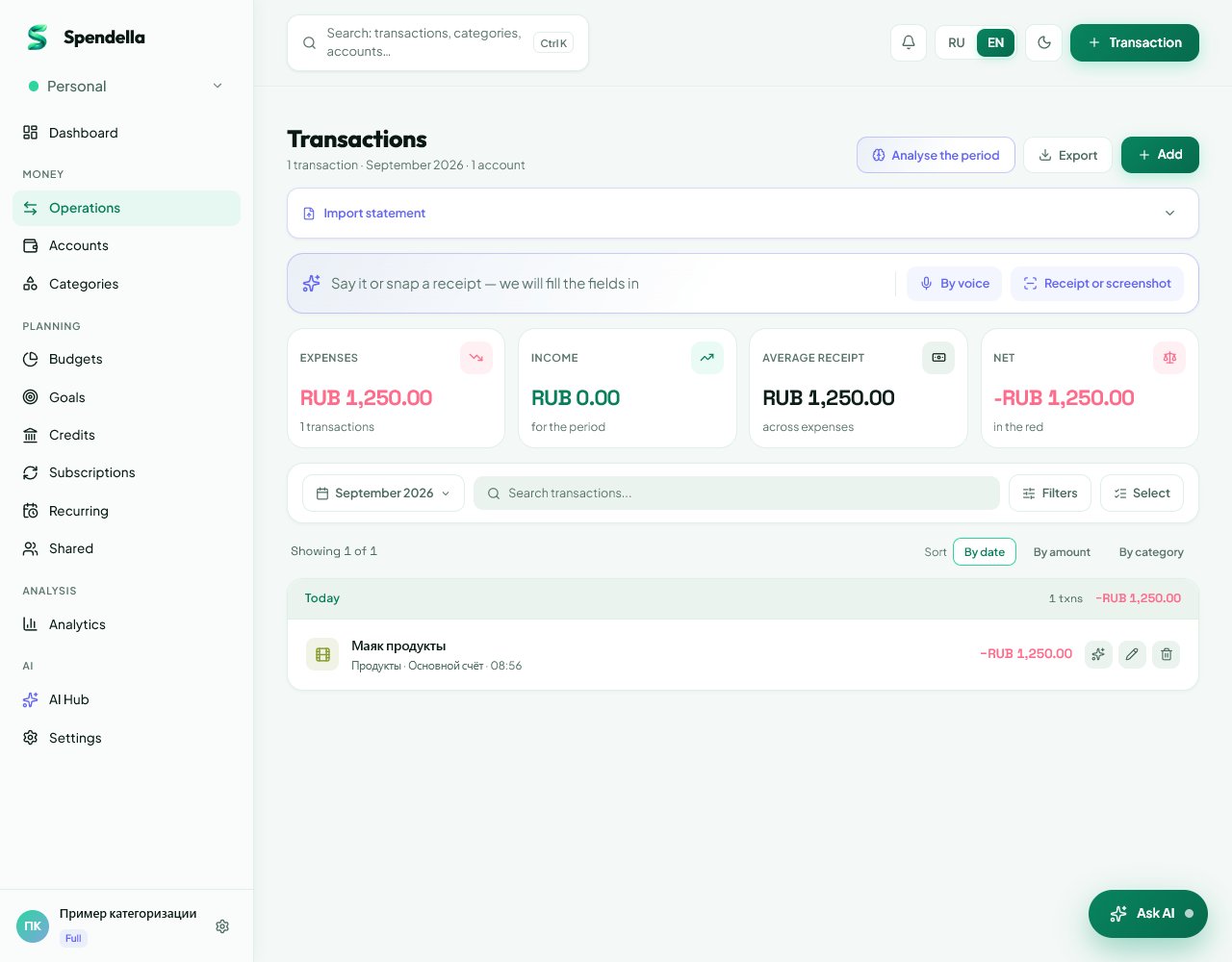
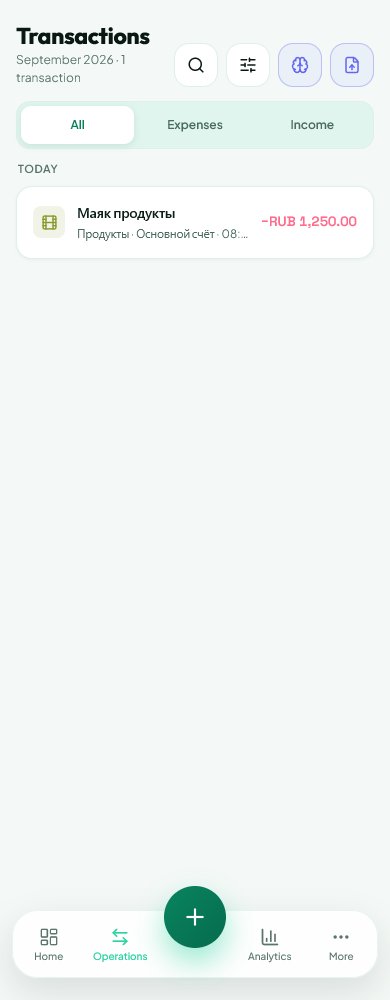
Open Transactions and check the actual title of a purchase.
- For “Mayak groceries”, use “Mayak”. You usually do not need a terminal number, date or amount.
- Avoid broad words such as “payment”, “purchase” or “shop”: they can match unrelated transactions.
- The rule reads the transaction title, not each receipt line. A single category may not suit a shop that sells both groceries and electronics.
Create your first rule
In this example, “Mayak groceries” should go into Groceries.
- Open Categories, then Categorization rules.
- Enter “Mayak” in the title matching field.
- Select Groceries. If the category is missing, create it in Categories first.
- Press the button to remember or create the rule.
- Wait for saving to finish. The new rule should appear in the list.
Check an existing purchase
Creating a rule also checks matching uncategorized transactions from the past 12 months.
- Return to Transactions and find the purchase using the same word.
- Open it and check its category: Groceries in this example.
- The amount, date and account should stay the same. A rule assigns a category; it does not create another purchase.
- A rule will not replace a category that was already selected. Correct that purchase manually.
How new purchases are handled
Leave a new purchase uncategorized so the rule can select its category.
- An active saved rule matches the transaction title without regard to letter case.
- Store numbers do not prevent generated suggestions from matching: a suggested “пятёрочка москва” rule recognizes “Пятёрочка №12 Москва”.
- Expense categories do not belong on income transactions. Purchase rules do not categorize transfers between accounts.
- Avoid overlapping rules for the same title. Keep one clear rule for a predictable result.
When Spendella suggests a merchant rule
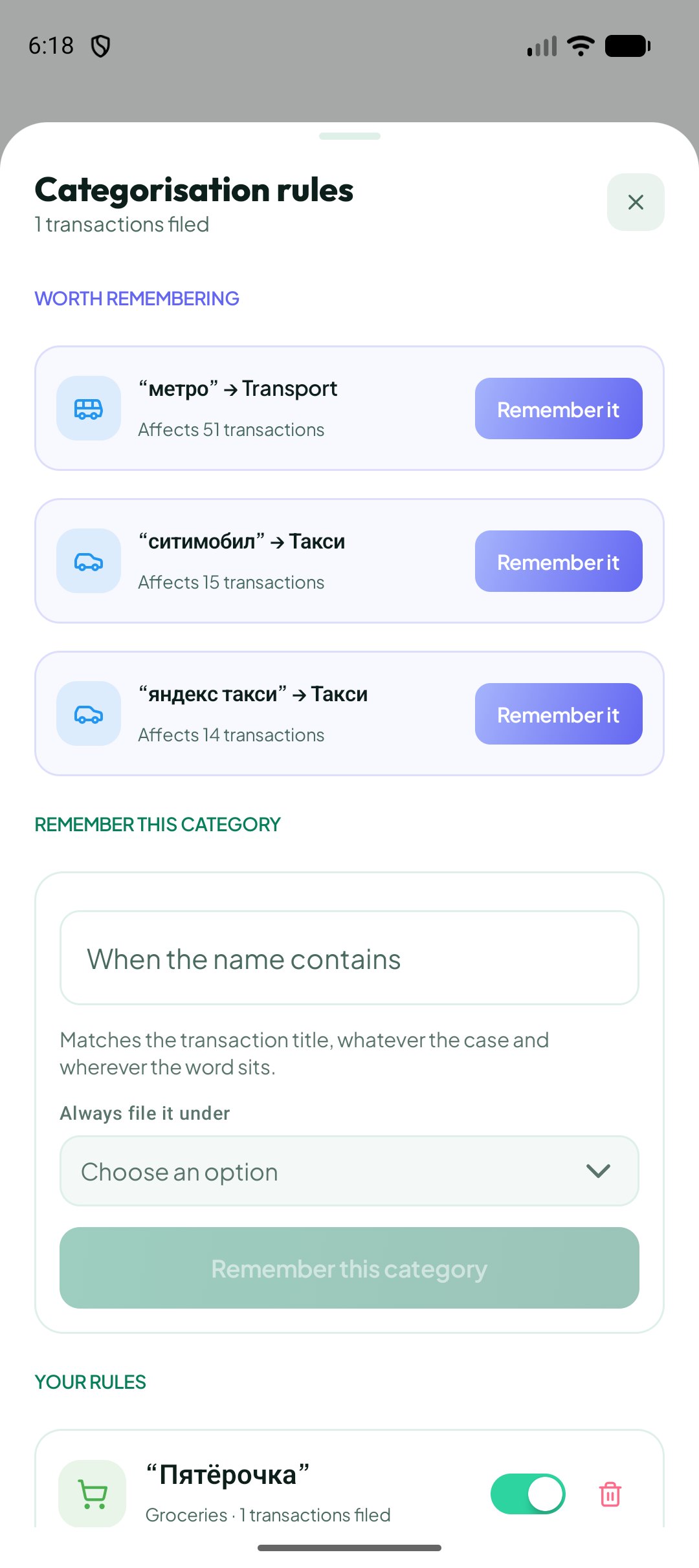
Suggestions use repeated descriptions and a consistent category choice in your history.
- Read the proposed “title → category” pair first. You do not have to accept a suggestion.
- If it is correct, apply the suggestion using the button beside it.
- If the category is wrong, create your own rule with the right category.
- No suggestions yet is not an error. There may be too little repeated history. You can create a manual rule immediately.
Enable AI for unfamiliar descriptions
Rules work independently of the AI categorization switch.
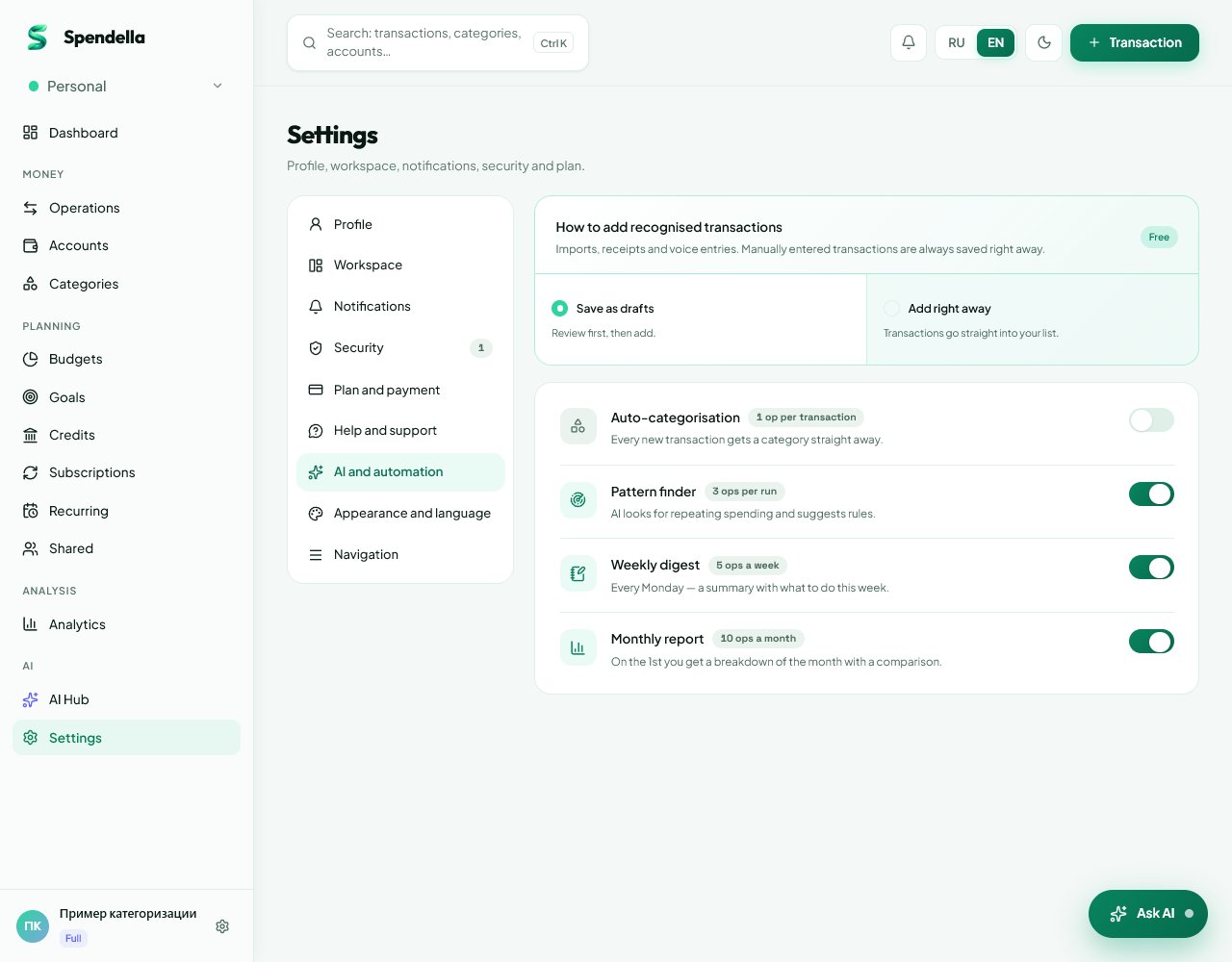
- On the web, open Settings → AI.
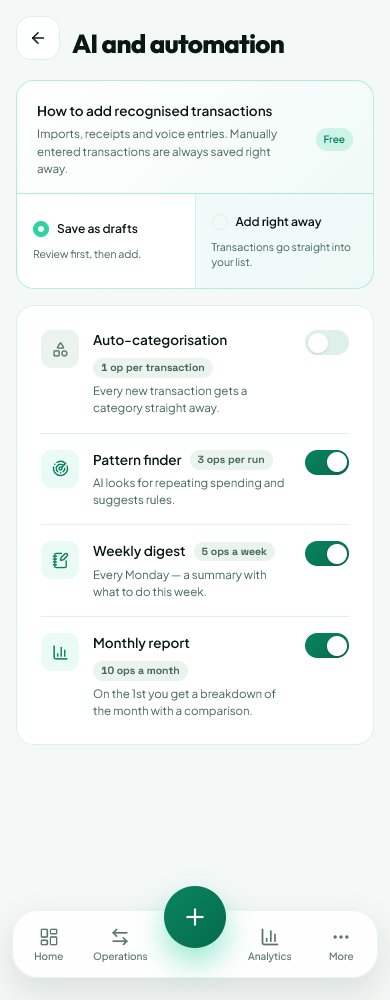
- On Android, open More → AI hub → Pro mode.
- Find automatic categorization and turn it on.
- Check your plan and remaining AI operations. Your own rules remain available if AI is unavailable.
- Processing may run in the background. Do not add the same purchase again while waiting for its category.
When AI operations are used
Applying your own rule does not call an AI model.
- For some familiar descriptions, Spendella can use a previous category choice or built-in recognition.
- A request to AI counts towards your AI allowance. The remaining allowance is shown in the AI hub and settings.
- If the allowance runs out, the purchase is not lost. Choose a category manually or create a rule.
Correct a wrong category
Correct the purchase first, then review the automation.
- Open the transaction and edit it.
- Choose the right category and save.
- Look for a broad or incorrect rule matching its title.
- Turn off that rule. If necessary, delete it and create a replacement.
- Check the result in Categories or Analytics. A later AI response should not overwrite your manual correction.
Turn off or delete a rule
The rule list includes a switch and a delete button.
- A disabled rule remains in the list but should not categorize new transactions. You can enable it again.
- Deleting removes the rule. Categories assigned earlier remain; deleting a rule is not an undo action.
- Edit earlier purchases separately if their categories need correcting.
If nothing happened
Check these points in order.
- Is the rule saved and enabled?
- Does the matching text actually appear in the purchase title?
- Is the purchase still uncategorized? An existing choice takes priority.
- Does the category type match: income or expense?
- Are you in the same account and workspace?
- Is the old purchase within the past 12 months?
- For AI: is the feature enabled, is the plan eligible and is there allowance left?
- Still no result after refreshing? Tell support which step failed and what you expected. Never send passwords or sign-in codes.
What you should see
You have created a rule, checked it on a transaction and learned how to turn it off or correct a category. Matching new purchases without a selected category can now be categorized automatically.
Everything above is free.
No time limit, no card. Sign up and we open the section this guide is about.
Still need help?
Tell us which step you got stuck on. Support can help you work through it.
Contact support ↗Contact us without signing in