
Spendella / Knowledge base
How to enable automatic checks and reports
Enable the background tasks whose results you intend to read. Each can be turned off separately.
This guide covers the free plan — setting it up yourself takes a minute.Get started free →
Updated 8 September 2026
Where to find it
- On the website
- Settings → AI; AI hub → Pro mode.
- On Android
- More → AI hub → Pro mode.
Get started free and open this section Sign up in a minute, no card needed. This exact section opens right after.
01
Steps
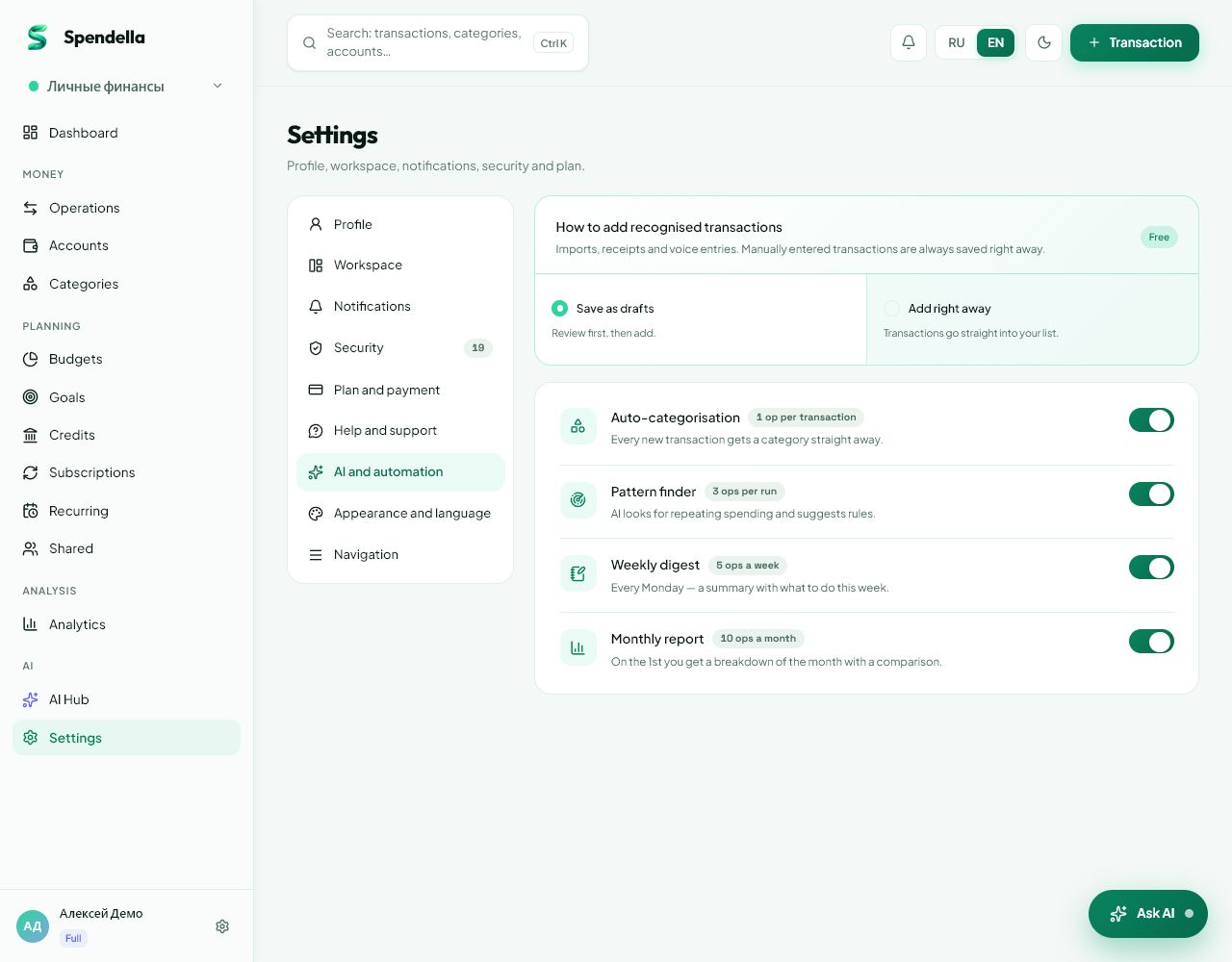
- Open AI settings and review the available switches.
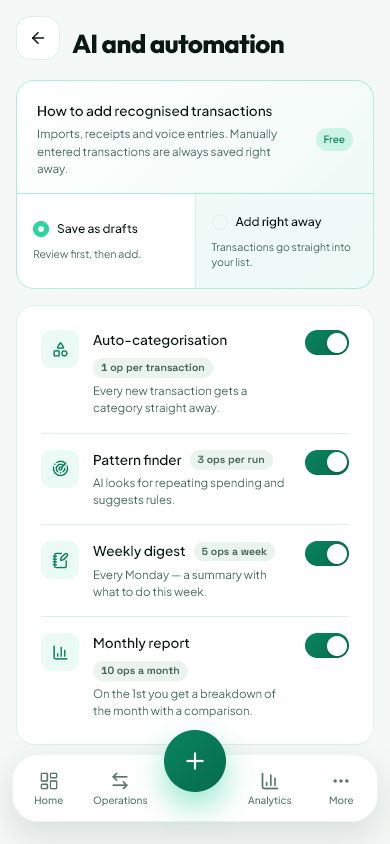
- Enable automatic categorisation to help with transactions that have no category. Your own category rules are configured separately in Categories.
- Enable pattern detection for suggestions based on repeated spending. Review a suggestion before applying it.
- Choose weekly and monthly reports if you want summaries without starting them manually.
- Check your AI allowance and configure notification channels separately. Enabling a task and allowing push notifications are different settings.
- Turn a switch off when you no longer need the task. Existing records and reports do not need to be created again.
02
If the result is not what you expected
A task need not start immediately after enabling it: background checks follow a schedule. If a result is missing, check feature availability, AI allowance, recorded history and notification channels.
What you should see
Only the background tasks you need are enabled, with delivery channels checked separately.
Try it yourself
Everything above is free.
No time limit, no card. Sign up and we open the section this guide is about.
Still need help?
Tell us which step you got stuck on. Support can help you work through it.
Contact support ↗Contact us without signing in