
Spendella / Knowledge base
How to choose a tool in the AI hub
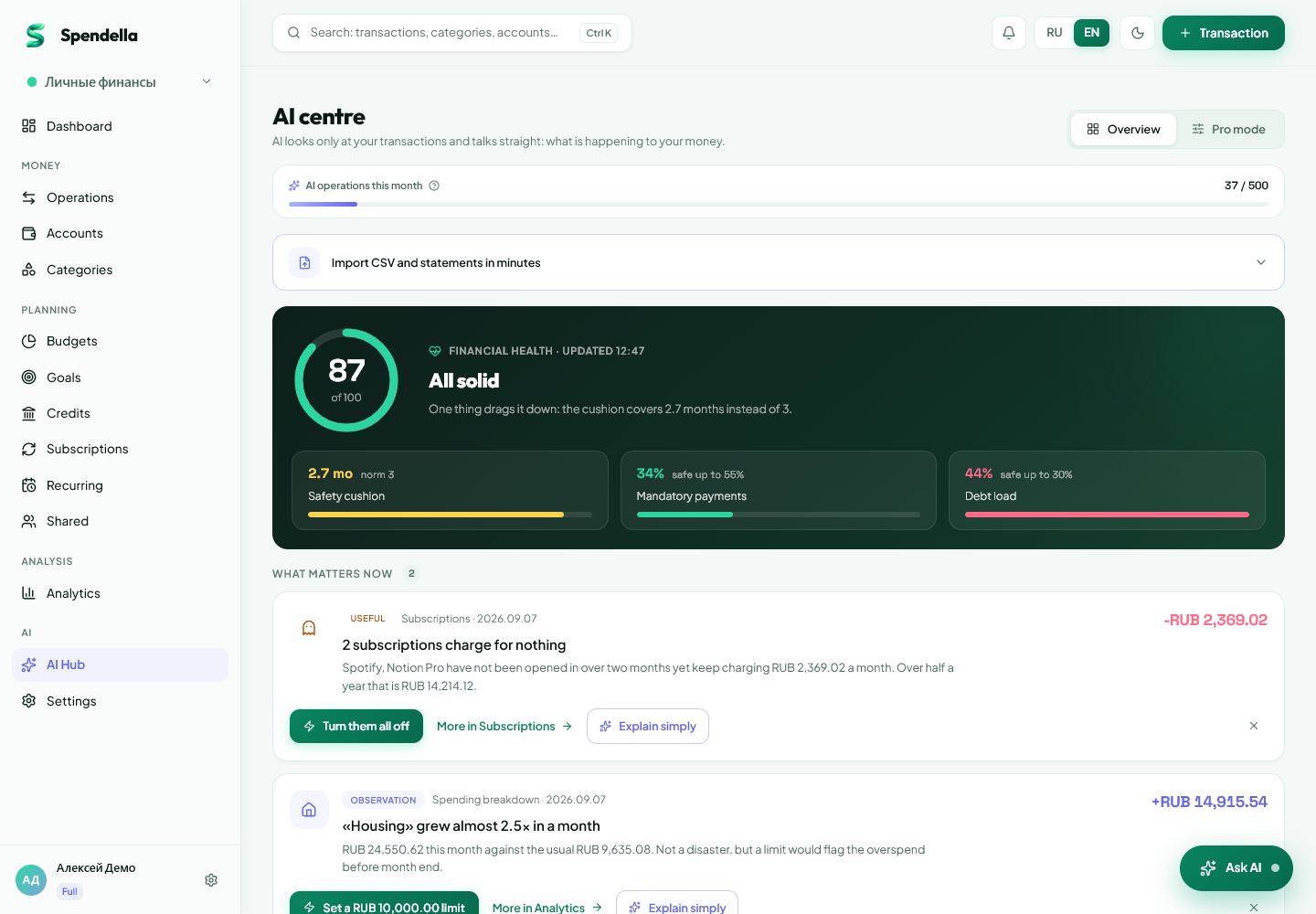
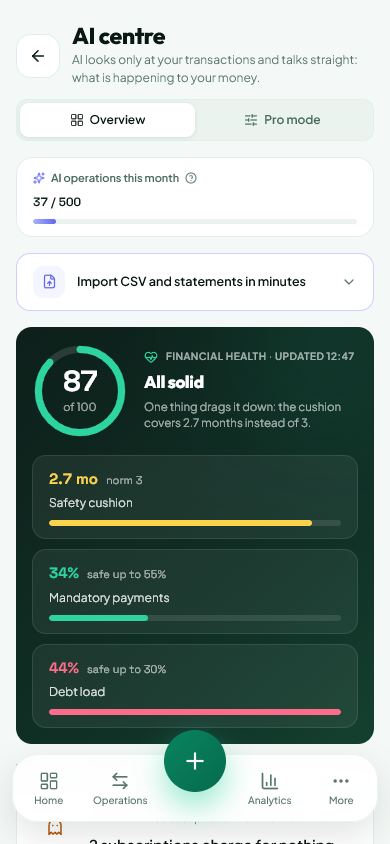
You do not have to compose a chat prompt. The AI hub offers ready-made tasks for spending, month comparisons and planning.
This guide covers the free plan — setting it up yourself takes a minute.Get started free →
Updated 8 September 2026
Where to find it
- On the website
- Menu → AI hub → tools.
- On Android
- More → AI hub → tools.
Get started free and open this section Sign up in a minute, no card needed. This exact section opens right after.
01
Steps
- Check the space and recorded history first: these are the records the assistant uses.
- For past spending, choose a breakdown, month comparison or weekly summary.
- For future plans, choose a cash-gap forecast, year-end forecast or large-purchase check.
- For account review, use unused subscriptions, possible duplicates and limit suggestions. Financial health provides an overall score with an explanation.
- Check the displayed cost and remaining AI allowance before running. Wait for the result without starting it again.
- Read the period and explanation. Open the related transactions before correcting them. Advice does not mean money has moved or a subscription has been cancelled.
02
If the result is not what you expected
With empty history, add real transactions first. If a tool is locked, check the plan and AI allowance. Forecasts and financial-health scores depend on complete data; a partial month is not directly comparable to a full one.
What you should see
You chose a tool for your task, read its result and know which records to check next.
Try it yourself
Everything above is free.
No time limit, no card. Sign up and we open the section this guide is about.
Still need help?
Tell us which step you got stuck on. Support can help you work through it.
Contact support ↗Contact us without signing in