
Spendella / Knowledge base
Turn off renewal of your Spendella plan
Stop the next renewal and check when your paid access ends.
This guide covers the free plan — setting it up yourself takes a minute.Get started free →
Updated 7 September 2026
Where to find it
- On the website
- Settings → Billing.
- On Android
- More → Settings → Billing; store purchases may also require the store’s subscription management.
Get started free and open this section Sign up in a minute, no card needed. This exact section opens right after.
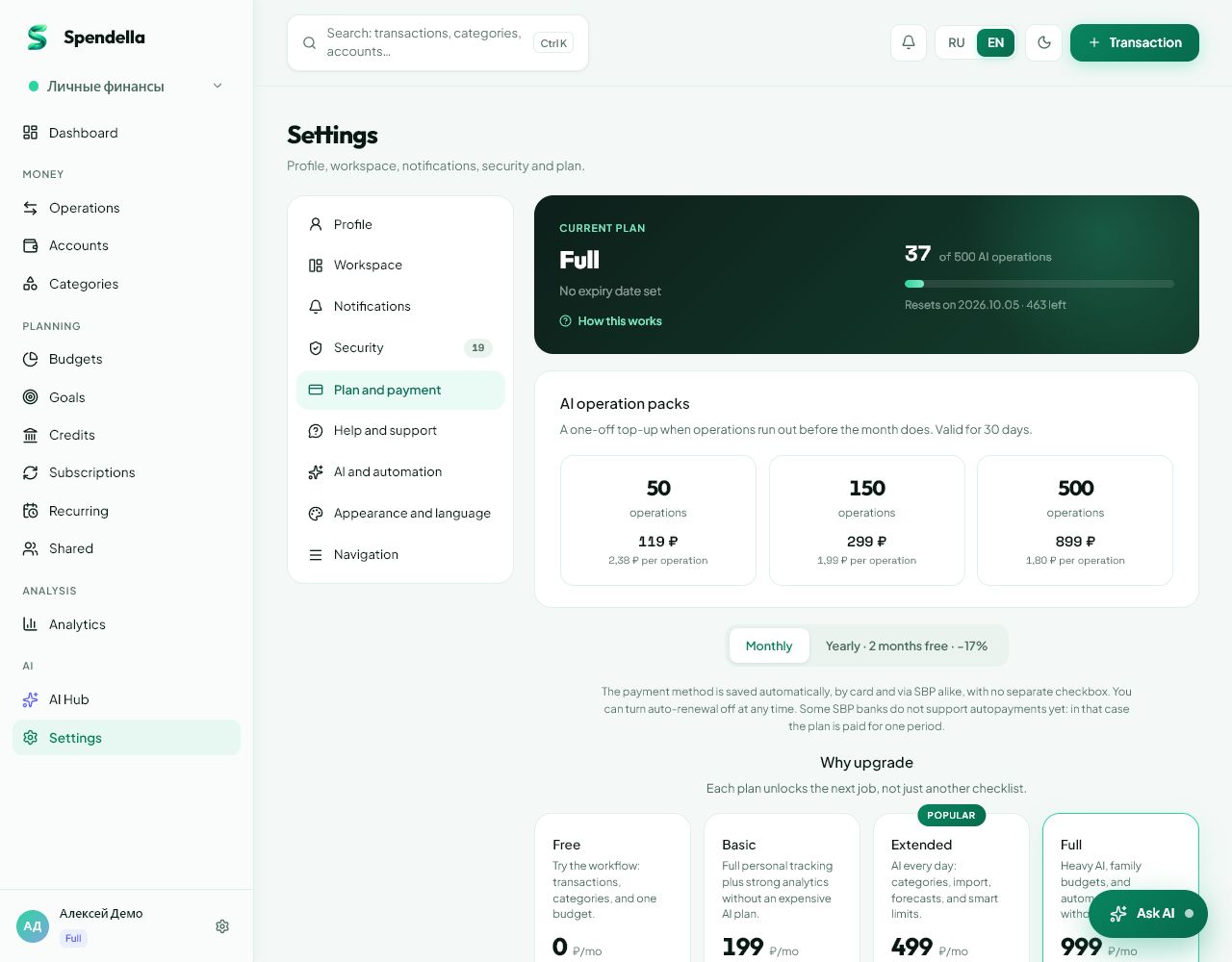
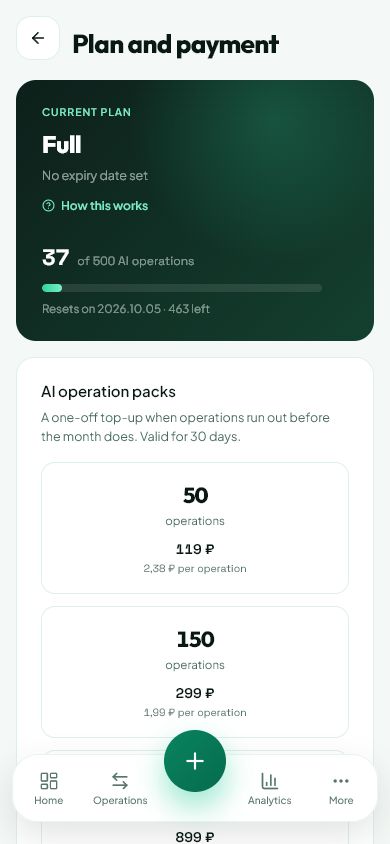
01
Before you start
Cancelling renewal, uninstalling the app and deleting your account are different actions. To avoid another payment, check renewal specifically. You do not need to delete financial records.
02
What to do
- Open billing in the account used for the purchase.
- Check whether automatic renewal is on and where the subscription was purchased.
- Use the available cancellation action. If directed to the store or subscription management, finish there.
- Read and confirm cancellation if you want renewal to stop.
- Check the updated status and current access end date.
03
If something goes wrong
- No cancel button: renewal may already be off or managed by a store; read the status.
- Removing the app from your phone does not cancel a subscription.
- Refund questions are separate from renewal cancellation and follow purchase terms and support procedures.
What you should see
Subscription management should show that the next automatic renewal is cancelled.
Try it yourself
Everything above is free.
No time limit, no card. Sign up and we open the section this guide is about.
Still need help?
Tell us which step you got stuck on. Support can help you work through it.
Contact support ↗Contact us without signing in