
Spendella / Knowledge base
Check your plan, trial and payment
Review the current plan and order terms before paying. Use the billing screen for current prices and allowances.
This guide covers the free plan — setting it up yourself takes a minute.Get started free →
Updated 7 September 2026
Where to find it
- On the website
- Settings → Billing.
- On Android
- More → Settings → Billing.
Get started free and open this section Sign up in a minute, no card needed. This exact section opens right after.
01
Before you start
Registration includes a 7-day free trial. Check your own account for dates and active features. Website and app-store payments can use different processes.
02
What to do
- Open billing.
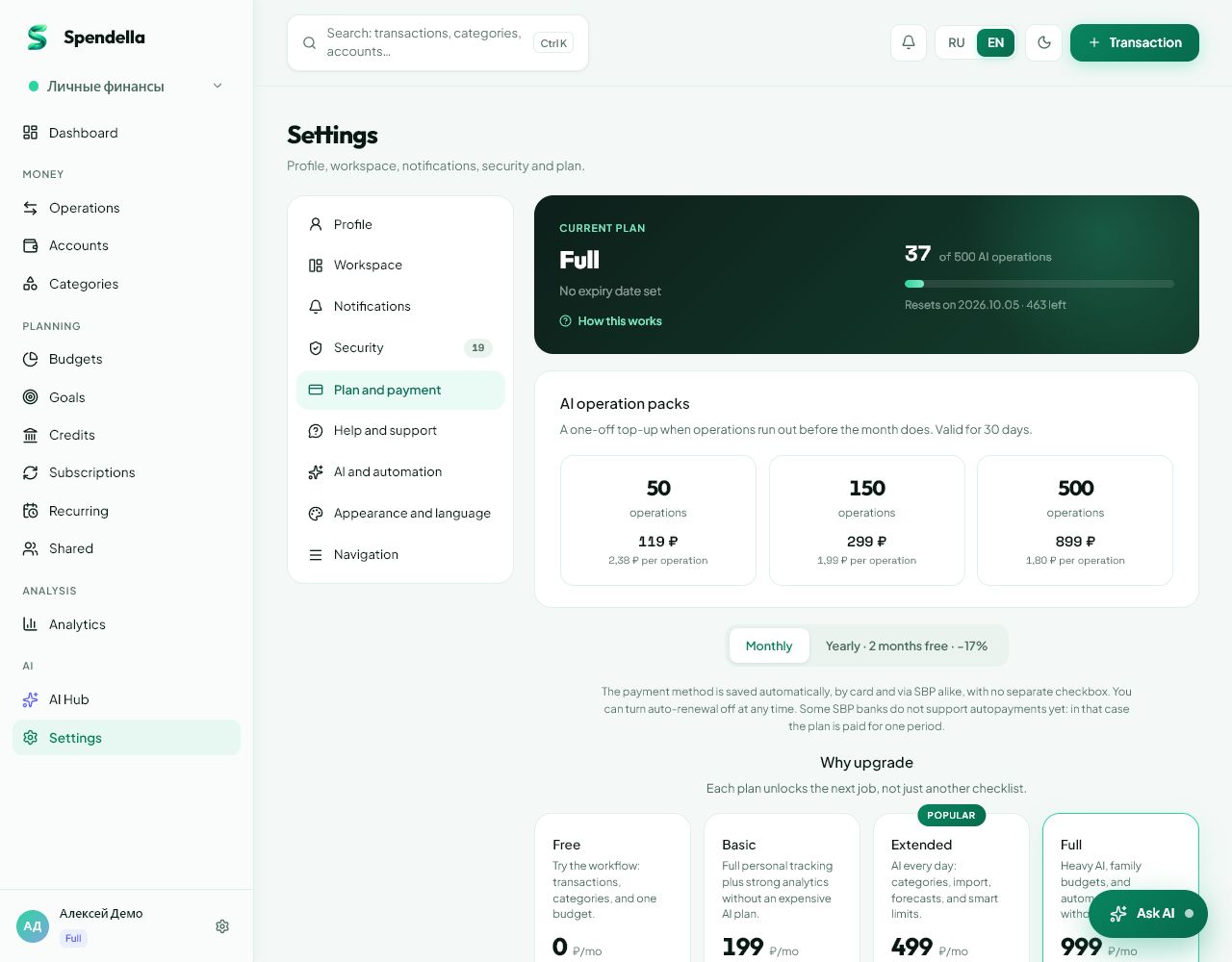
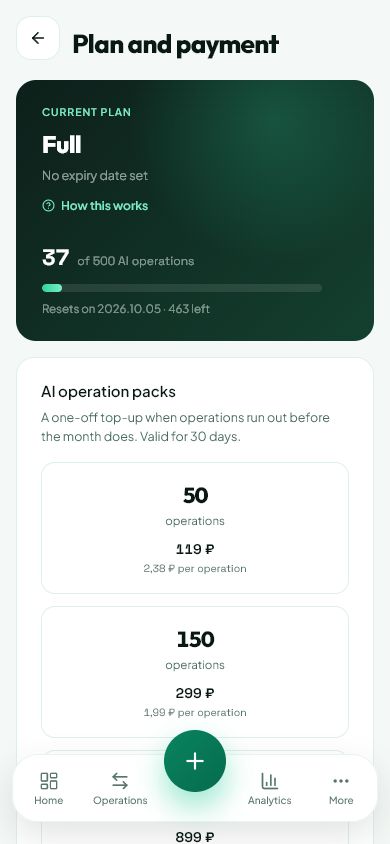
- Check your current plan, access end date and available AI operations.
- Choose a plan and term from the offered options.
- Before confirming, read the total price, duration and renewal terms. Do not rely only on a displayed monthly equivalent.
- Complete payment using the offered method and return to Spendella.
- Wait for the status to update and check the access date.
03
If something goes wrong
- Charged but the plan is unchanged: refresh status and do not immediately pay again. Contact support with the order number.
- Using two accounts: check which was signed in during payment.
- Trial duration and AI allowance are different limits. Check both if a feature is unavailable.
What you should see
After confirmed payment, billing shows the paid access and its duration.
Try it yourself
Everything above is free.
No time limit, no card. Sign up and we open the section this guide is about.
Still need help?
Tell us which step you got stuck on. Support can help you work through it.
Contact support ↗Contact us without signing in