
Spendella / Knowledge base
Transactions from notifications: setup and privacy
When your bank reports a purchase, Spendella can extract a transaction so you have less to type. Setup has two separate steps: Android permission and your choice of apps. Permission alone is not enough.
Updated 7 September 2026
Where to find it
- On the website
- Connect notification reading on an Android phone only.
- On Android
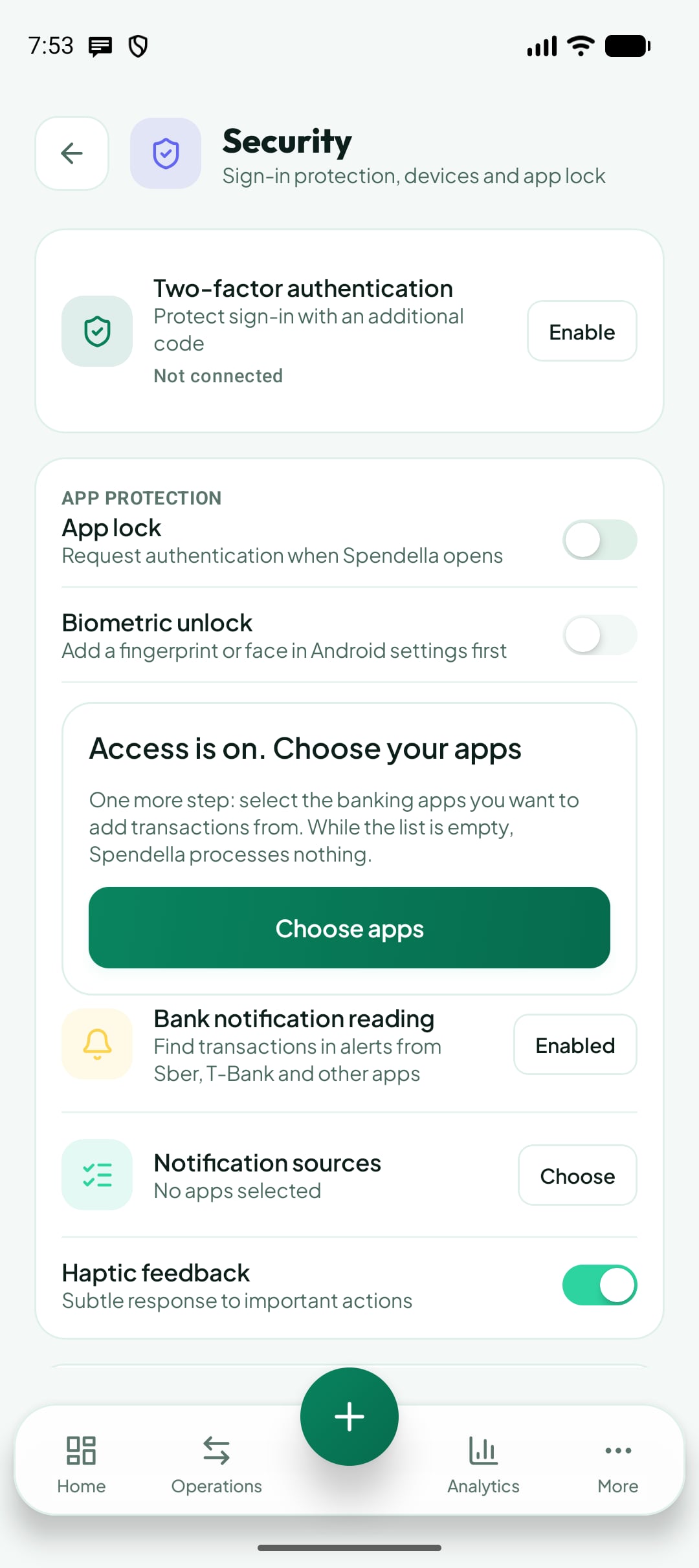
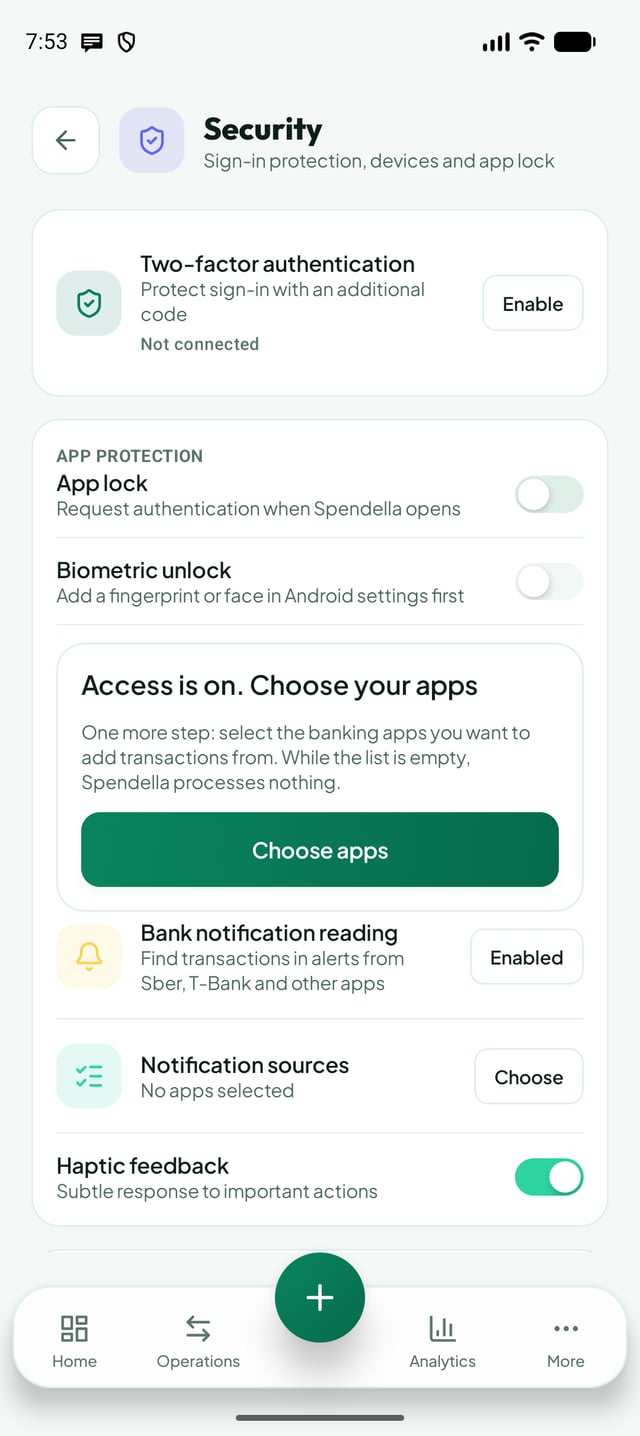
- More → Settings → Security → Bank notification reading.
Why notifications instead of SMS
We want to make tracking easier without asking for your message history to record a purchase. Spendella does not request access to the SMS store or download message history. You choose which banking apps supply transactions.
- This is optional. You can keep using manual entry, receipts or statements without connecting notifications.
- We do not select all apps automatically. An empty source list means processing has not started.
- Select only the banks you need. Do not select Messages or messaging apps: their notifications can contain private conversations.
Before you start: two different permissions
Spendella push notifications are messages from the app to you, such as reminders. Reading bank notifications is a separate Android permission that lets the app receive notifications from other apps.
- Allowing Spendella to show notifications does not allow it to read bank notifications.
- Your bank app must be installed on this phone with purchase notifications enabled.
- This is an Android feature. The web app cannot grant access to your phone notifications.
Step 1. Allow access in Android
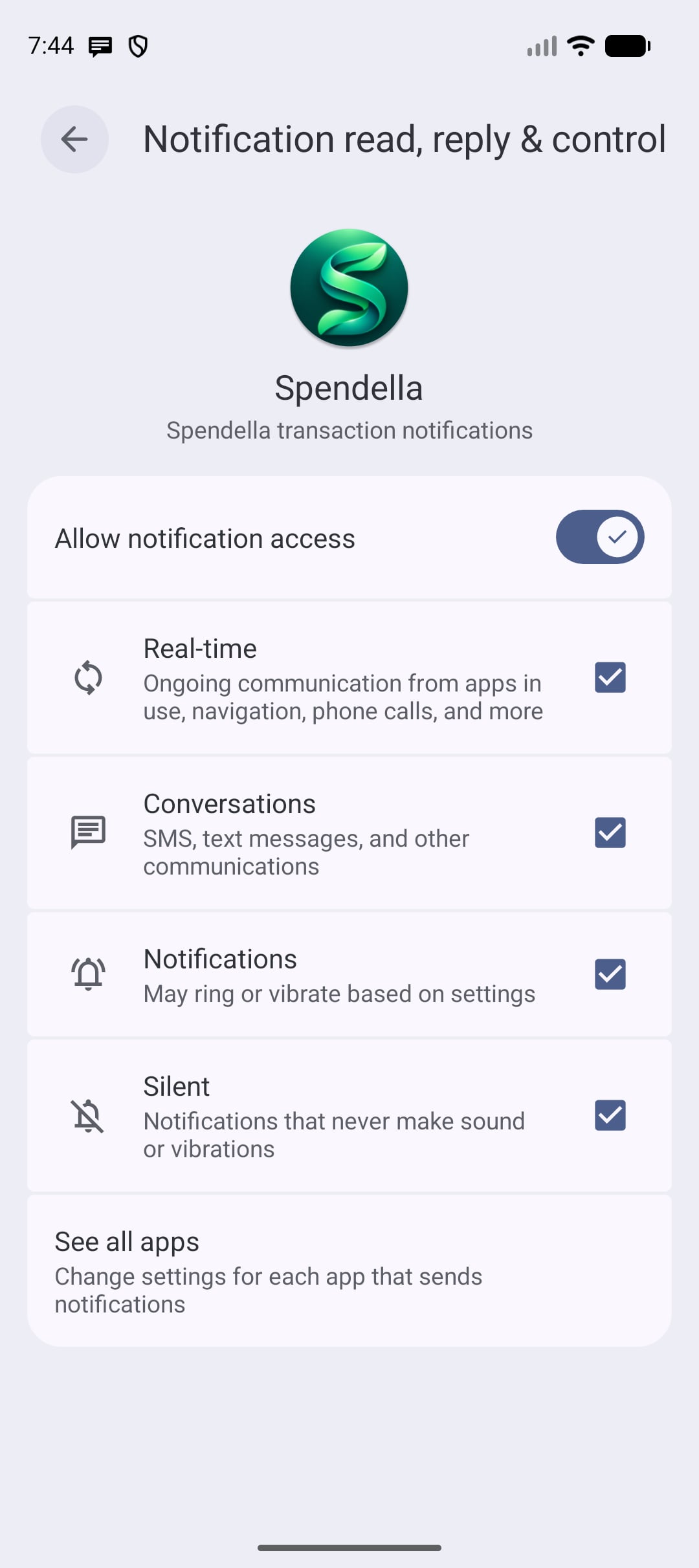
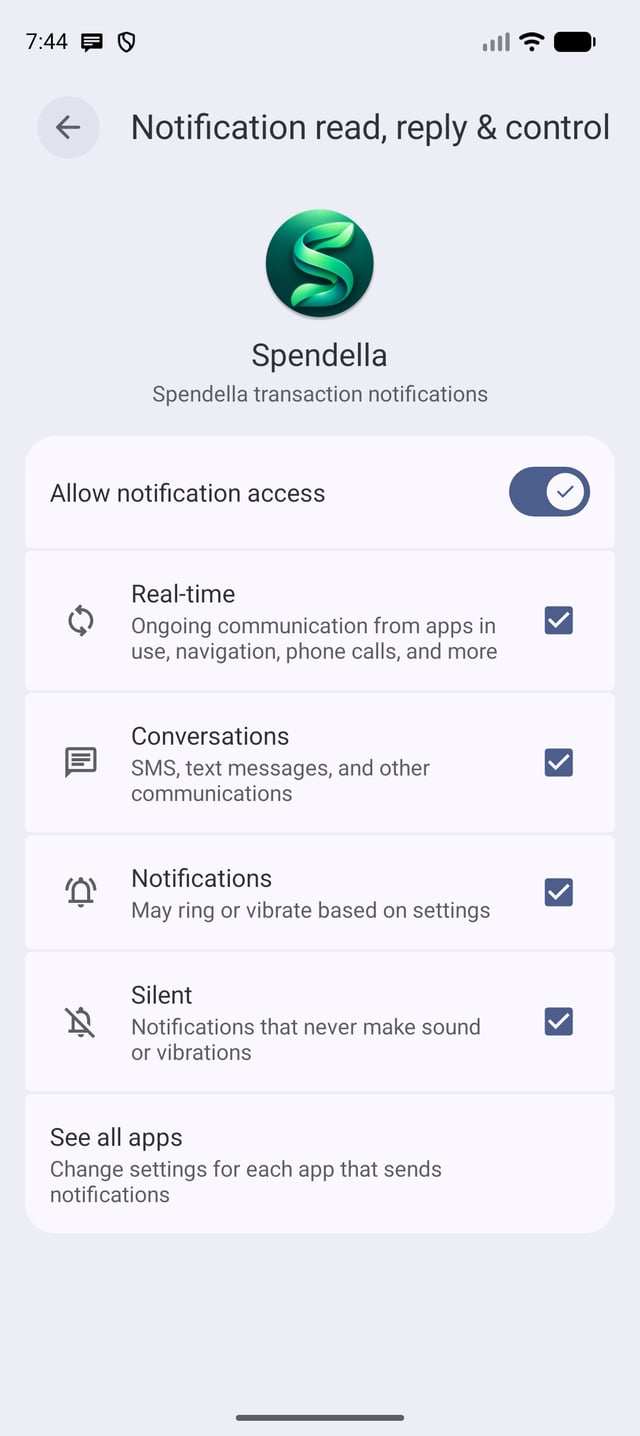
Open More → Settings → Security. Find Bank notification reading and tap Enable.
- In Android settings, choose Spendella.
- Turn on Allow notification access and read the system warning.
- Confirm if you agree, then return to Spendella. If you do not agree, go back without confirming; manual tracking remains available.
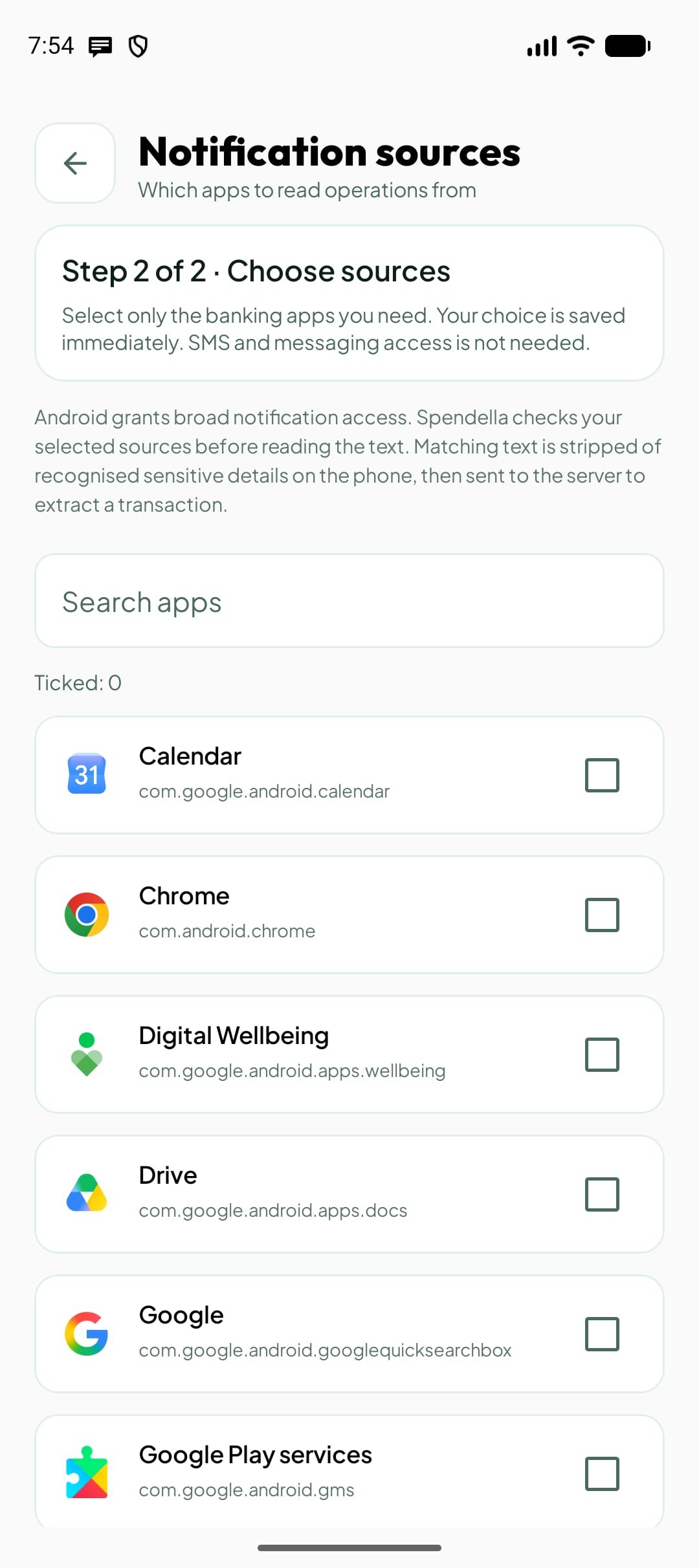
Step 2. Choose your banking apps
After enabling access, tap Choose apps. Spendella offers this step when you first connect; later you can find it in Security. Nothing is processed while no sources are selected.
- Search for your bank or find its app in the list.
- Tick only the apps you need. Changes are saved immediately; there is no separate Save button.
- When Selection saved appears, tap Done. Security shows the number of selected apps.
- If your bank is missing, check that its app is installed on this phone. The list depends on installed apps.
Why Android warns about broad access
The system permission covers notifications in general, not just one bank. Its warning is broader than the access Spendella uses for tracking. Spendella itself enforces your chosen source list.
- First we check the source. If you did not select it, its notification text is not extracted for processing.
- Next we look for an amount and signs of a transaction. Notifications that do not pass this check are not sent for parsing.
- On the phone, we remove recognised card and account numbers, phone numbers and balances. The purchase amount and description may be needed to record the transaction correctly.
- The cleaned text goes to the Spendella server. Known formats use parsing rules; others may use AI if your plan allows it.
- Cleaning uses recognition rules, so we do not promise that every unusual message becomes completely anonymous. We aim to send less unnecessary data while still being able to recognise the transaction.
If Android blocks the switch
Installing from an APK may cause Android to restrict sensitive settings. Change these settings only if you trust your installed copy of Spendella.
- Open Android Settings → Apps → Spendella → App info.
- If Allow restricted settings is available in the three-dot menu, read the warning and allow it.
- Return to notification access and repeat step one.
- If the option is missing, do not look for bypasses. Names and restrictions depend on Android version, manufacturer and device management. Contact support.
Check the next purchase
Wait for a new bank purchase notification. Spendella does not download past bank history; use statement import for that.
- Check new transactions and drafts in Spendella. Review the amount, account and category; automatic recognition can make mistakes.
- Android permission does not unlock paid features. Known formats can be parsed without AI; if AI is needed, your plan access and allowance apply.
- If nothing appears, check permission, the selected bank, an amount in the notification, internet access and that you are signed in.
- If Android restricts background work, Spendella may show a hint. Allow background work if needed; some phones also have a separate autostart setting.
Stop reading whenever you want
You stay in control of the sources.
- For one bank: deselect its app in Notification sources.
- For all apps: tap Clear all or disable Spendella notification access in Android settings.
- After a refusal, the permission dialog is not repeatedly opened automatically. You can return to setup yourself.
- Turning reading off does not delete transactions already created. Review or delete those separately.
What you should see
Permission granted and banks selected: new matching notifications can supply transaction data. You can change the list or turn reading off at any time.
Transactions from notifications: setup and privacy
Still need help?
Tell us which step you got stuck on. Support can help you work through it.
Contact support ↗Contact us without signing in