
Spendella / Knowledge base
AI reports: from your first report to a new version
Review a week or month, compare two date ranges and save a PDF. Learn when AI operations are used, how duplicates work and what to do after editing transactions.
AI report generation is available on Plus, Maximum and during an active trial.Get started free →
Updated September 14, 2026
Where to find it
- On the website
- Menu → Reports. You can also open report history from the AI Hub.
- On Android
- More → AI Hub → Reports. Use the current app version.
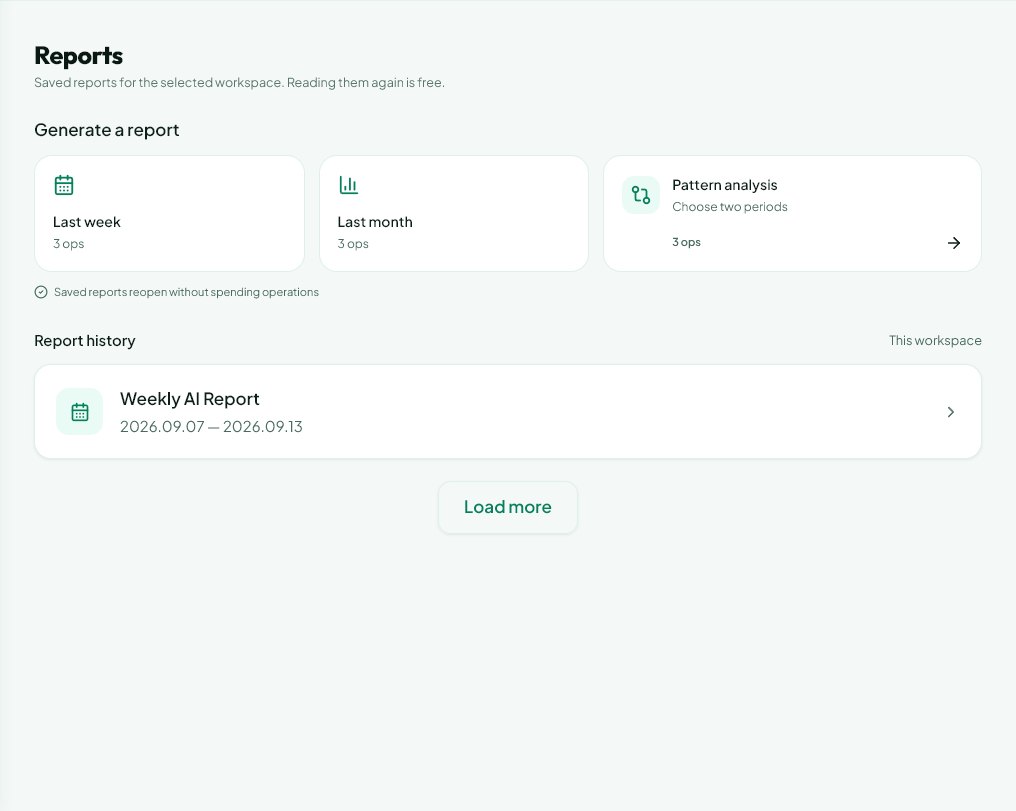
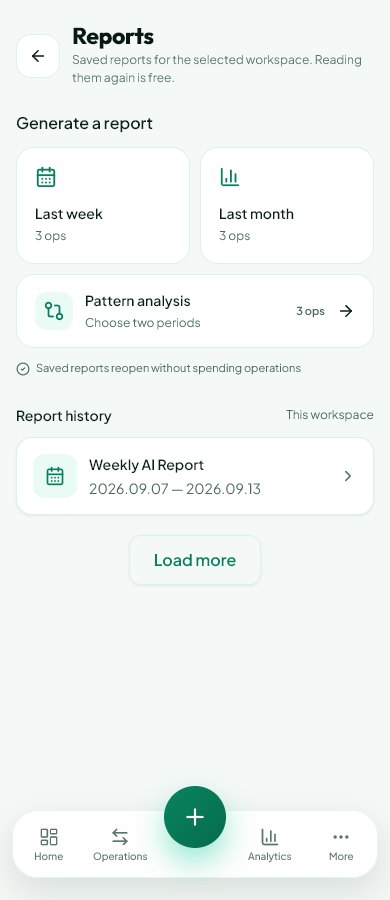
Choose a report
All three types are available on Plus, Maximum and during an active trial with AI access.
- Weekly report: the last completed Monday–Sunday week, compared with the week before it.
- Monthly report: the last full calendar month, compared with the preceding month.
- Pattern analysis: choose both the analysis period and the comparison period. For example, compare August with June or a week after a holiday with a week before it.
- Reports use the selected workspace. Check that income and expenses are recorded, dates and categories are correct, and imported entries are confirmed.
Start a report and check the cost
New generation currently uses 3 AI operations for a weekly report, 3 for a monthly report and 3 for pattern analysis. The button shows the current cost before you start. AI operations are quota units, not the number of financial transactions in the report.
- Open Reports and select the workspace you want to review.
- Choose last week, last month, or set up pattern analysis. The app checks whether a matching report already exists.
- If there is no matching result, preparation starts in the background. You may leave the screen. The result appears in the archive, with a ready notification according to your notification settings.
- Reading saved reports and downloading PDFs use no AI operations. New generation requires sufficient remaining quota; there is no separate daily report limit, including during the trial.
Select two periods for pattern analysis
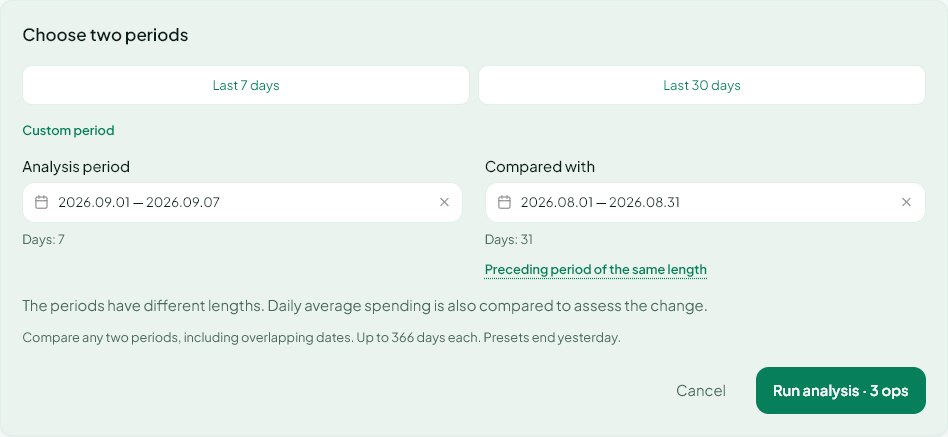
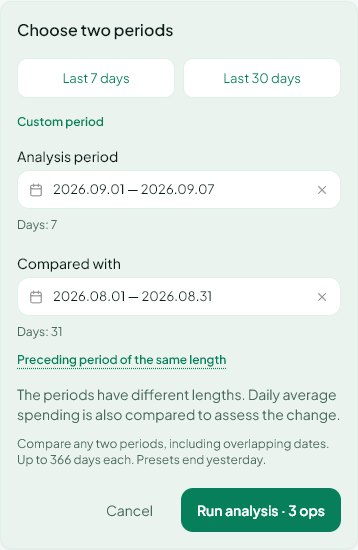
Analysis period and Compare with are independent date ranges. Neither has to be a calendar month.
- Last 7 days and Last 30 days select complete days through yesterday, plus the preceding range of the same length. The matching preset is highlighted.
- For custom dates, open the calendar for a range and select its start and end. Repeat for the other range.
- The start cannot follow the end. Future dates are unavailable. Each range may contain up to 366 days inclusive. Ranges may have different lengths or overlap.
- Previous period of the same length resets the comparison range to the days before the analysis period. After manual changes, a preset stays highlighted only if the dates still match it.
- Check all four dates before starting. The report shows them under What we compare. Average daily expenses are particularly useful when range lengths differ.
A report exists: open it or create a new version
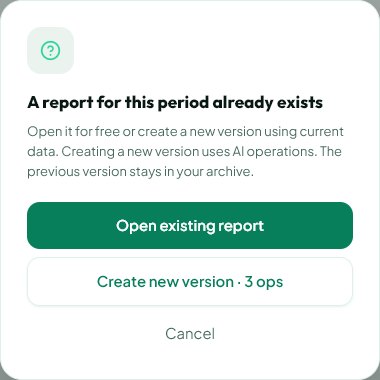
After checking, the app displays “A report for this period already exists”. This prevents accidental repeat quota usage.
- Open existing report reads the saved result for free.
- Create new version starts a paid analysis using current data. The confirmation shows the cost. The previous report remains in the archive.
- Cancel or close the dialog to leave without creating a report or using quota.
- The next title includes v2, then v3. The report period stays the same; the creation date helps distinguish the results.
- If preparation is still running, another launch opens that pending report. Repeating confirmation for the same old version does not create an extra paid copy either.
What counts as a duplicate, and how to update a report
Matching is within your account and workspace. Weekly and monthly reports match by type and both period dates. Pattern analysis also matches both comparison dates.
- A weekly report and pattern analysis for the same dates are different reports. Changing the comparison range also makes a different pattern analysis.
- Editing an amount, category or set of transactions does not make the period new. The app will first offer the saved report.
- After importing missing entries or fixing data, launch the same report type and period and choose Create new version. For an older custom pattern analysis, select both original ranges again.
- The new AI analysis uses current data when it is prepared. The saved text of an older version is not automatically rewritten. Some totals in older report formats may refresh on opening; create a version for a consistent new analysis.
- Matching works across devices. A report created on the web is available in the same account and workspace on Android.
Read the result
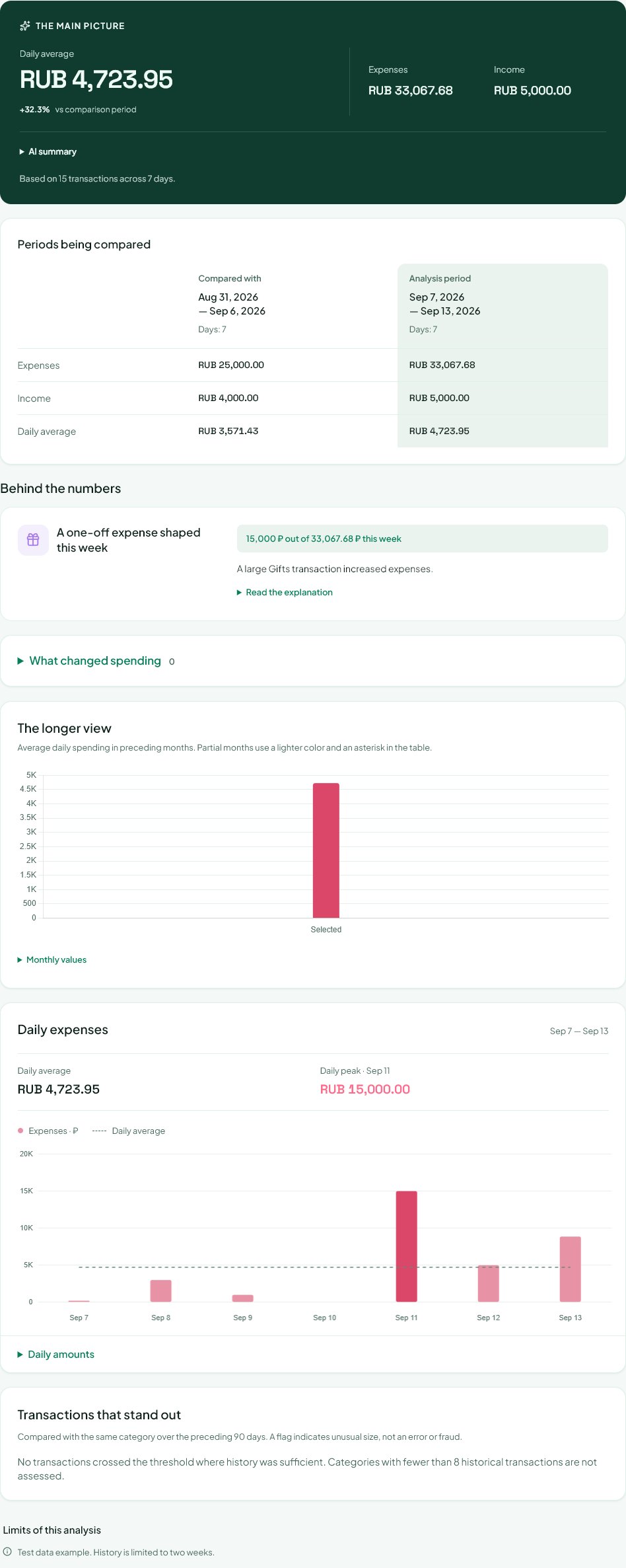
Start with the dates and completeness of your records, then move from numbers to explanations. Available findings depend on the data.
- The period summary shows income, expenses and average daily expenses. Expand the summary for a written explanation.
- What we compare shows dates, day counts and totals for both periods. Daily averages are more useful than raw totals for unequal lengths.
- Findings include supporting numbers. Expand additional explanations as needed.
- Expand categories to compare their contribution and transaction frequency. Charts show history and daily expenses; expandable lists provide exact values.
- Standout transactions have unusual amounts relative to the available history. A multiple of the median indicates the scale of a difference, not proof of an error or unnecessary spending.
- Read the analysis limitations. Short histories, incomplete periods and missing income can change the meaning of a finding. The report does not edit transactions.

Automatic reports
Open the AI Hub or AI settings and enable the reports you want. Enabling a schedule does not create an immediate report.
- Weekly digests run on Mondays for the last full week. Monthly reports run on the first day of the month for the last full month.
- Pattern analysis can run weekly or monthly. It compares the last complete week or month with the preceding complete week or month.
- Preparation runs in the background. Notification arrival is not guaranteed at an exact time and also depends on the job queue.
- Automation checks your workspaces separately. If several have data, each newly generated report uses quota separately.
- A matching saved report or pending preparation is reused. Automation does not approve a paid v2 on your behalf.
- Periods without income or expenses are skipped without using AI operations. If quota is insufficient for a new report, that automation is switched off. Enable it again after replenishing your quota.
PDF, pending reports and errors
Open a completed report and use the PDF download button at the top. On Android, save or share the file using the available device actions.
- PDF export uses the existing result without calling AI again. Keep the period and version with the file: it captures the export at download time.
- If preparation is pending, return through the archive later. Repeated clicks do not speed up the queue.
- If there is no data, check the workspace, dates and whether imported transactions have been confirmed.
- If quota has run out, check your plan and remaining AI operations. Additional packs require an eligible plan. Opening a saved report remains free.
- If preparation fails, try launching again. Reserved operations are released for a failed generation after a technical error. For recurring errors, send support the report type, dates and launch time.
What you should see
Your report is saved for the selected period. Read it again for free, download a PDF, or create a separate new version after changing the source data.
Create an account, then choose AI access
Reading saved reports is free. New generation uses AI operations and requires an eligible plan or active trial with enough remaining quota.
Still need help?
Tell us which step you got stuck on. Support can help you work through it.
Contact support ↗Contact us without signing in