
Spendella / Knowledge base
Understand AI operations and unavailable features
Check remaining usage, plan access and enabled automation. Manual transaction entry and an AI request are different actions.
This guide covers the free plan — setting it up yourself takes a minute.Get started free →
Updated 7 September 2026
Where to find it
- On the website
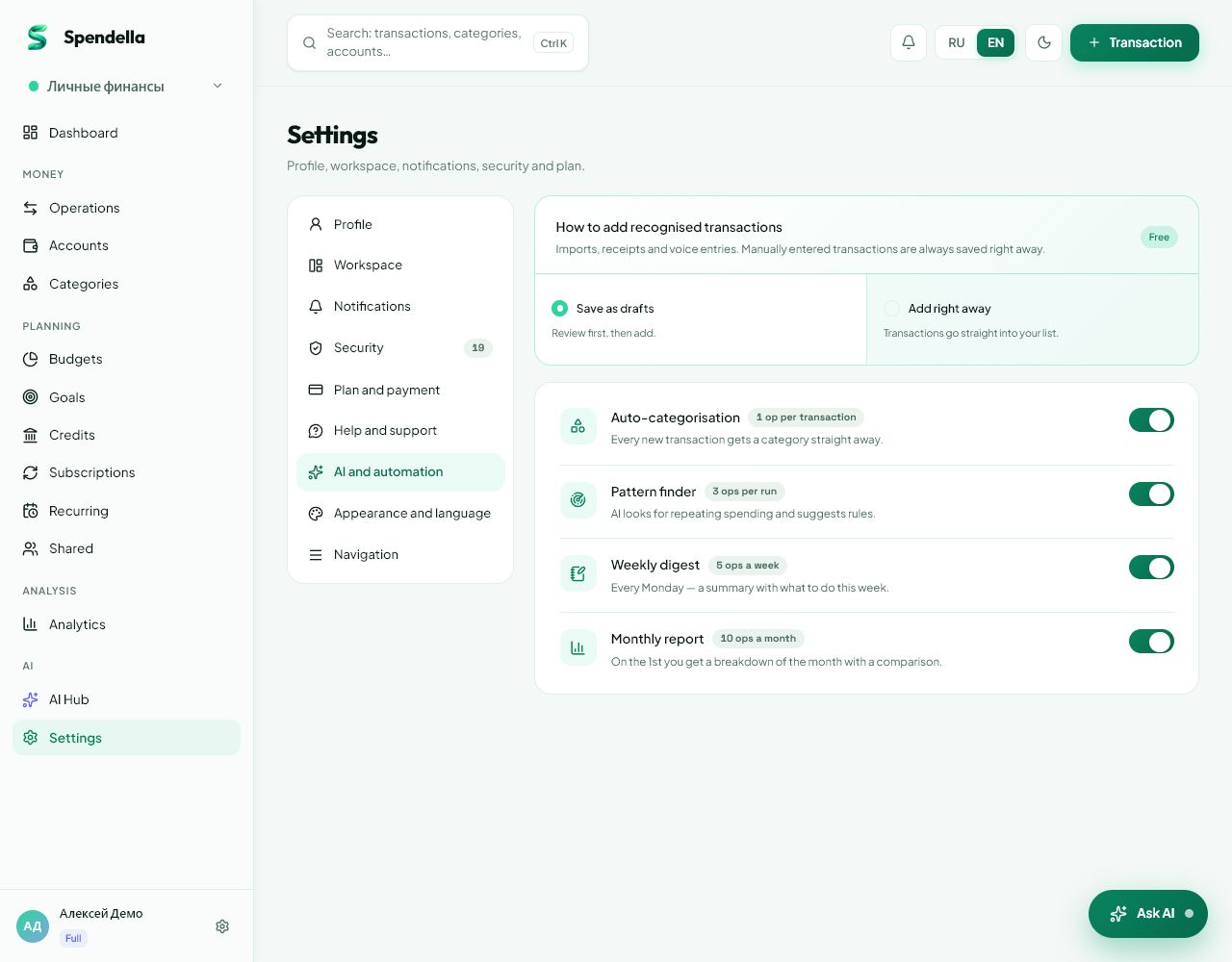
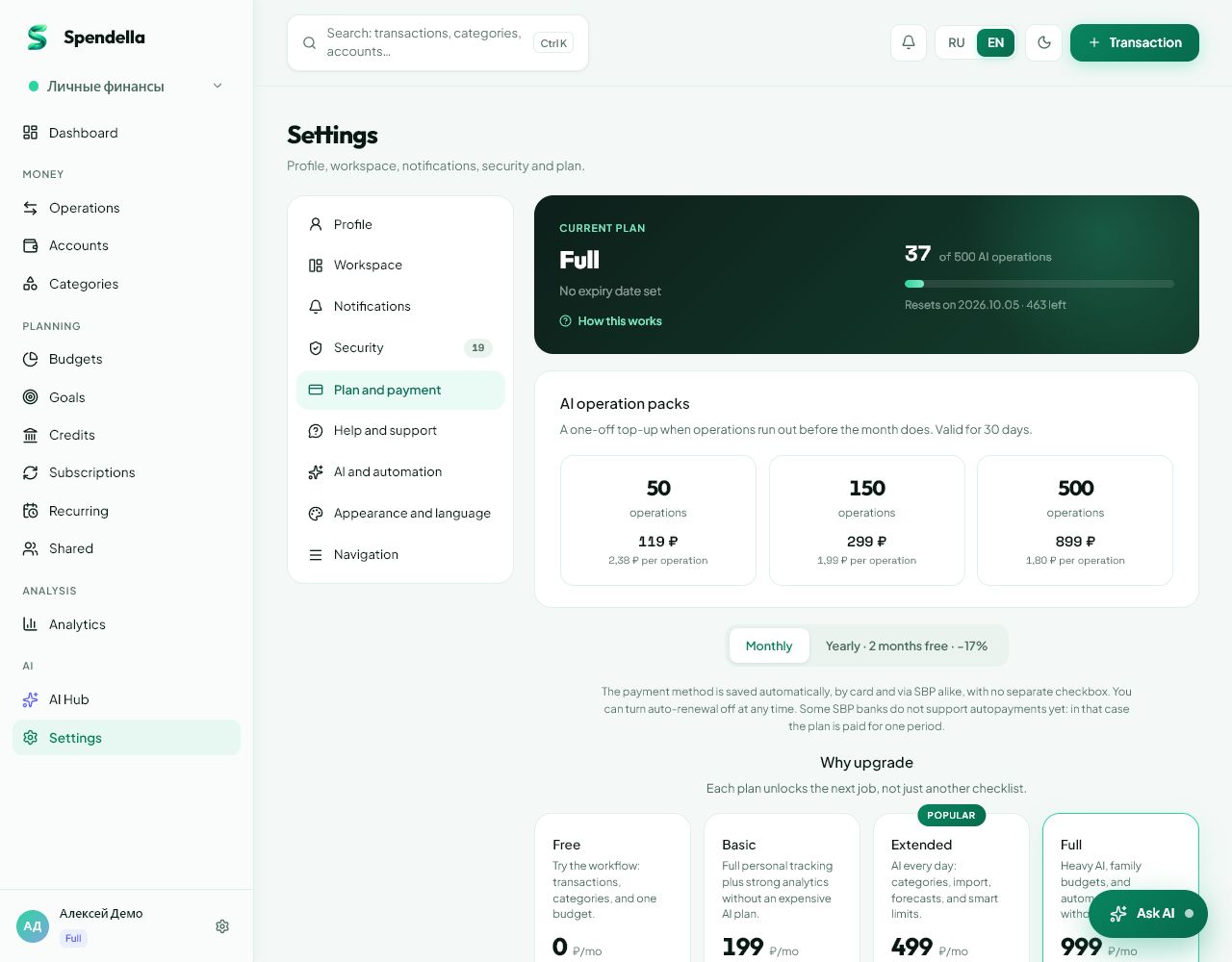
- Settings → AI; access terms are in Billing.
- On Android
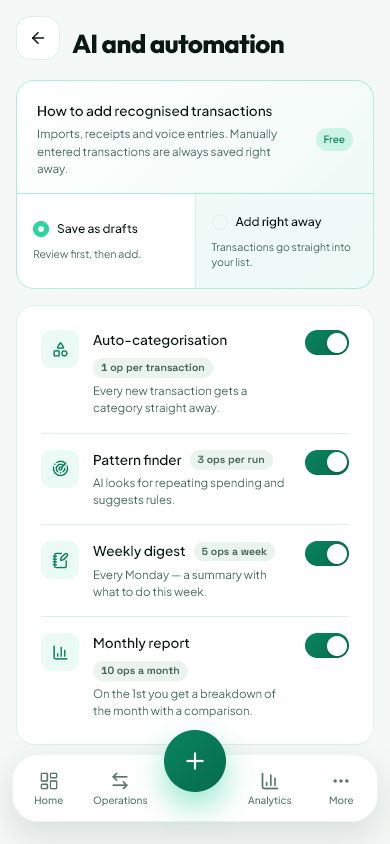
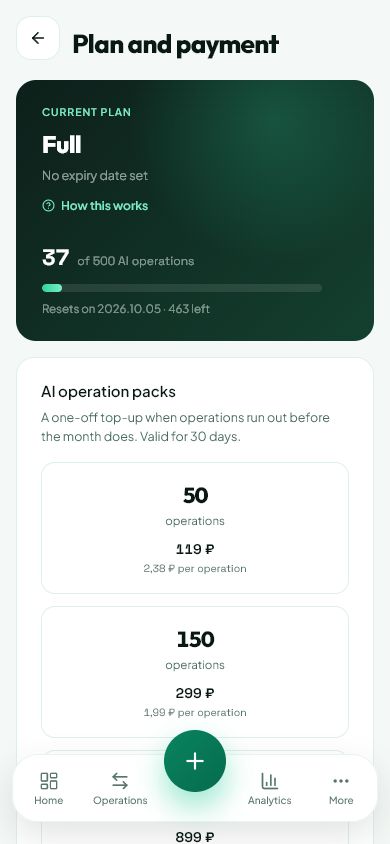
- More → Settings → AI settings or Billing.
Get started free and open this section Sign up in a minute, no card needed. This exact section opens right after.
01
Before you start
AI operations are usage units for intelligent features. Different tasks can consume different amounts. Check current balances and terms in your account; these may change with plans.
02
What to do
- Open AI settings and check the remaining allowance.
- For a locked feature, read its explanation and review plan access.
- Check automation: requests can run without you sending a chat message.
- Disable automatic summaries you do not need to reduce usage.
- If you need more access, review the billing offer first. Use the regular transaction form for manual purchase entry.
03
If something goes wrong
- After a connection error, check the result and allowance before sending repeatedly.
- Use the terms shown before payment rather than prices in an old article.
- For a disputed usage charge, give support the time and action name, not passwords or codes.
What you should see
You can distinguish exhausted allowance, missing plan access and other errors.
Try it yourself
Everything above is free.
No time limit, no card. Sign up and we open the section this guide is about.
Still need help?
Tell us which step you got stuck on. Support can help you work through it.
Contact support ↗Contact us without signing in