
Spendella / Knowledge base
Keep personal finances and workspaces separate
Use separate workspaces when different sets of finances should not share one report.
This guide covers the free plan — setting it up yourself takes a minute.Get started free →
Updated 7 September 2026
Where to find it
- On the website
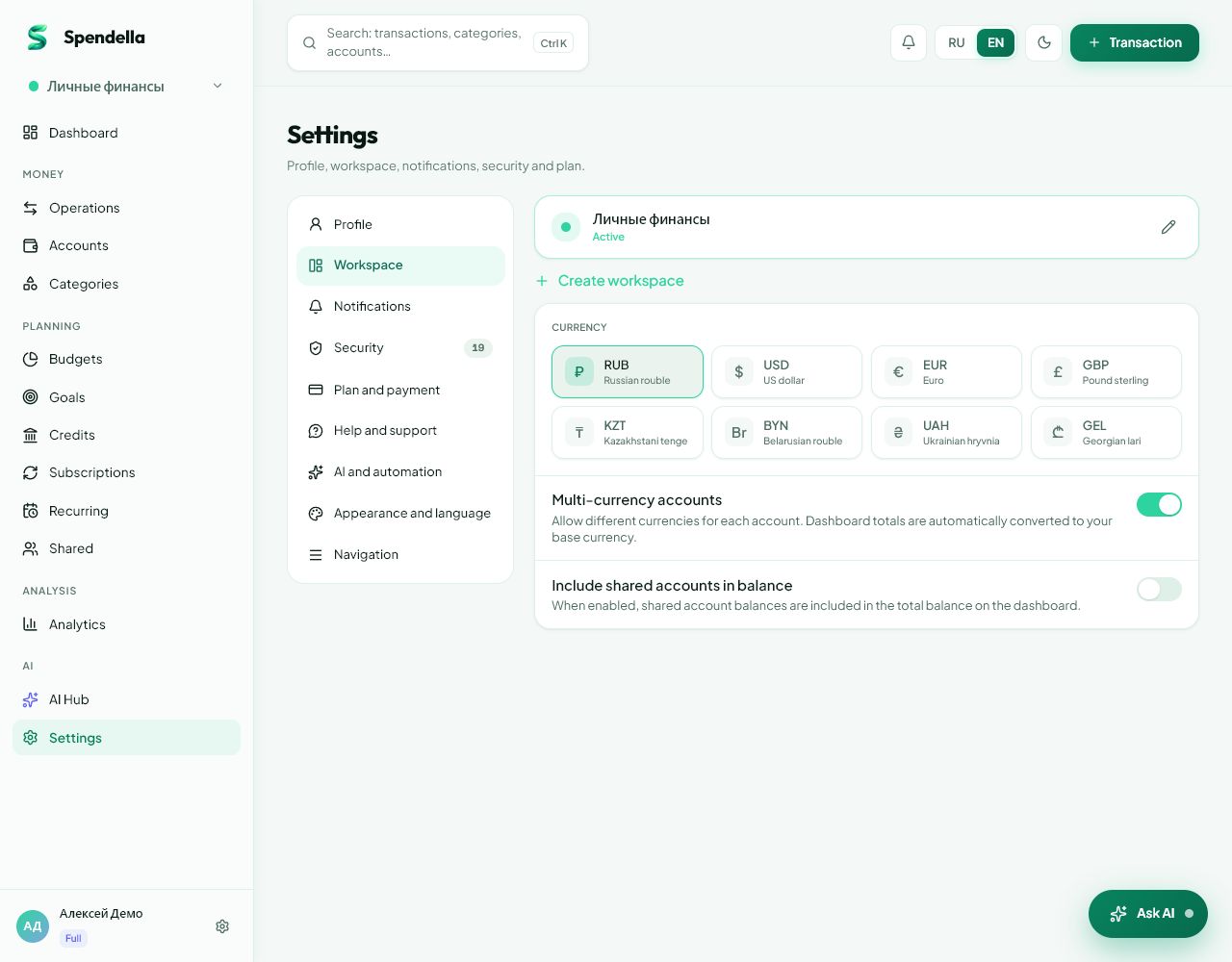
- Workspace switcher in the menu; manage in Settings → Workspaces.
- On Android
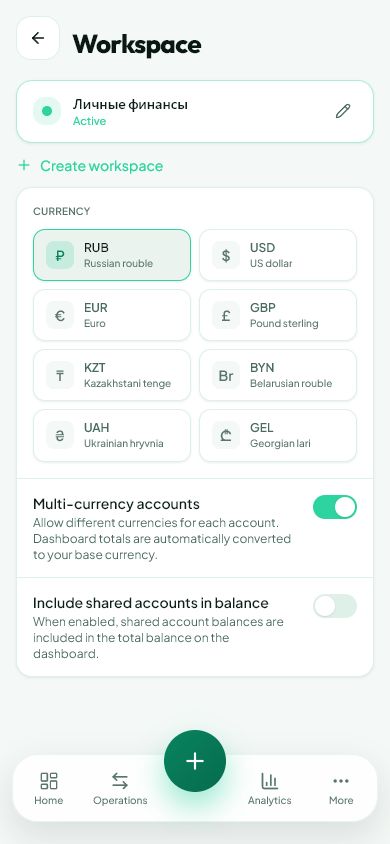
- More → workspace switcher; manage in Settings → Workspaces.
Get started free and open this section Sign up in a minute, no card needed. This exact section opens right after.
01
Before you start
A workspace is a separate tracking context. Switching does not transfer money. Personal spending and shared household finances can show different accounts and transactions.
02
What to do
- Open the switcher and check the current workspace.
- Select the intended workspace before entering transactions.
- To manage personal workspaces, open the workspace settings section.
- Create another only when you need separate records, and give it a clear name.
- After switching, check accounts and the heading before adding a purchase.
- Before deleting a workspace, read the warning and save any history you need.
03
If something goes wrong
- Transactions disappeared after switching: return to the previous workspace and check there.
- For shared access, use a shared workspace and invitation rather than sharing your login.
- To leave the current view, select another workspace instead of deleting it.
What you should see
Sections show data for the selected workspace.
Try it yourself
Everything above is free.
No time limit, no card. Sign up and we open the section this guide is about.
Still need help?
Tell us which step you got stuck on. Support can help you work through it.
Contact support ↗Contact us without signing in