
Spendella / Knowledge base
Invite someone and set their access
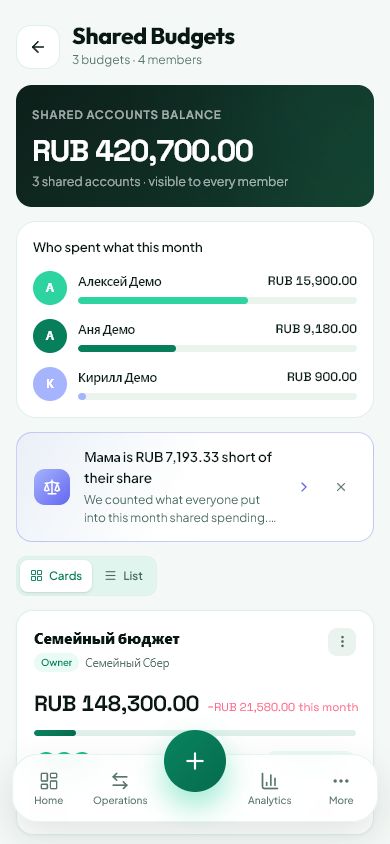
Create an invitation to a shared workspace and grant only the permissions they need.
This guide covers the free plan — setting it up yourself takes a minute.Get started free →
Updated 7 September 2026
Where to find it
- On the website
- Shared → workspace → members and invitation.
- On Android
- More → Shared → workspace → members.
Get started free and open this section Sign up in a minute, no card needed. This exact section opens right after.

01
Before you start
Each person needs their own Spendella account. Do not share your password. Viewers read data, editors have transaction permissions, and owners manage the workspace and members.
02
What to do
- Open the intended shared workspace rather than personal finances.
- Create or copy an invitation link and send it to the person you want to invite.
- Ask them to open the link, sign into their own account and confirm joining.
- Check that they appear in the member list.
- As the owner, review their role and adjust access if needed.
- If the link reaches the wrong person, revoke it and create a new one.
03
If something goes wrong
- Invitation fails: it may have expired or been revoked; request a new link.
- No edit button: check the role and transaction authorship. Viewing access does not permit editing every entry.
- To stop access, remove the member rather than deleting their personal account.
What you should see
The member can open the shared workspace with their assigned access.
Try it yourself
Everything above is free.
No time limit, no card. Sign up and we open the section this guide is about.
Still need help?
Tell us which step you got stuck on. Support can help you work through it.
Contact support ↗Contact us without signing in