
Spendella / Knowledge base
Manage shared finances
Separate shared purchases from personal spending and agree who records what.
This guide covers the free plan — setting it up yourself takes a minute.Get started free →
Updated 7 September 2026
Where to find it
- On the website
- Menu → Shared.
- On Android
- More → Shared.
Create a shared workspace
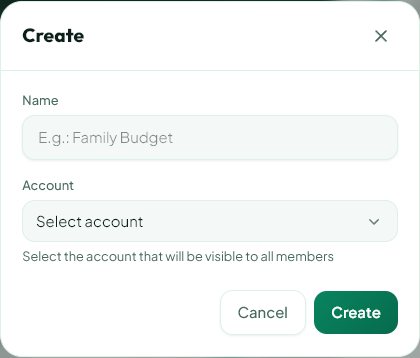
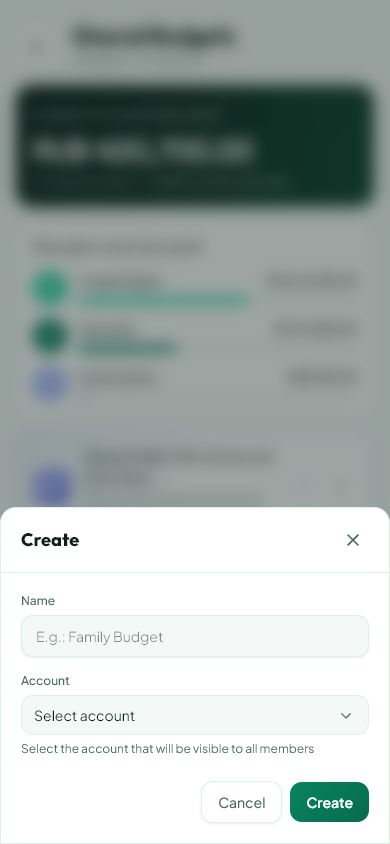
In Shared, create a workspace for your household, a trip or another shared purpose. Choose a name everyone will recognise.
- Invite people using the option offered in the interface.
- Check the member list and their permissions.
- Agree which expenses are shared, such as rent and groceries rather than personal purchases.
Check where you record an expense
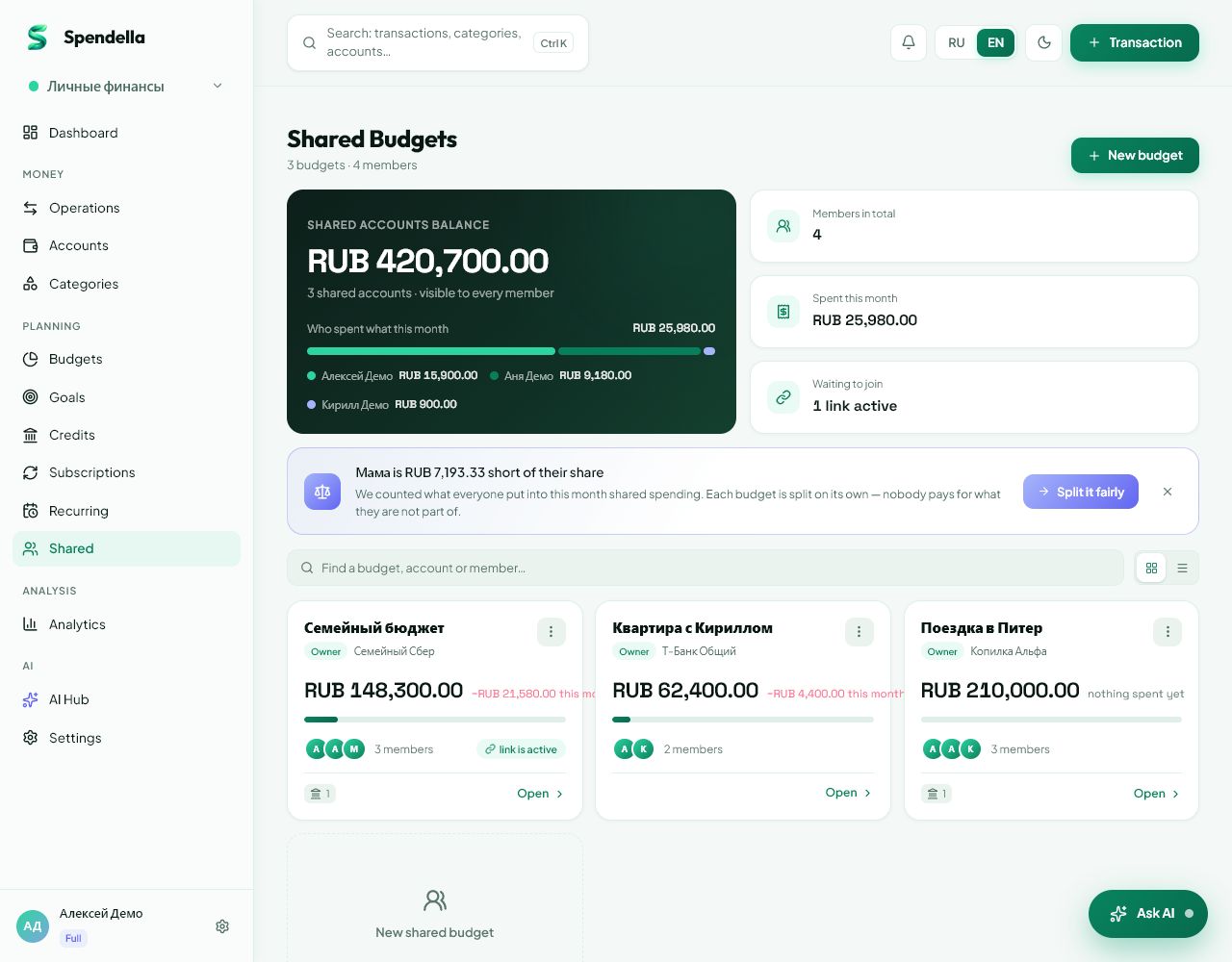
Before adding a purchase, look at the workspace switcher. Personal finances and a shared budget are separate contexts.
- Select the intended workspace.
- Record a shared purchase once, even if both people can see it.
- If an entry is missing, check the workspace and period filters.
Review the results together
Look at major shared expenses once a week. This is easier than reconstructing purchases from messages.
- Use category names everyone understands.
- Do not move all your personal history just for one shared purchase.
- Before changing permissions or deleting an entry, consider how it affects other members’ records.
What you should see
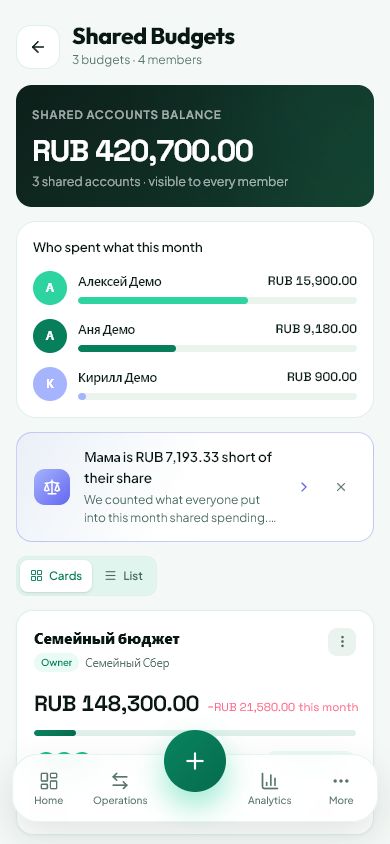
Shared purchases are tracked separately from personal finances.
Everything above is free.
No time limit, no card. Sign up and we open the section this guide is about.
Still need help?
Tell us which step you got stuck on. Support can help you work through it.
Contact support ↗Contact us without signing in