
Spendella / Knowledge base
How to manage shared limits, a goal and loans
An invitation is only the first step. Track shared purchases and plans within the budget while keeping personal finances separate.
This guide covers the free plan — setting it up yourself takes a minute.Get started free →
Updated 8 September 2026
Where to find it
- On the website
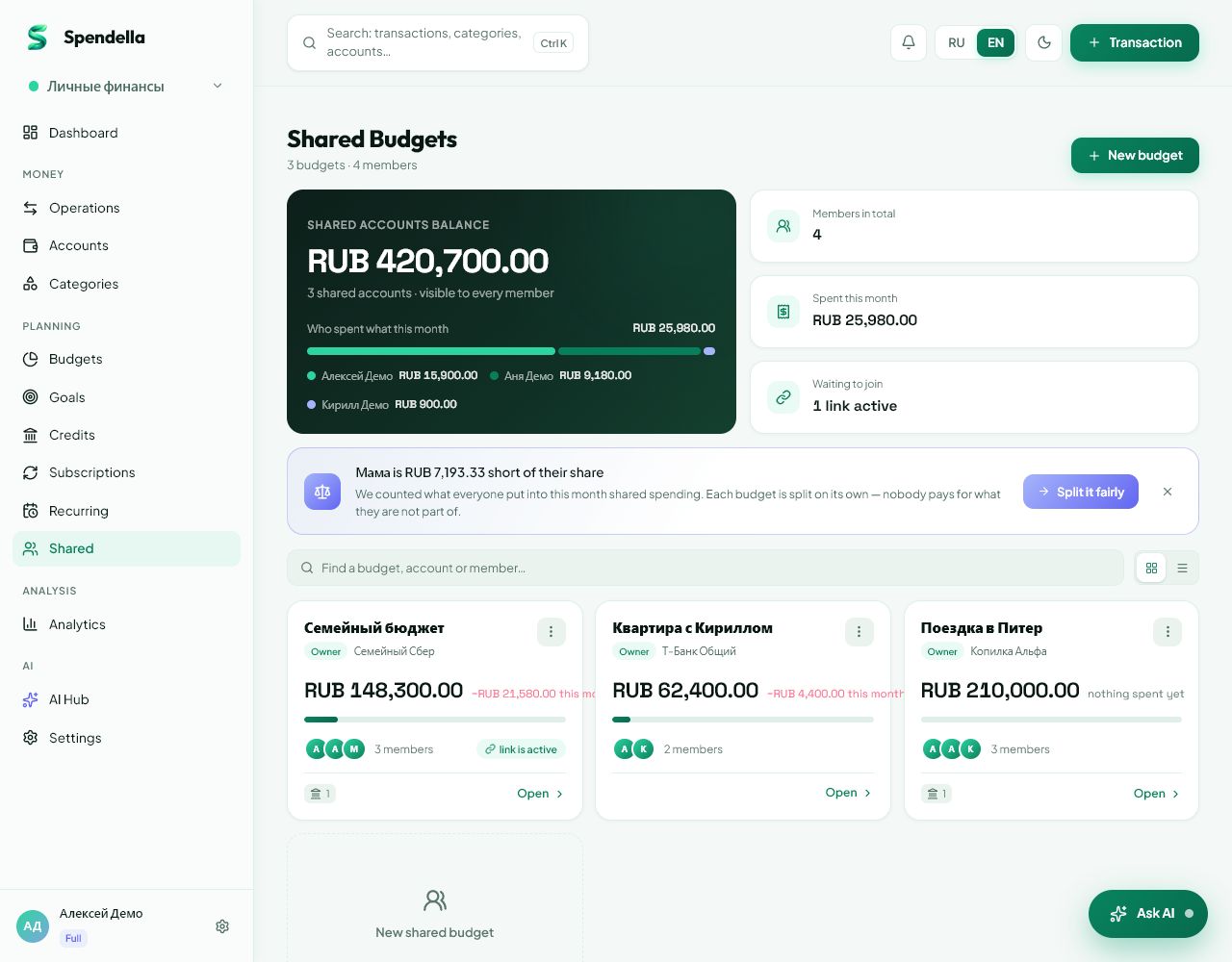
- Shared → select a budget.
- On Android
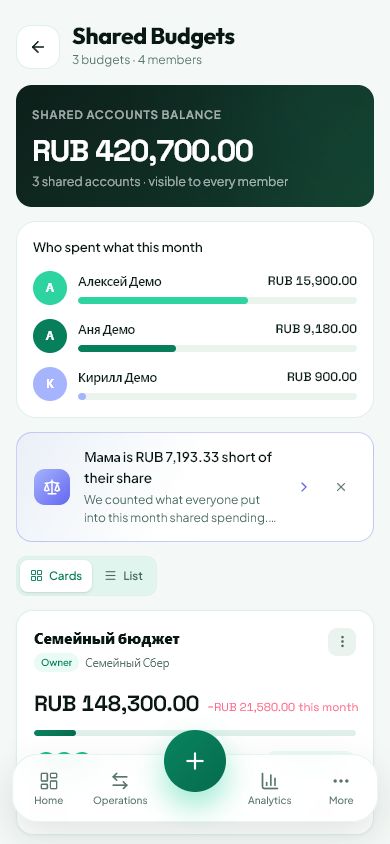
- More → Shared → select a budget.
Who can use it
Full allows creating shared budgets. People on any plan can join by invitation. Editing access within a budget depends on the member role.
Steps
- Open the correct shared budget and check its name and members.
- Add each shared purchase once. Another member does not need to create a copy.
- Open shared limits to choose a category and amount. Check the period and recorded expenses.
- Open the shared goal for savings. Record contributions and withdrawals through the dedicated actions, then check history.
- Track shared loans within that budget. Avoid recording the same debt again in personal finances.
- Read confirmations before changing access, leaving or deleting. A viewer should not expect the same edit controls as an owner.
If the result is not what you expected
If a section is empty, check the selected budget and your role. A missing button may reflect access permissions. Leaving and deleting a budget are different actions; do not delete one merely to return to personal finances.
What you should see
Shared purchases and plans are recorded in the selected budget, with each member using their own permissions.
Everything above is free.
No time limit, no card. Sign up and we open the section this guide is about.
Still need help?
Tell us which step you got stuck on. Support can help you work through it.
Contact support ↗Contact us without signing in