
Spendella / Knowledge base
Change language, theme and bottom navigation
Make the interface comfortable to use. Appearance changes do not change financial records.
This guide covers the free plan — setting it up yourself takes a minute.Get started free →
Updated 7 September 2026
Where to find it
- On the website
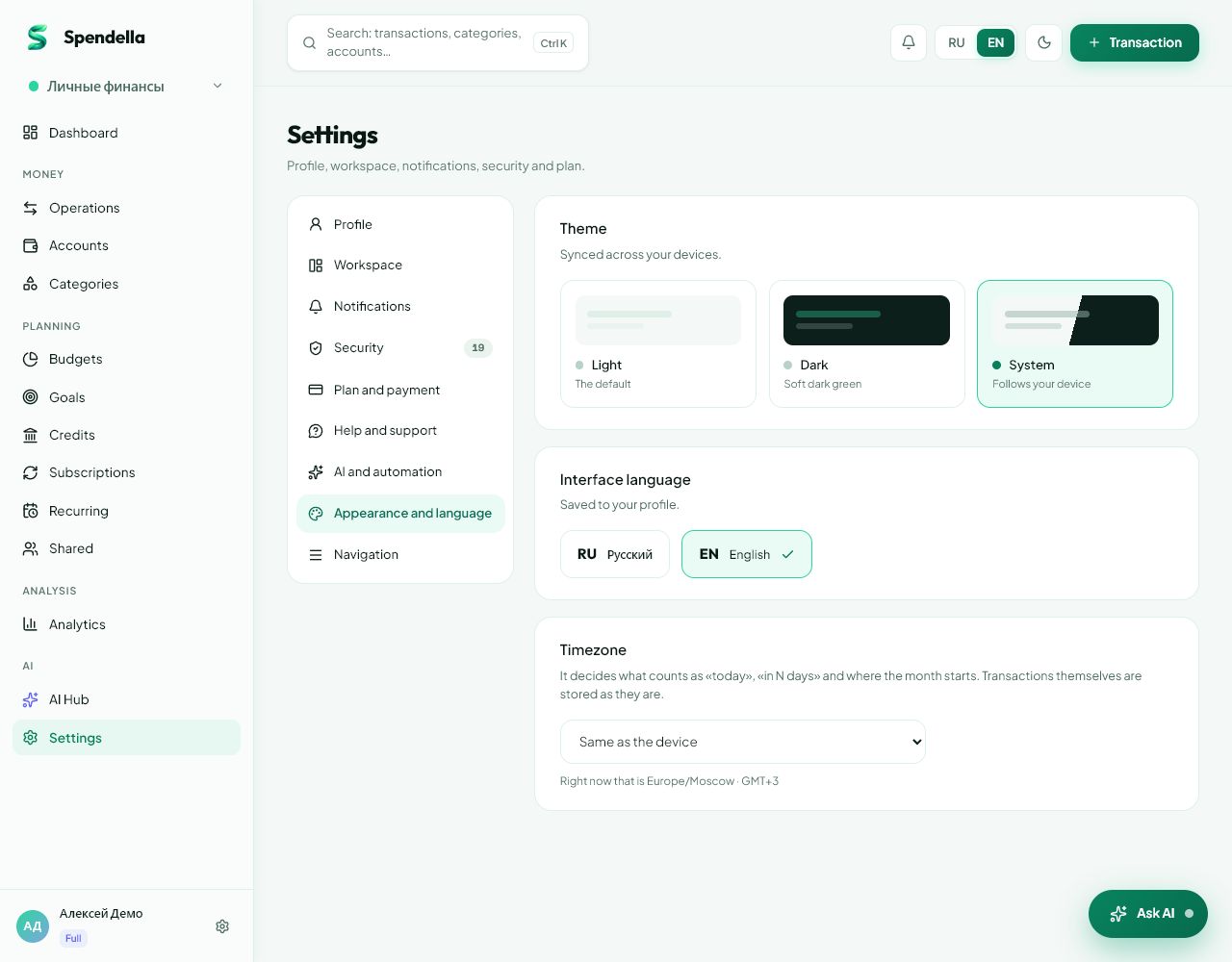
- Settings → Appearance; bottom bar in Settings → Navigation.
- On Android
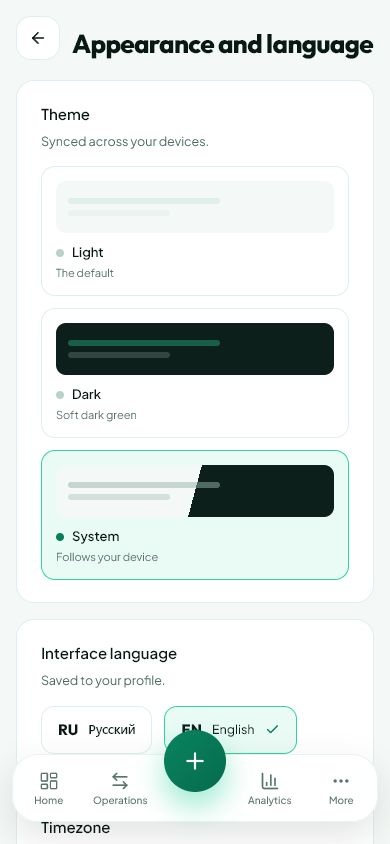
- More → Settings → Appearance or Bottom navigation.
Get started free and open this section Sign up in a minute, no card needed. This exact section opens right after.
01
Before you start
Language changes interface labels. Theme changes colours. Bottom navigation controls quick links; other sections remain in More.
02
What to do
- Open Appearance.
- Choose Russian or English. Wait for it to apply or save if a button is shown.
- Choose light, dark or system theme from the offered options.
- To configure the bottom bar, open Navigation or Bottom navigation.
- Select available quick sections and their order using the controls on screen.
- Save and return to the app to check the buttons.
03
If something goes wrong
- System theme follows phone or computer settings.
- A familiar bottom button disappeared: find it in More, then restore it in navigation settings.
- Changing language does not automatically translate your own account or purchase names.
What you should see
The interface uses the selected language, theme and quick links.
Try it yourself
Everything above is free.
No time limit, no card. Sign up and we open the section this guide is about.
Still need help?
Tell us which step you got stuck on. Support can help you work through it.
Contact support ↗Contact us without signing in