
Spendella / Knowledge base
Rename or delete an account
Renaming and deleting solve different problems. Check whether you still need the linked history before deleting.
This guide covers the free plan — setting it up yourself takes a minute.Get started free →
Updated 7 September 2026
Where to find it
- On the website
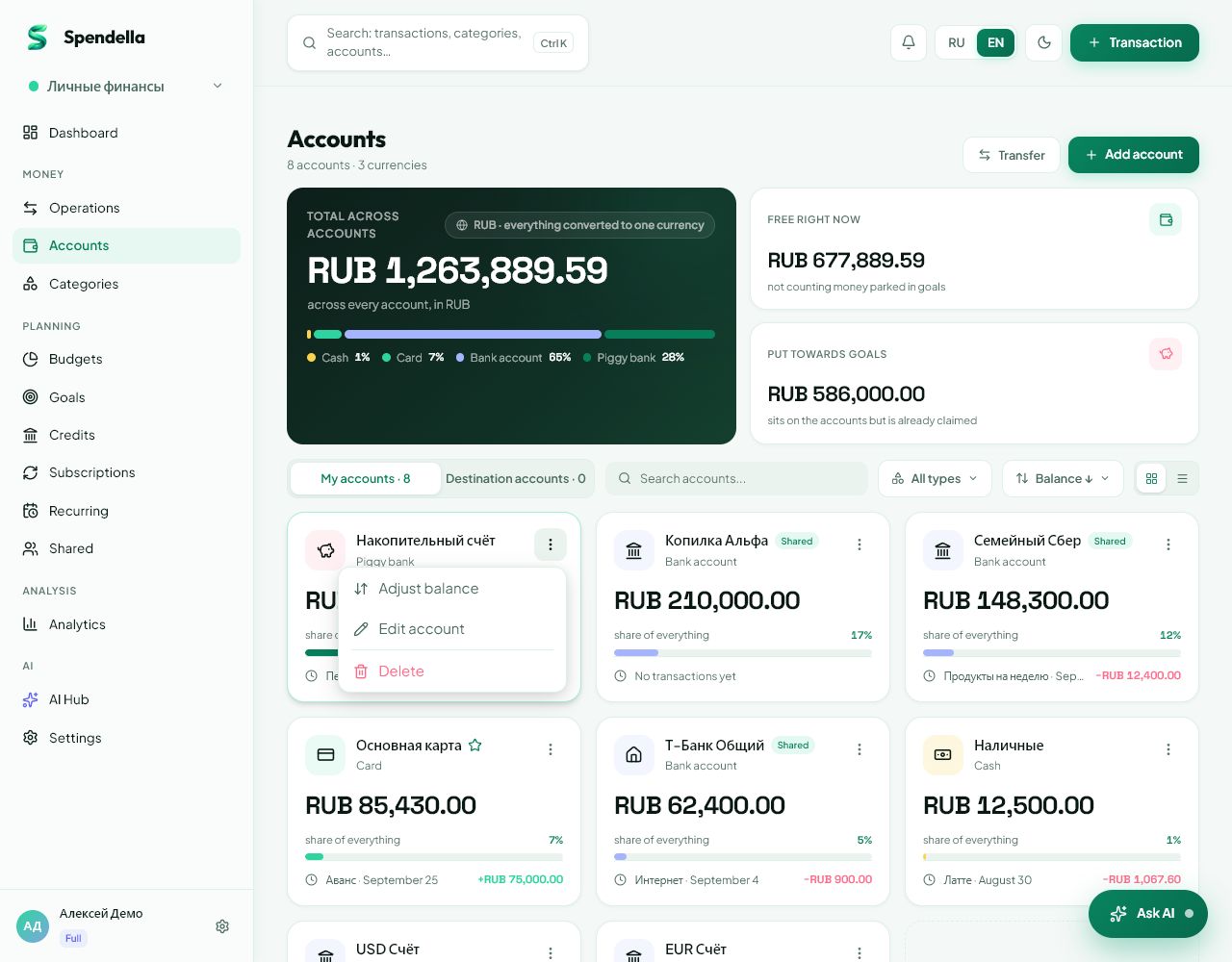
- Accounts → the account’s action menu.
- On Android
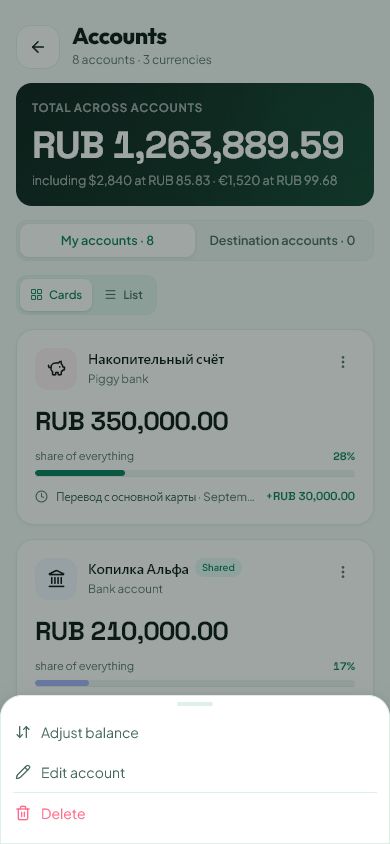
- More → Accounts → the account’s action menu.
Get started free and open this section Sign up in a minute, no card needed. This exact section opens right after.
01
Before you start
If only the card name changed, edit it. Deleting an account affects linked transactions. It is not a way to hide an old card while keeping all of its tracking unchanged.
02
What to do
- Open Accounts and find the entry.
- To rename it, choose edit, change the name and save.
- Before deleting, review transactions and linked plans. Export any history you need on the website.
- Choose delete and read the confirmation.
- Check the account name again. Confirm only if you intend to remove it from your records.
03
If something goes wrong
- Do not delete an account to fix its balance; use balance adjustment.
- If deletion is blocked, read the error and check linked goals or plans.
- Cancelling the confirmation leaves the account in place.
What you should see
Renaming keeps the same account under a new name. Deletion can remove its history from the relevant reports.
Try it yourself
Everything above is free.
No time limit, no card. Sign up and we open the section this guide is about.
Still need help?
Tell us which step you got stuck on. Support can help you work through it.
Contact support ↗Contact us without signing in