
Spendella / Knowledge base
Register and complete the first setup
Create an account, verify your email and prepare your first account. You do not need to enter your entire history.
Updated 7 September 2026
Where to find it
- On the website
- Sign-in page → registration.
- On Android
- Choose registration on the sign-in screen.
01
Before you start
Use an email address you can access. Verification and password-reset messages go there. The same account works on the website and Android.
02
What to do
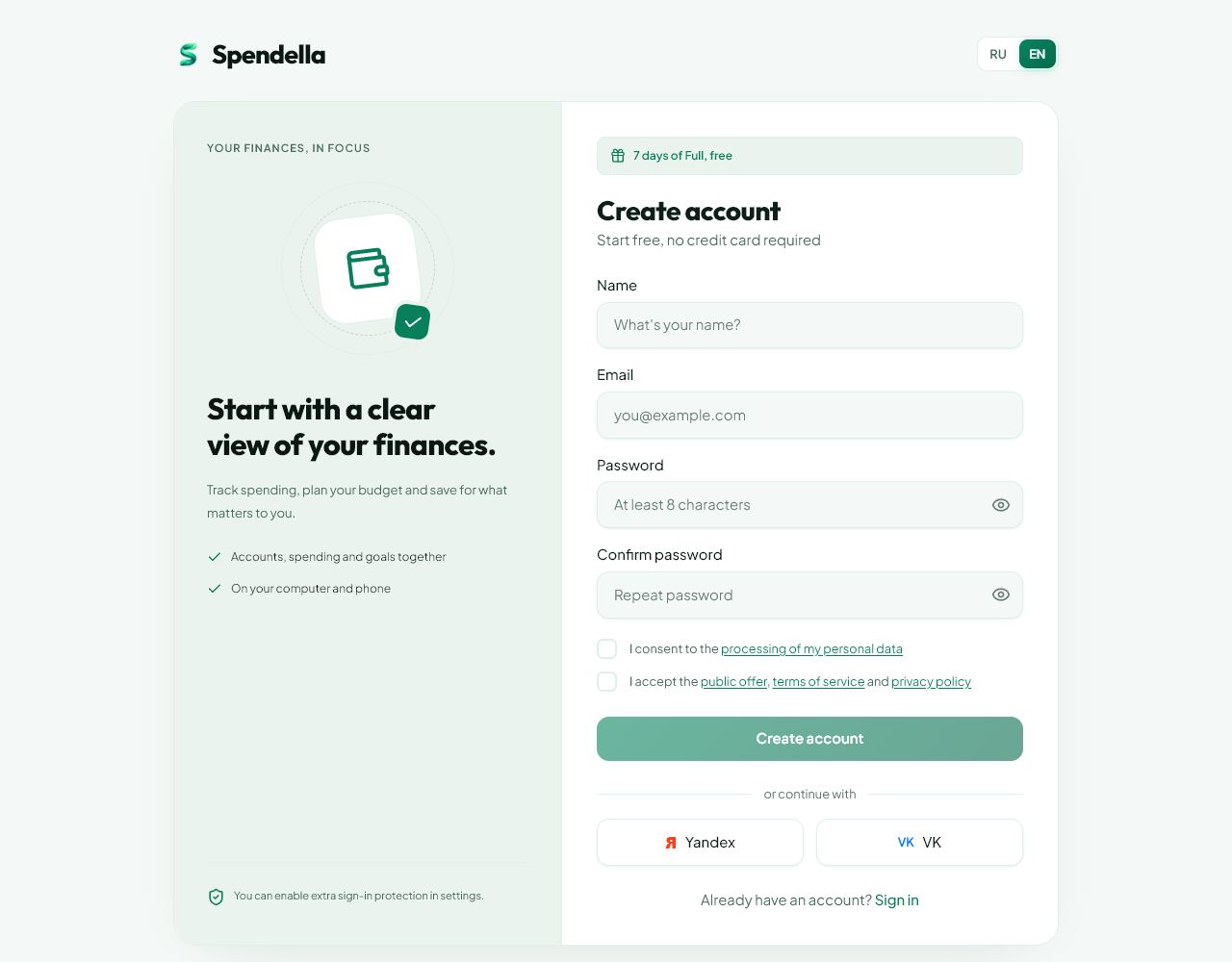
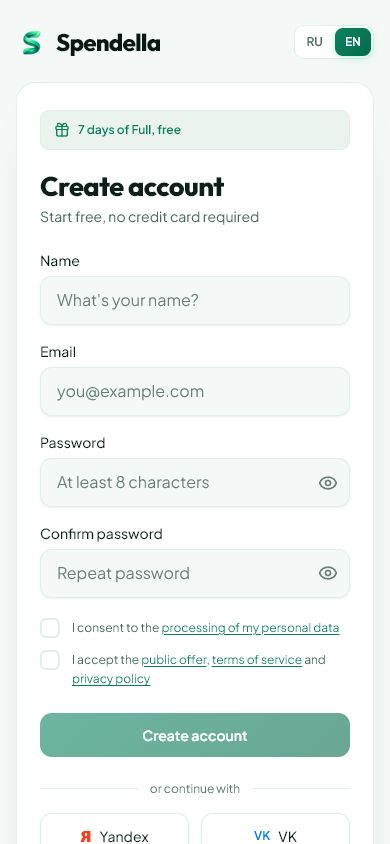
- Choose registration. Fill in the form, choose a password and enter it again unchanged.
- Read the terms, select the required consents and submit once.
- If email verification appears, open the Spendella email and follow its instructions.
- In the first setup, choose the currency you use most. It is used for your financial overview.
- Review account names, currencies and balances on the account card. A balance is what you have now, not your monthly salary.
- Finish setup and add one purchase to check the result.
03
If something goes wrong
- Email already used: try signing in or resetting your password instead of creating another account.
- No email: check the address and spam folder. Wait until the resend button becomes available.
- Unsure of the balance: check with your bank. A wrong opening balance makes later totals confusing.
What you should see
Your dashboard opens with the accounts and settings you chose.
Get started
Open the relevant section ↗Register and complete the first setup
Still need help?
Tell us which step you got stuck on. Support can help you work through it.
Contact support ↗Contact us without signing in