
Spendella / Knowledge base
Find a section or use search
Learn where the menu, plus button and search are. Start here if you are new to the interface.
This guide covers the free plan — setting it up yourself takes a minute.Get started free →
Updated 7 September 2026
Where to find it
- On the website
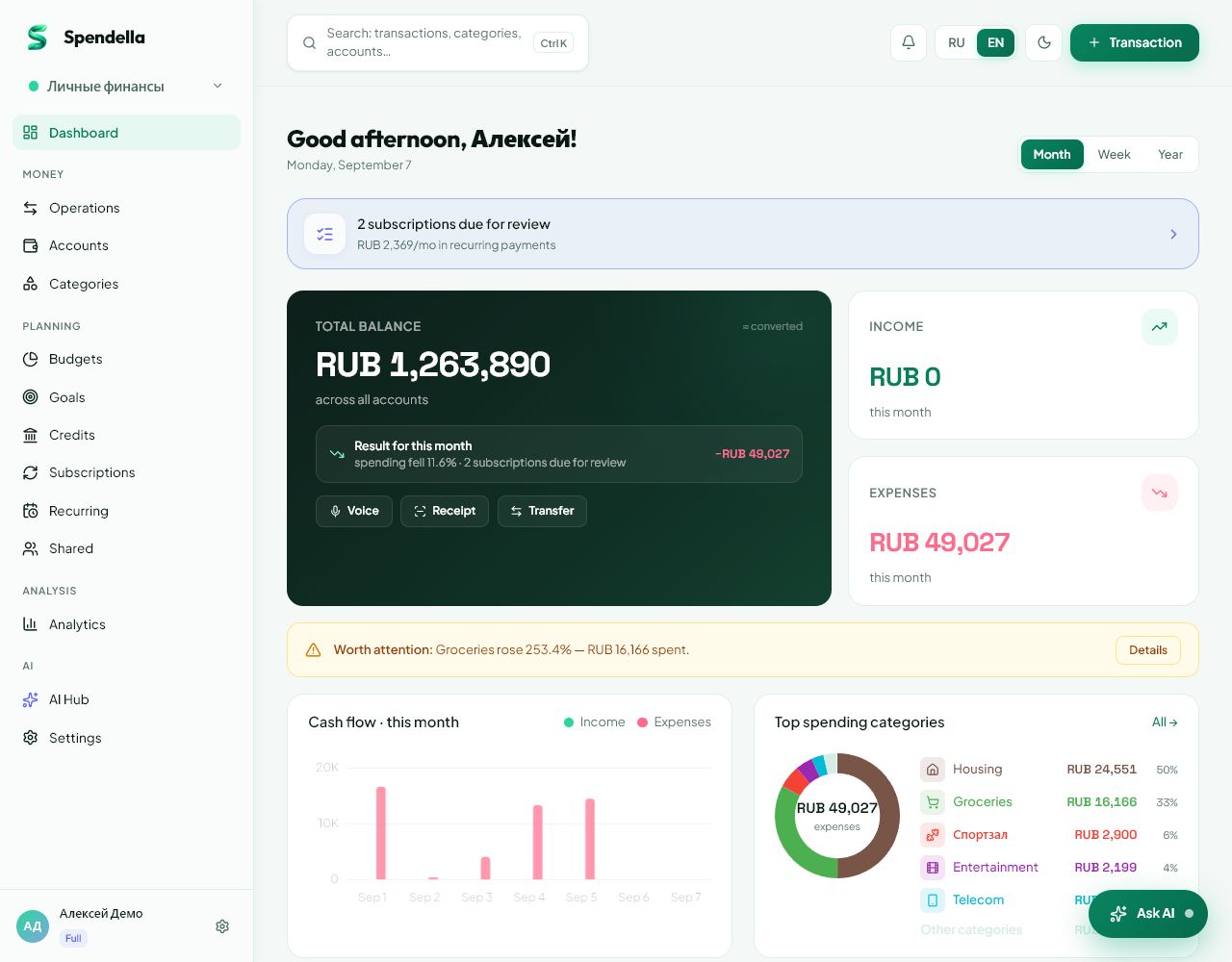
- Sections are in the sidebar; search is at the top of the dashboard.
- On Android
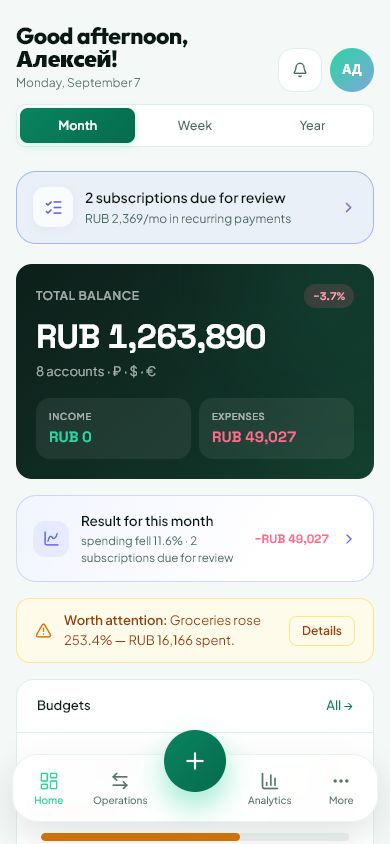
- Sections and search are in More. Frequent sections are on the bottom bar.
Get started free and open this section Sign up in a minute, no card needed. This exact section opens right after.
01
Before you start
Home shows the overview. Transactions contains individual income, expenses and transfers. Analytics helps explain recorded data. Settings controls your account and how the app looks.
02
What to do
- On a computer, choose a section on the left. On Android, open More if the section is not on the bottom bar.
- To add an entry, tap the plus and choose how you want to record it.
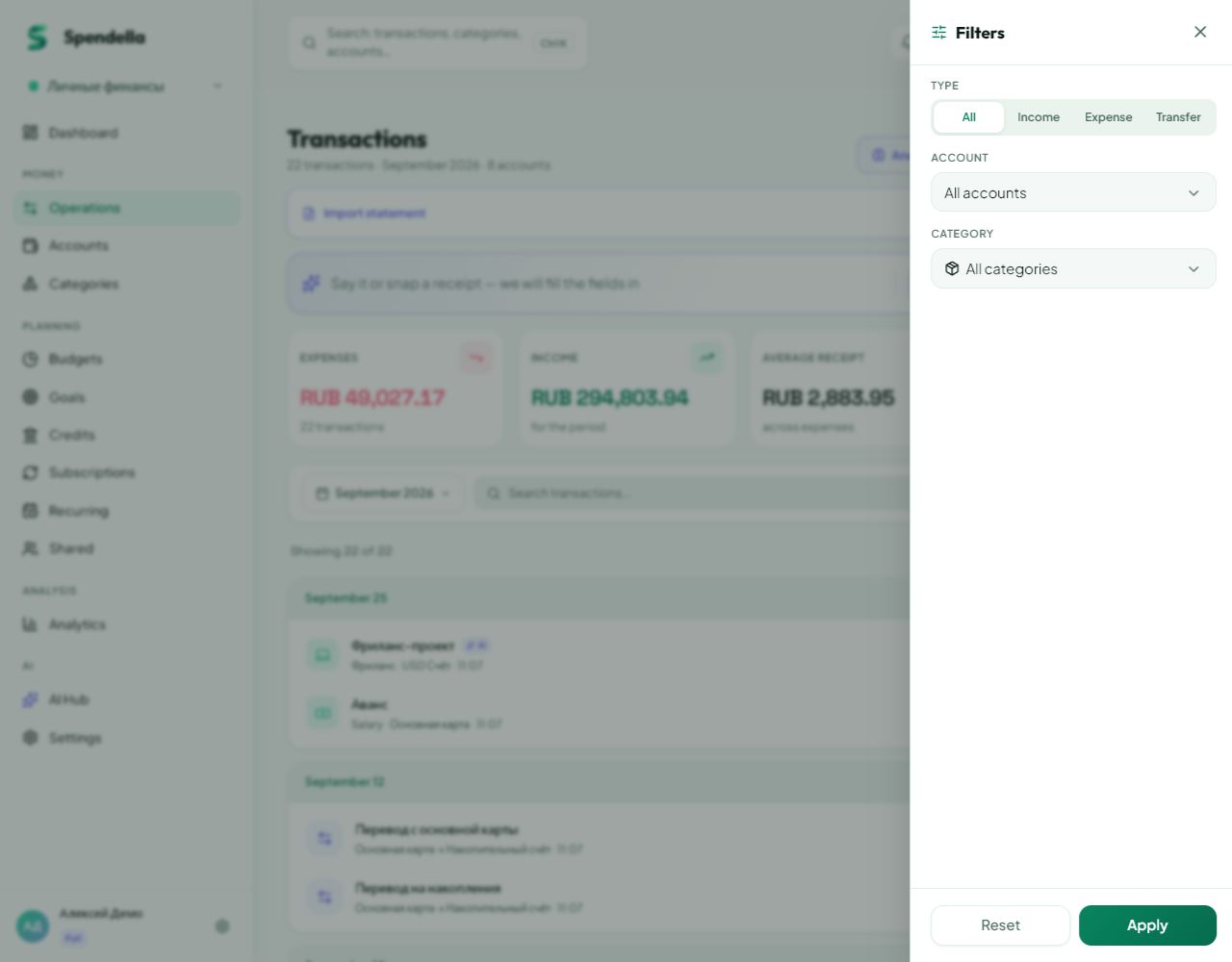
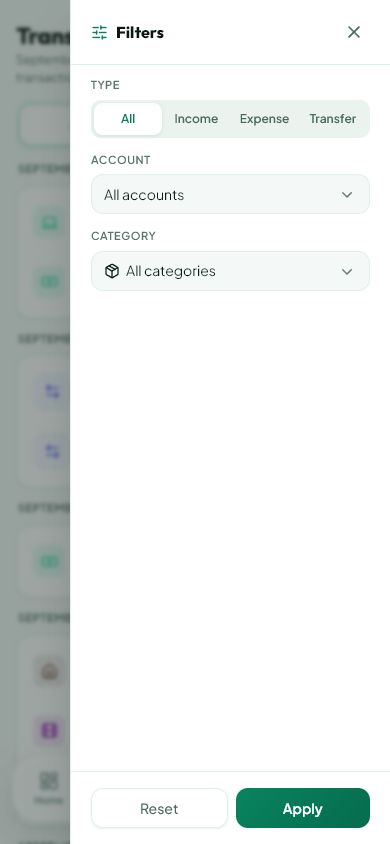
- To find an existing item, open search and enter a recognisable part of a shop, account or goal name.
- Check which section each result belongs to and select the relevant row.
- For instructions, open the knowledge base from settings or support. Its search finds articles, not your purchases.
03
If something goes wrong
- No results: shorten the query to one word and check the selected workspace.
- A section is missing from the Android bottom bar: look in More. The bar can be customised.
- A locked option: check your current plan in billing settings.
What you should see
The selected section or search result opens.
Try it yourself
Everything above is free.
No time limit, no card. Sign up and we open the section this guide is about.
Still need help?
Tell us which step you got stuck on. Support can help you work through it.
Contact support ↗Contact us without signing in